Set Up the App
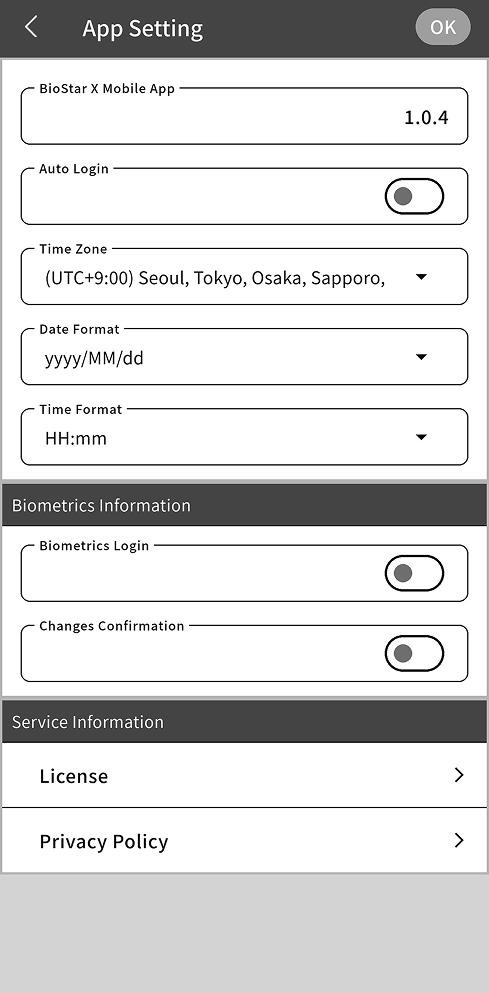
In the BioStar X Mobile App settings menu, manage the app's main features, including login, time zone, and security. To access the app settings menu, tap in the upper right corner of the Home screen.
Check app version information
In BioStar X Mobile App, check the version information for the currently installed BioStar X Mobile App. Tap BioStar X Mobile App to check whether the installed app is the latest version.
Use the app version information when contacting support for troubleshooting.
Login settings
Automatic login settings
Users can enable the automatic login feature instead of entering login information each time they open the app or log in again after the session expires.
-
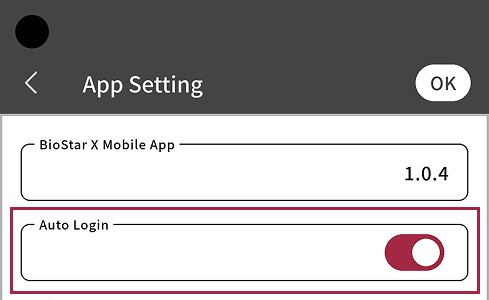
To enable the automatic login feature, turn on the Auto Login option.
-
To save changes, tap OK in the upper right corner of the screen.
-
When the confirmation message appears, tap Yes.
-
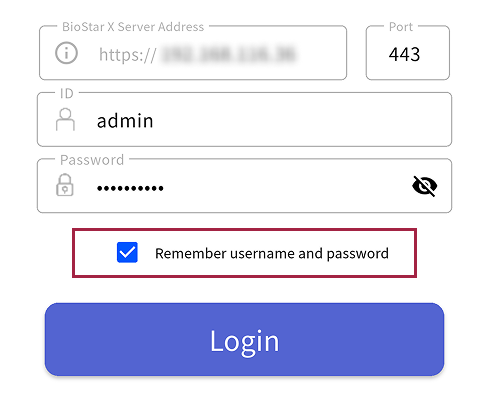
Use the automatic login feature only when Remember username and password is enabled on the login screen. If this option is not enabled, the automatic login feature is unavailable.
-
If the automatic login feature is enabled, logout is unavailable. To log out, disable the automatic login feature first, and then log out.
Biometric login settings
On mobile devices with biometric authentication, enable the biometric login feature. When this feature is enabled, users can log in with the fingerprint enrolled on their mobile device instead of an ID and password.
-
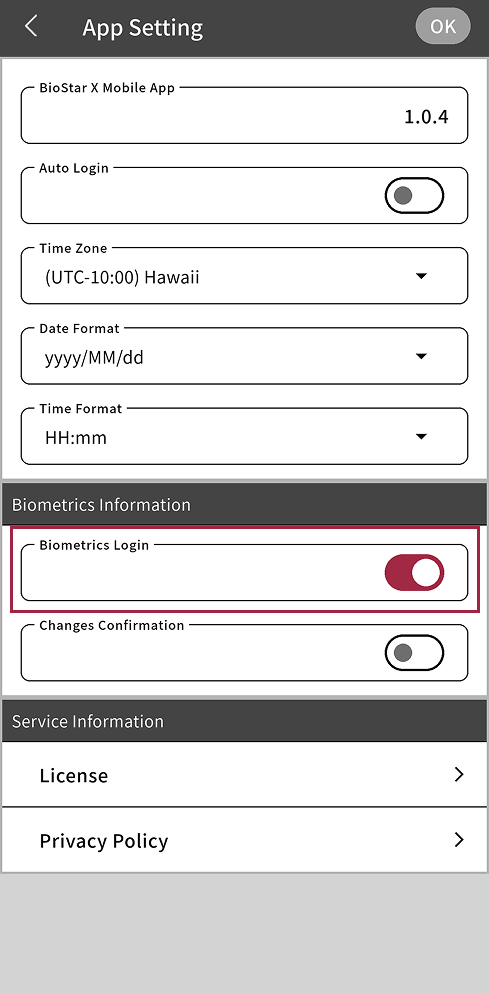
To enable the biometric login feature, tap Biometrics Information → Biometrics Login.
-
To save changes, tap OK in the upper right corner of the screen.
-
When the confirmation message appears, tap Yes.
Use biometric authentication on the login screen.
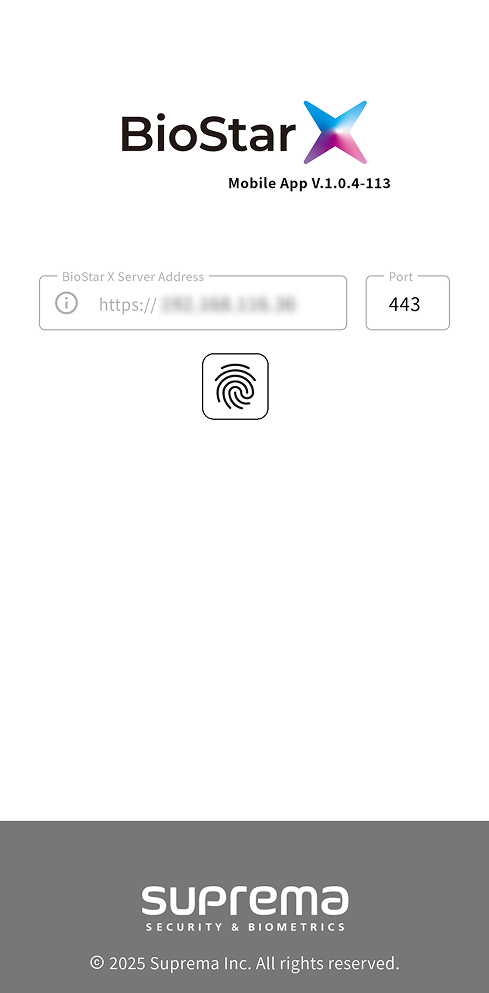
This feature requires biometric authentication on the mobile device and the Remember username and password option enabled on the login screen.
Standard time zone settings
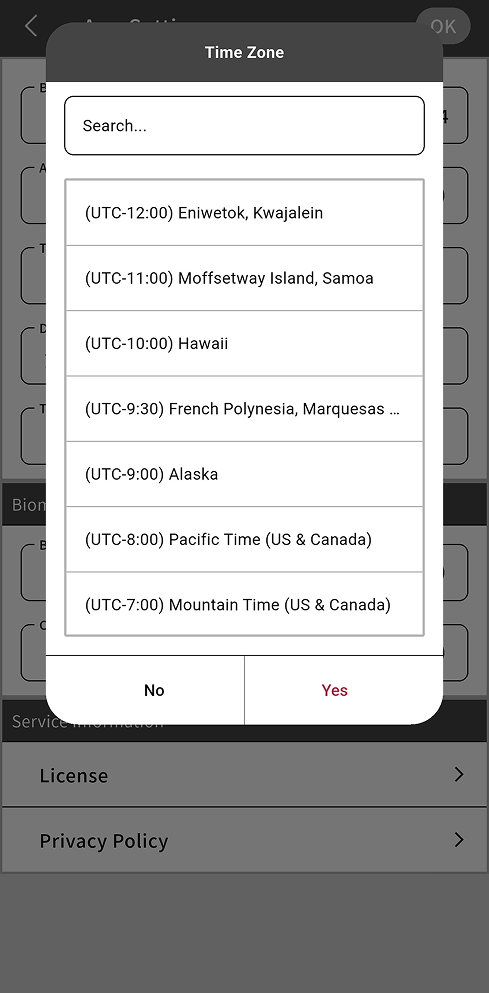
Set the time zone for the location where the BioStar X server is installed. A correct time zone setting is important for accurate timestamps in event logs and notifications.
-
Tap Time Zone.
-
Select the time zone for the location where the BioStar X server is installed from the time zone list.
-
Tap Yes.
-
To save changes, tap OK in the upper right corner of the screen.
-
When the confirmation message appears, tap Yes.
The changed setting also applies to the BioStar X server, and the timestamps in event logs and notifications shown in the app reflect the updated time zone.
Date and time display format settings
You can set the date and time display format to be used across the system.
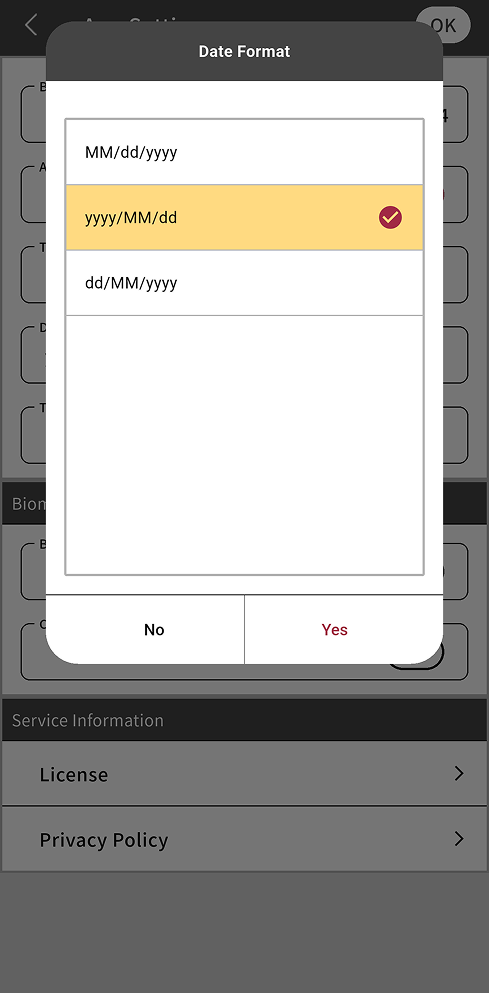
Date display format
-
Tap Date Format.
-
Select the desired date display format from the Date Format list.
-
MM/dd/yyyy: 01/31/2025
-
yyyy/MM/dd: 2025/01/31
-
dd/MM/yyyy: 31/01/2025
-
-
Tap Yes.
-
To save changes, tap OK in the upper right corner of the screen.
-
When the confirmation message appears, tap Yes.
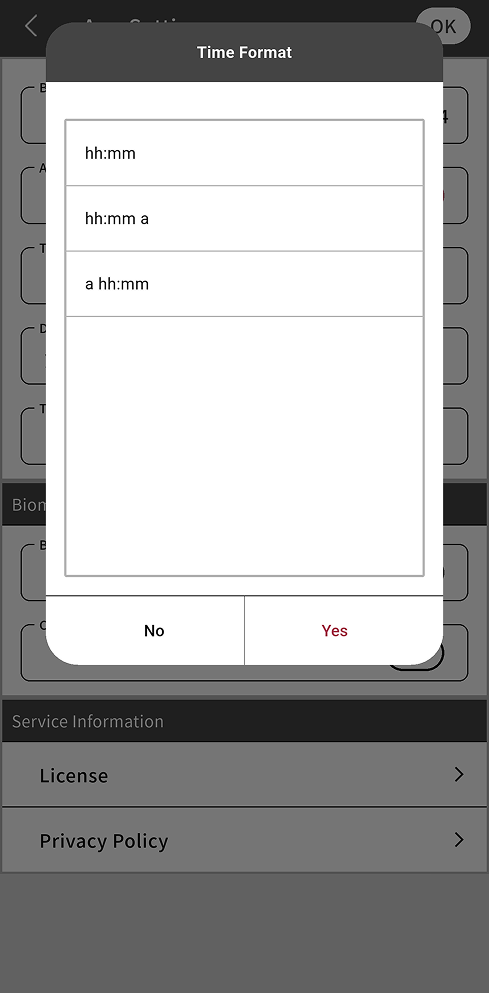
Time display format
-
Tap Time Format.
-
Select the desired time display format from the Time Format list.
-
hh:mm: 23:59, 24-hour format
-
hh:mm a: 11:59 PM, 12-hour format
-
a hh:mm: PM 11:59, 12-hour format
-
-
Tap Yes.
-
To save changes, tap OK in the upper right corner of the screen.
-
When the confirmation message appears, tap Yes.
Confirm changes with biometrics
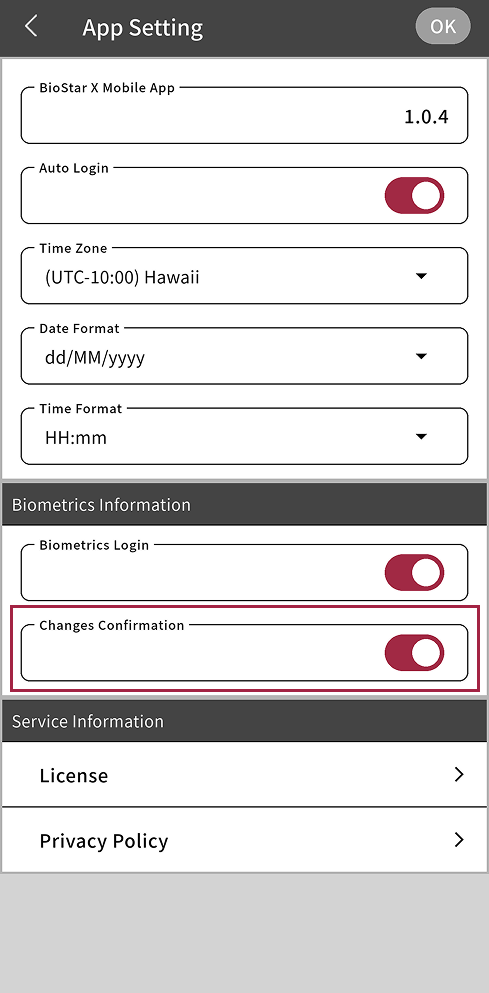
When making important system changes, you can require additional authentication with biometrics. This helps prevent unauthorized changes by other users.
-
Tap Biometrics Information → Changes Confirmation.
-
To save changes, tap OK in the upper right corner of the screen.
-
When the confirmation message appears, tap Yes.
The following changes require biometric authentication.
-
Change account password
-
Change app settings
-
Register a new user
-
Edit user information
-
Delete users
Viewing license information and the privacy policy
-
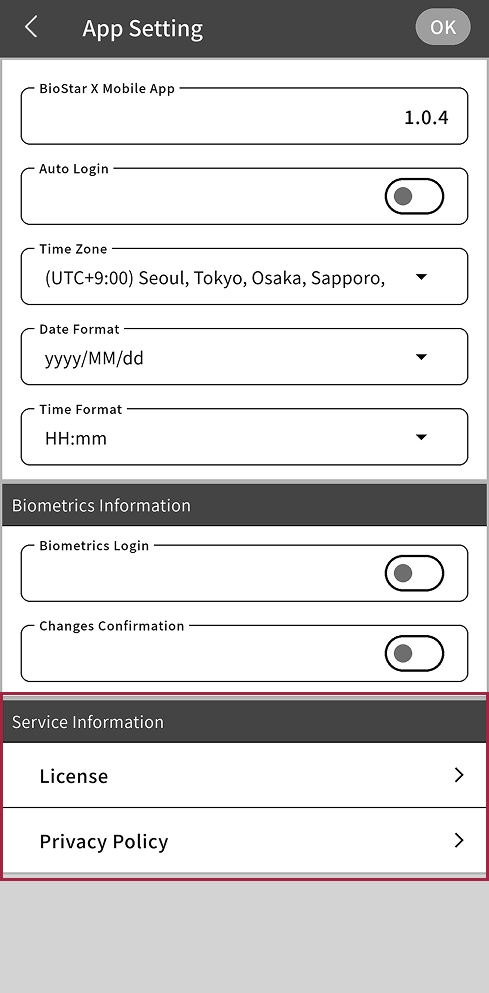
To view the license information applied to the BioStar X Mobile App, tap Service Information → License.
-
To view Suprema's privacy policy, tap Service Information → Privacy Policy. Use the link provided in the app to view Suprema's privacy policy posted on the official website.