Check and Resolve Alerts
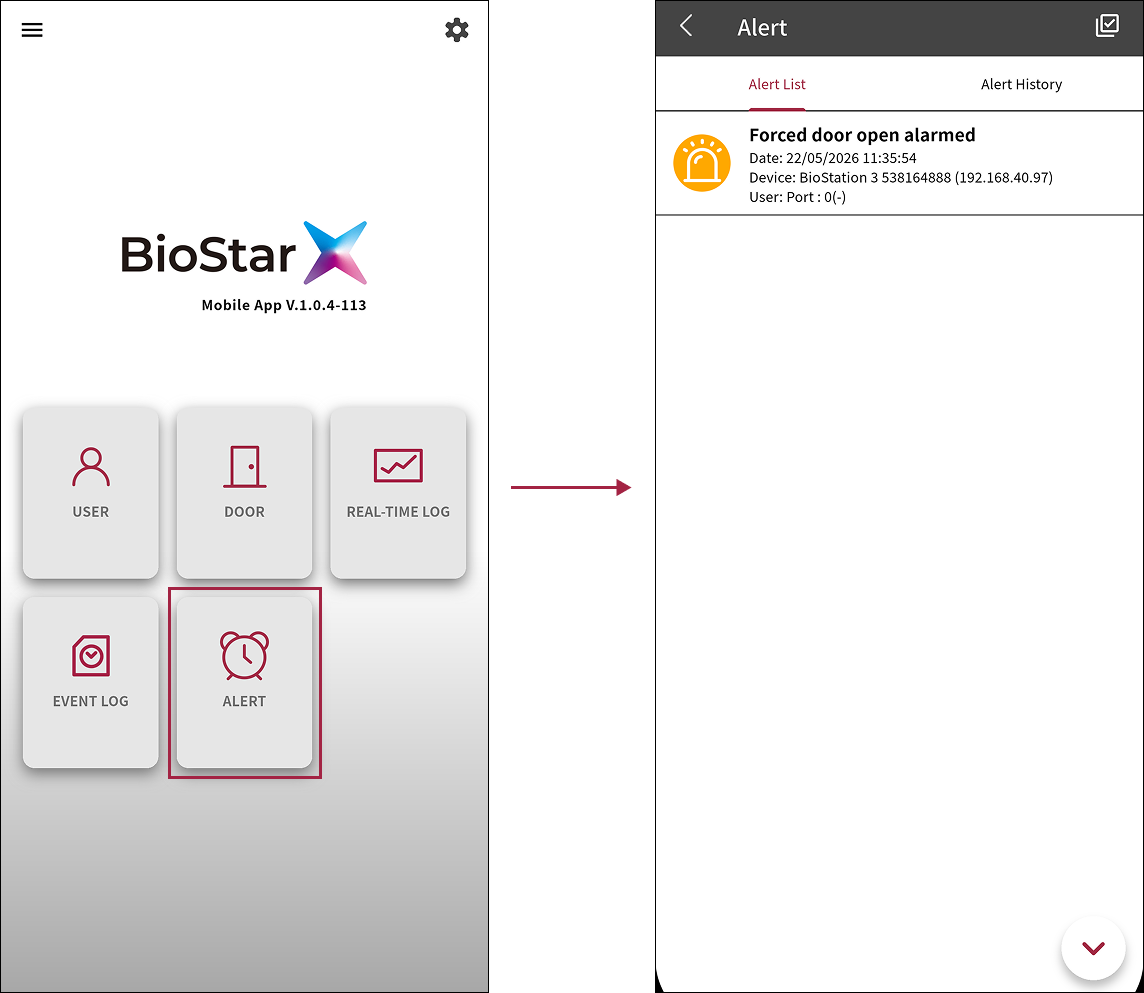
In the mobile app, check alerts from BioStar X and resolve them as needed. When an alert event such as a forced door open occurs, check the alert in the app and record the action taken.
-
For more information on checking and resolving alerts in BioStar X, see Monitor Event.
-
The date and time shown in the alert list follow the BioStar X server's time settings. For more information on date and time display format settings in BioStar X, refer to Configure Settings.
Alert list
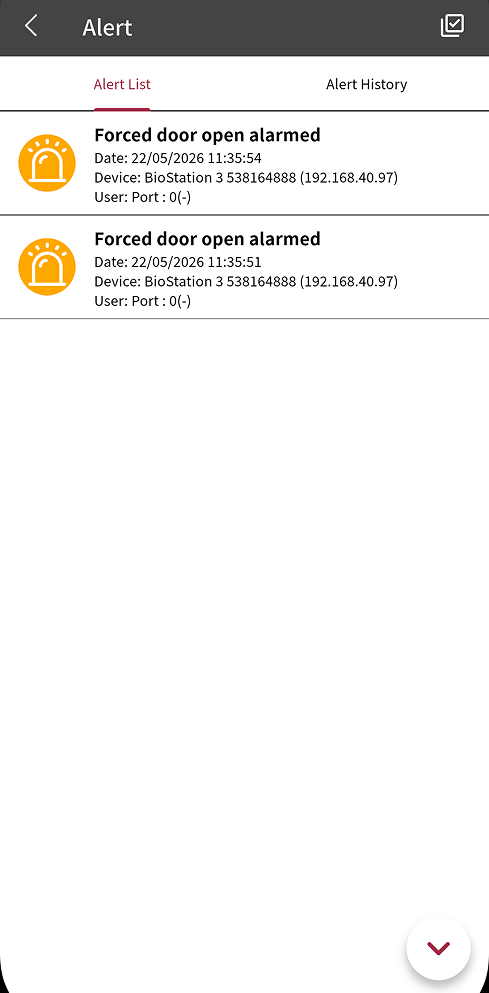
Tap ALERT on the app home screen. View the Alert List.
In the alert list, view alert events such as forced door opens in reverse chronological order. When a new alert event occurs, it is added to the list in real time.
You can also open the alert screen by tapping the side menu () → Alert.
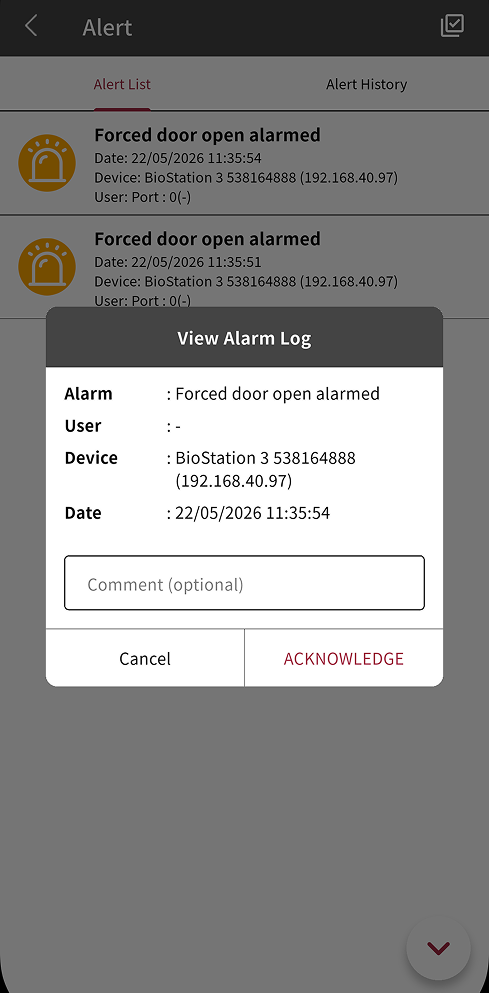
View alert details
In the alert list, tap a specific alert to view its details. Alert details show the event type, user, occurrence time, and the door/device.
-
To record the action taken after checking an alert, enter the details in the Comment (optional) field. The entered details are saved on the BioStar X server and appear in the alert event details.
-
To enter the action taken and resolve the alert, tap ACKNOWLEDGE. The alert is resolved, and the event disappears from Alert List.
Alert history
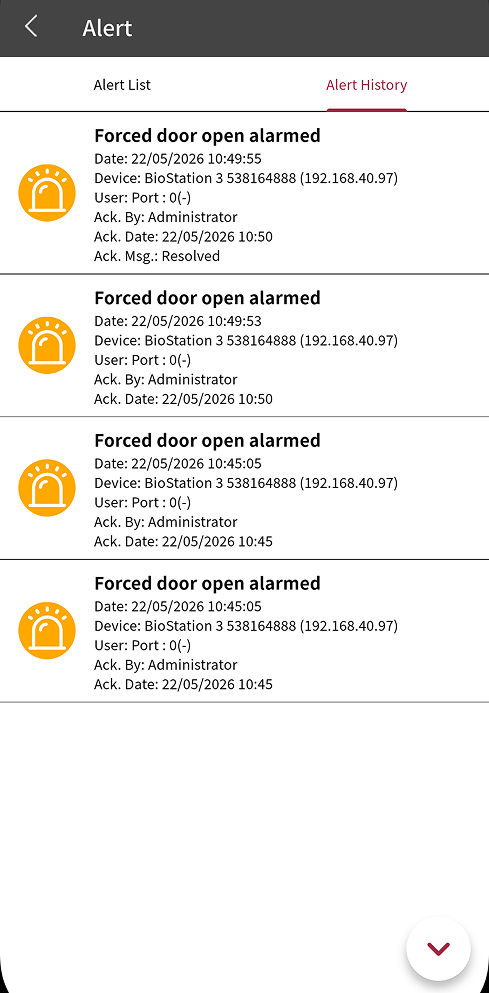
In alert history, you can view acknowledged alert events. View information such as each event's type, occurrence time, door/device, and user. Acknowledged alert events also show who acknowledged them and when.