Edit and Delete Users
Edit user information when a user's affiliation changes or permissions need to be adjusted. Learn how to delete users when they leave the company or their contracts end to enhance security.
Edit user
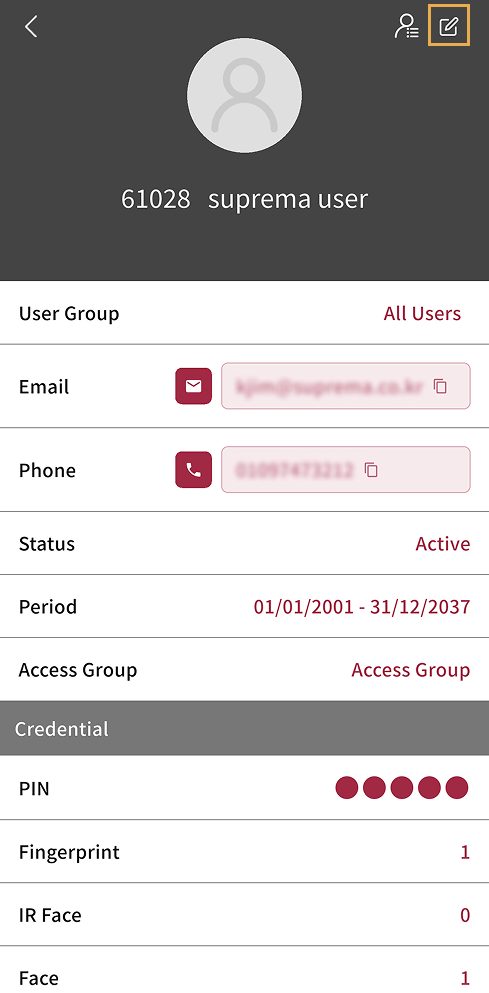
You can edit user information, permissions, and credentials from the User Details screen.
-
On the app home screen, tap USER.
You can also access it through the side menu. Tap → User.
-
Tap the user to edit in the user list.
-
In User Details, tap at the top right of the screen.
-
In Edit User, you can edit basic user information, change permissions, and manage credentials.
-
To save changes, tap at the top right of the screen.
-
For more information on user information, permissions, and credentials, refer to Register Users.
-
To temporarily deactivate a user, tap the toggle switch in Status and set it to Inactive. Inactive users are blocked from access.
-
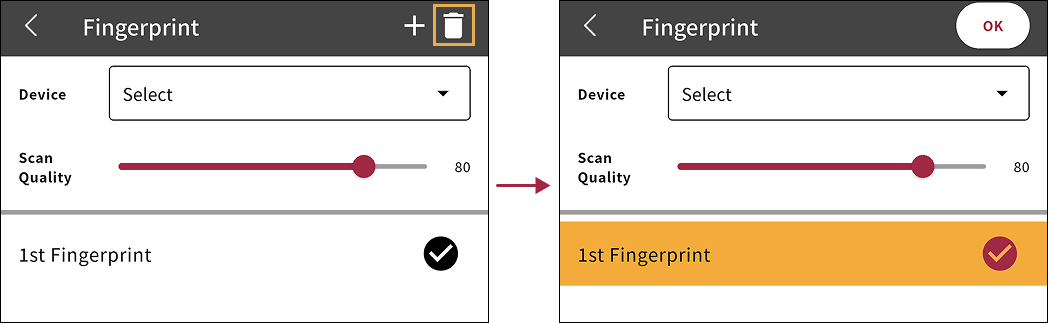
To delete a enrolled credential, tap the credential to delete, then tap at the top right of the screen. Select the credential to delete, then tap OK.
Delete users
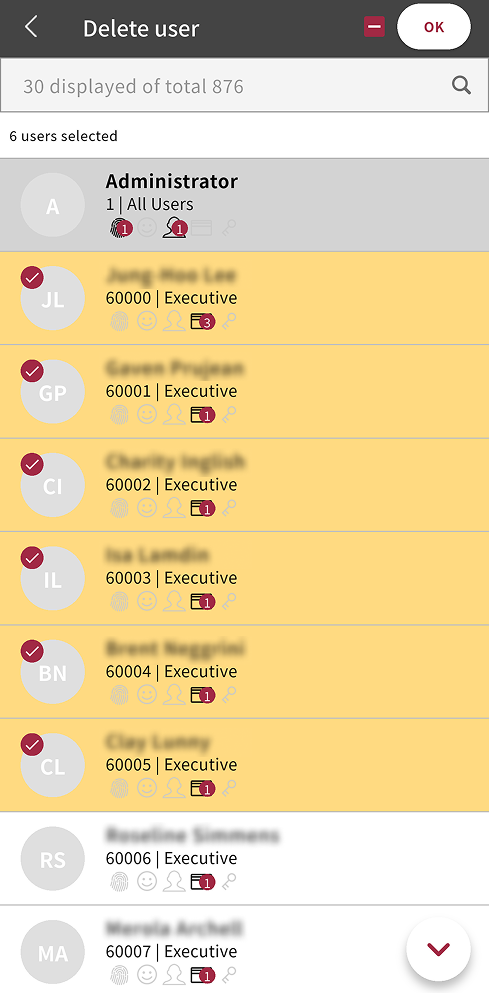
If you need to delete a user, follow these instructions.
-
On the app home screen, tap USER.
You can also access it through the side menu. Tap → User.
-
Tap at the top right of the user list.
-
Select the user to delete. You can select more than one user.
-
Tap OK at the top right of the screen.
-
When the confirmation message appears, tap Yes.
The selected user is deleted. Deleted users cannot be recovered.
The administrator account with ID 1 cannot be deleted.