Manage Devices
In the device list, check each device’s status and remotely release locked devices. From the app home screen, tap DEVICE.
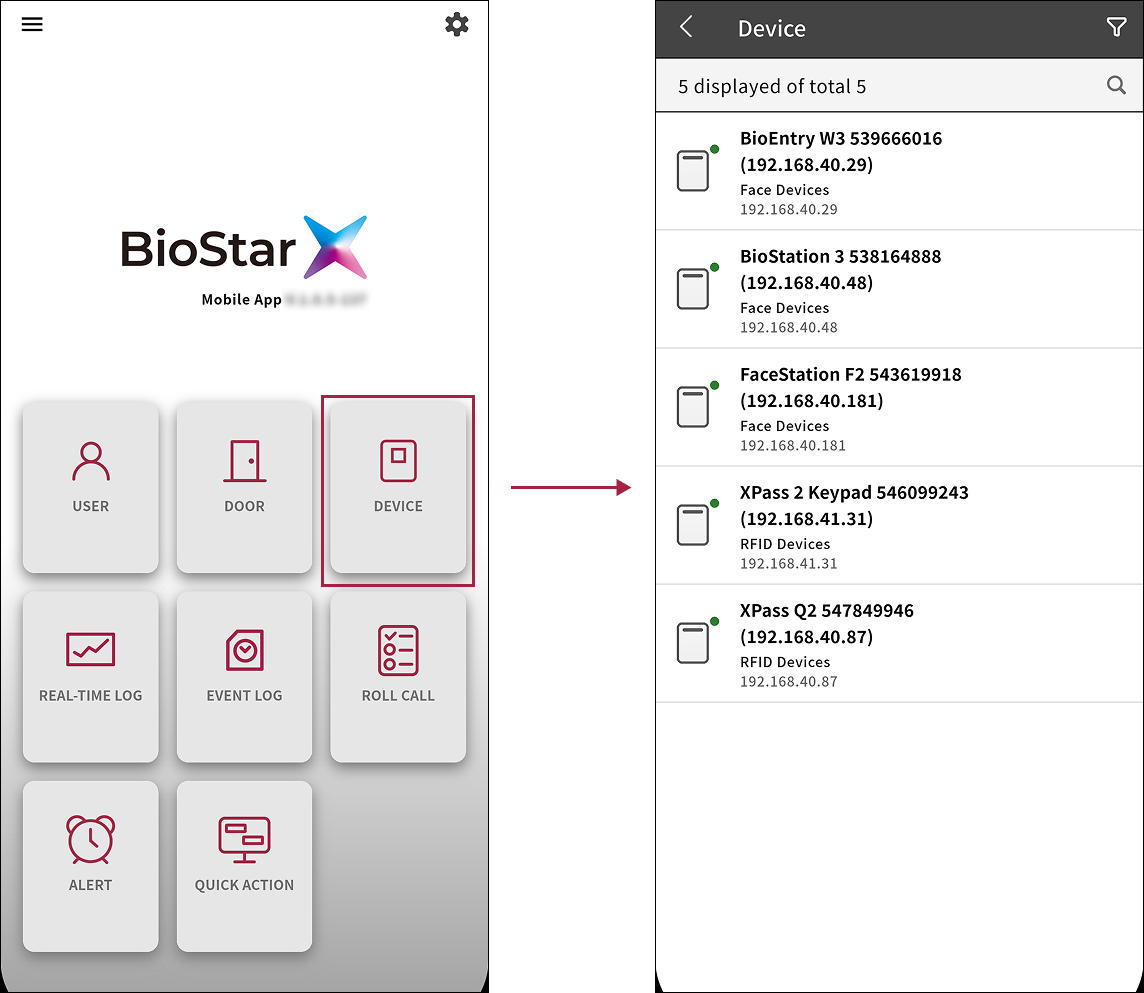
-
The mobile app does not allow adding or editing devices.
-
You can also access it through the side menu. Tap → Device.
Check device information
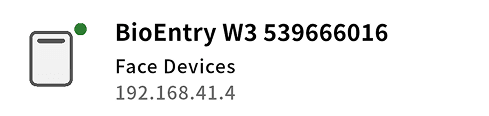
Each device in the device list includes the following information.
-
Device name
-
Device group name (shows as All Devices if not in a group)
-
Device IP address
Check device status
Check device status from the status icons in the device list.
| Status Icon | Description |
|---|---|
 | The device is connected properly. |
 | The device is off or disconnected. |
Pull down the device list to refresh device status.
Release authentication failure lockout
If consecutive authentication failures lock a device, use the mobile app to release the lockout.
For more information on the authentication failure lockout setting in BioStar X, see Authentication Settings.
Release lockout for an individual device
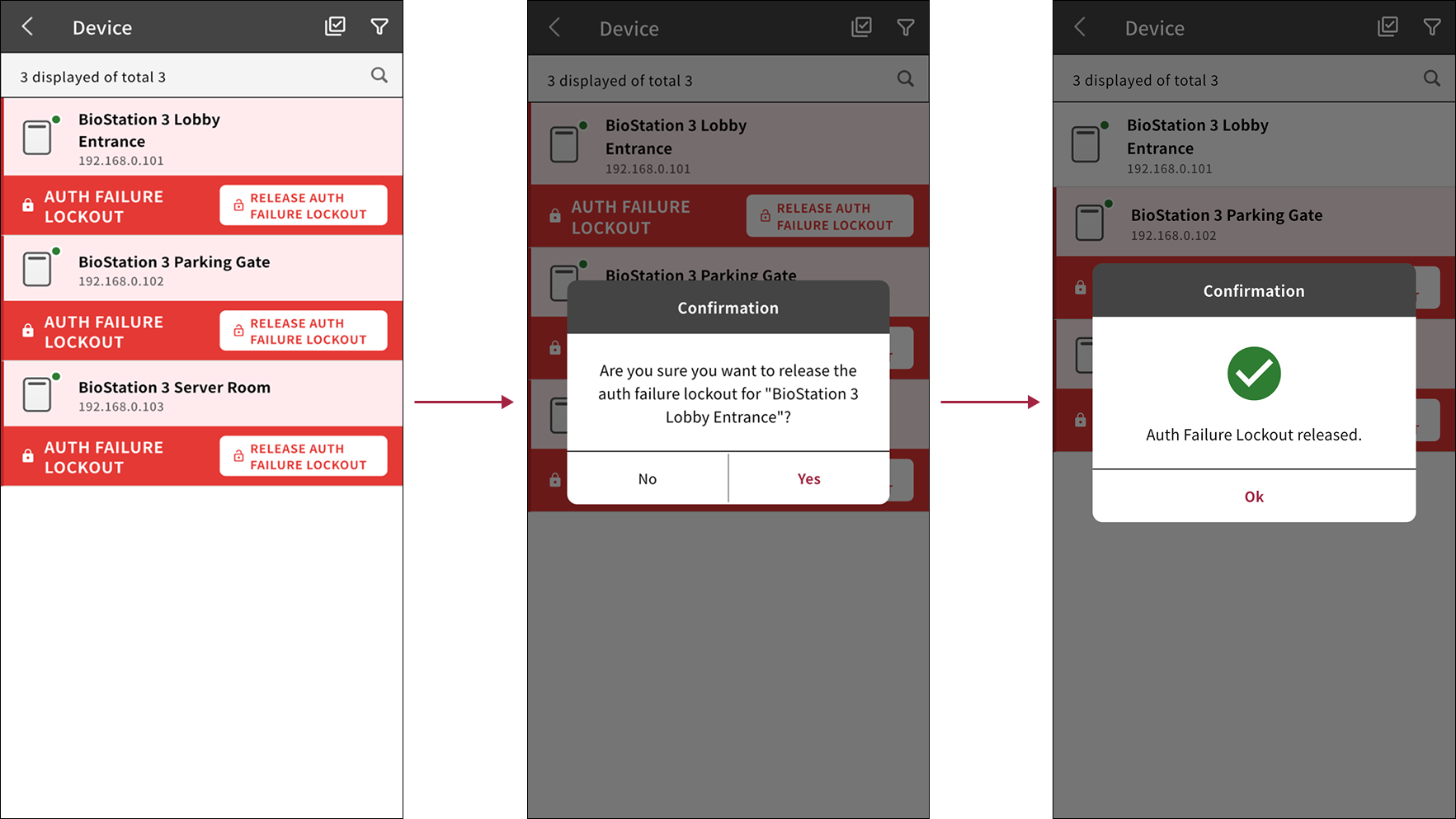
Release authentication failure lockouts for devices in the device list.
-
In the device list, find devices labeled AUTH FAILURE LOCKOUT.
-
Tap RELEASE AUTH FAILURE LOCKOUT to release the lockout.
-
When the confirmation message appears, tap Yes.
-
When the lockout release success message appears, tap OK.
Release lockout for multiple devices
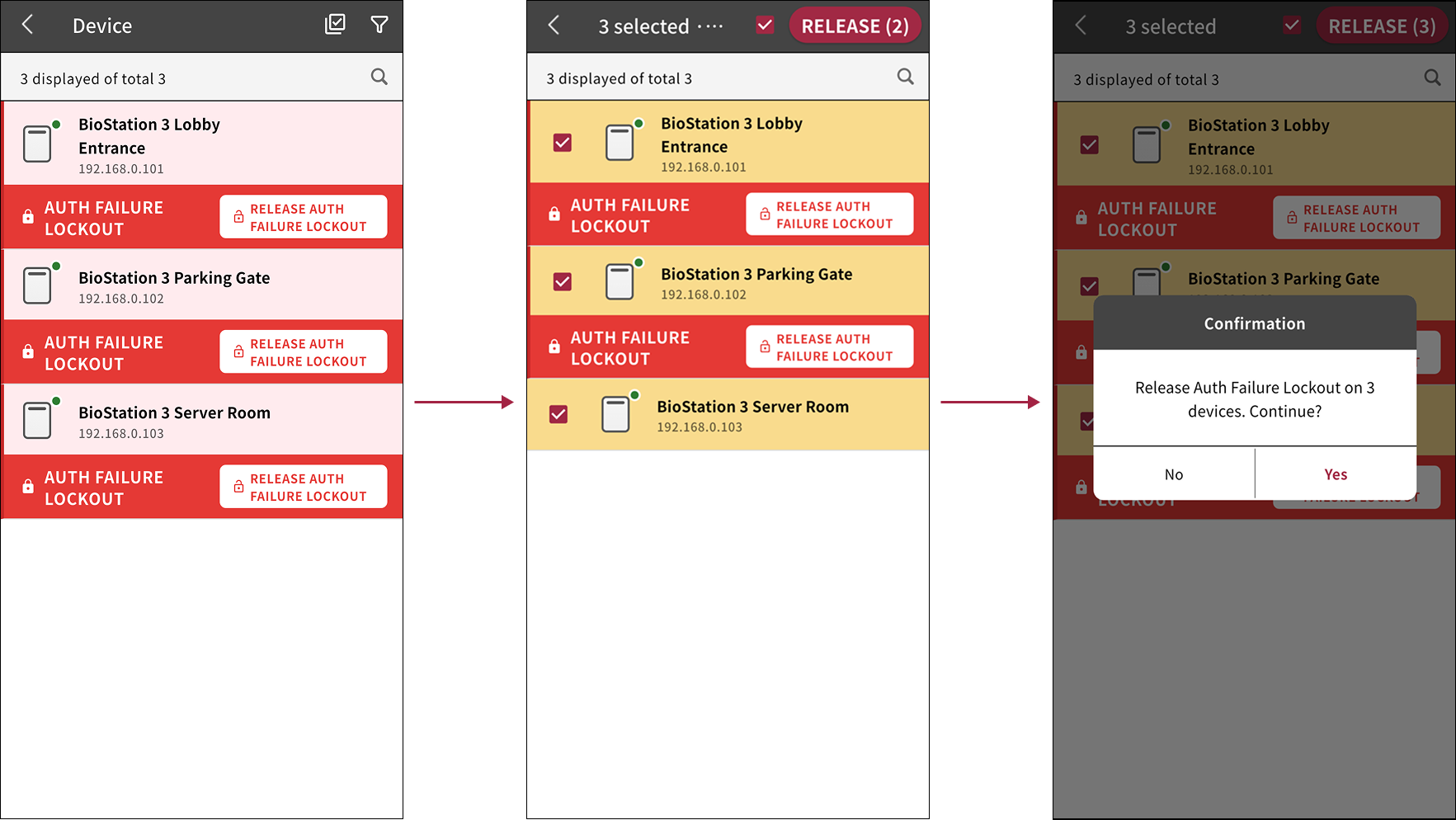
Release lockouts for multiple devices labeled AUTH FAILURE LOCKOUT at the same time.
-
Tap at the top right of the device list.
-
Select at least one device labeled AUTH FAILURE LOCKOUT.
-
Tap RELEASE in the top right.
-
When the confirmation message appears, tap Yes.
-
When the lockout release success message appears, tap OK.
Device search
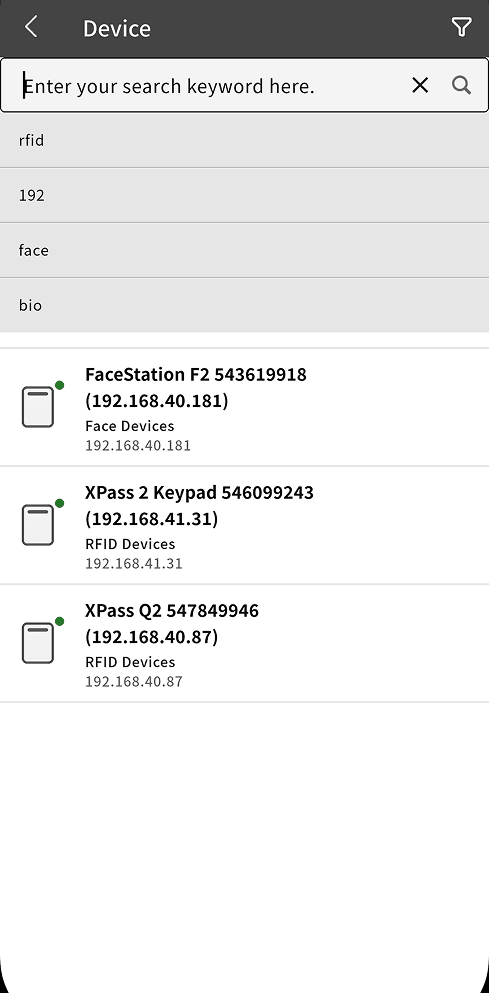
Search by device name, group, or IP address.
-
Tap at the top of the device list.
-
Enter a search term in the search field. Search by device name, group name, or IP address.
-
After you finish entering the search term, tap .
Devices that match the search term appear in the results.
-
Recent search history appears below the search input field. Tap a recent search entry to search again with that term.
-
To close the search input field, tap .
Filter the device list
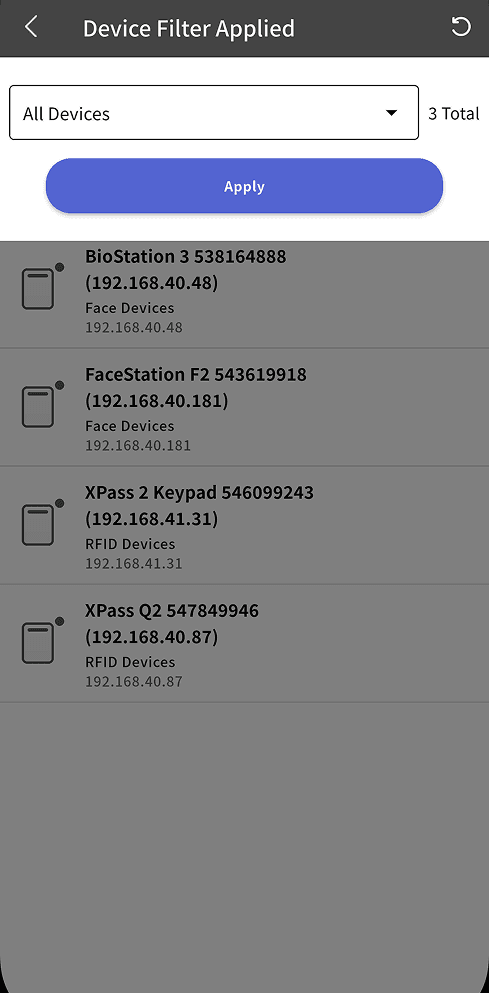
Filter the device list by device group.
-
Tap at the top of the device list.
-
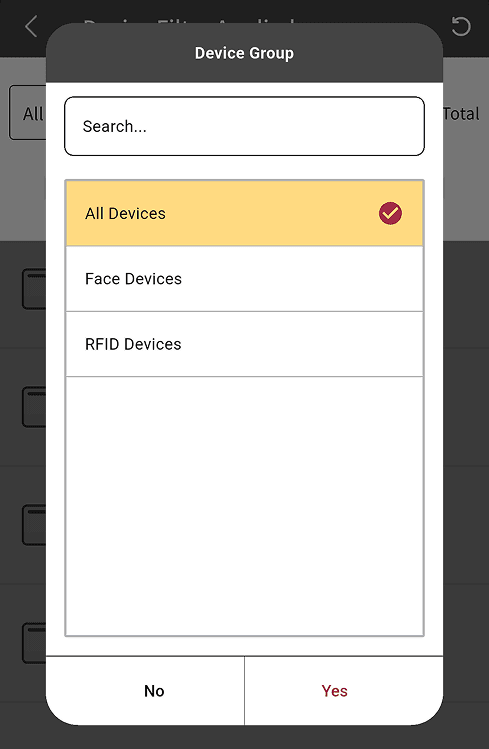
Tap All Devices.
-
Select the desired group from the device group list.
-
After selecting a device group, tap Yes.
-
Tap Apply to filter the device list based on the selected criteria.
The list shows devices in the selected device group.
To reset the filter conditions, tap → in the upper right corner of the screen.