Search and Filter Users
When the user list is long and hard to search, use search and filtering to find users quickly.
User search
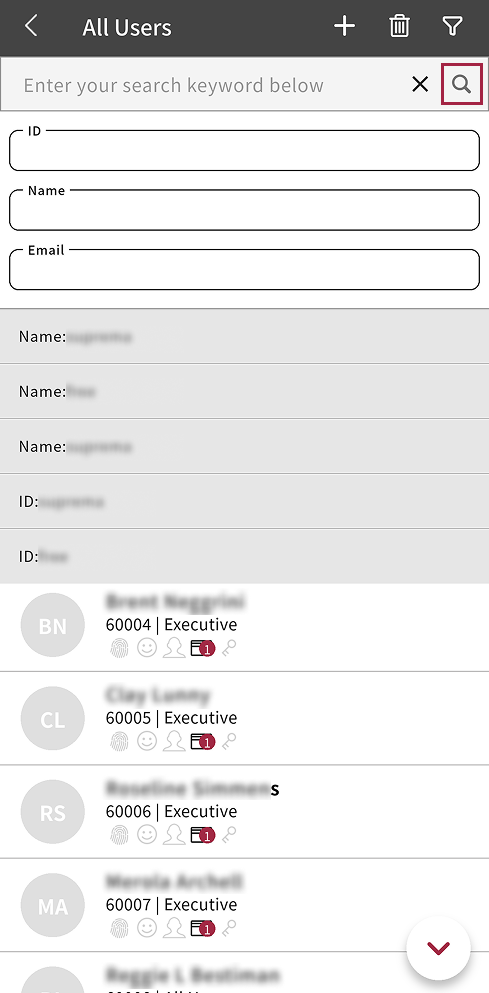
You can search by user ID, name, or email address.
-
On the app home screen, tap USER.
You can also access it through the side menu. Tap → User.
-
Tap at the top of the user list.
-
Enter a search term in the search field. You can search by combining the user ID, name, and email address.
-
After you finish entering the search term, tap .
Users that match the search term appear in the search results. In the search results, tap the user you want to open the user details.
-
Recent search history appears below the search input field. Tap a recent search entry to search again with that term.
-
To close the search input field, tap .
Filter the user list
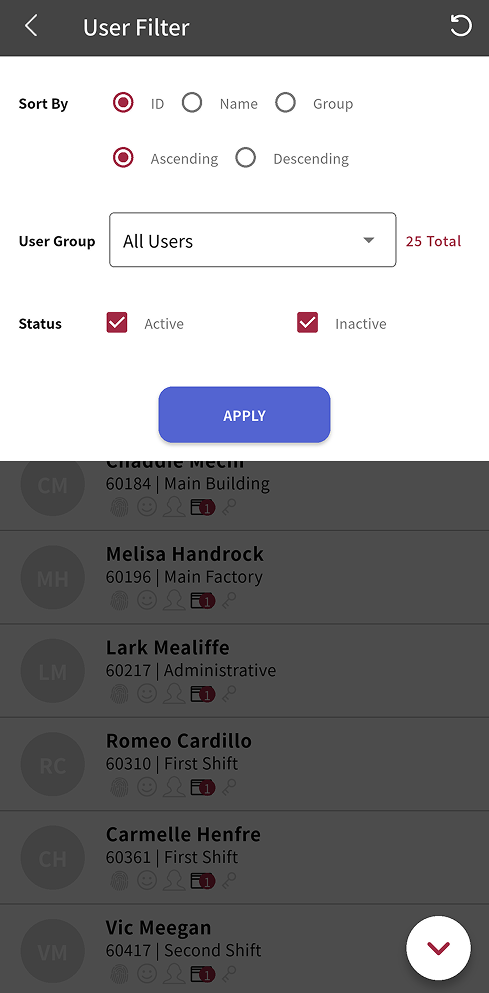
Filter the user list by various conditions to find users quickly.
-
On the app home screen, tap USER.
You can also access it through the side menu. Tap → User.
-
Tap at the top of the user list.
-
Set the desired conditions in User Filter.
-
Sort By: Select ascending or descending order by user ID, name, or group.
-
User Group: Select a specific user group to show only users in that group.
-
Status: To show only active users, select Active. To show only inactive users, select Inactive.
-
-
To filter the user list with the selected conditions, tap Apply.
To reset the filter conditions, tap → in the upper right corner of the screen.