Getting Started with Roll Call
Roll Call quickly generates a personnel list based on entry records within a specific time and place. When an emergency occurs, the system can determine whether a user has arrived at the roll call location by authenticating through the entry or exit device at a predesignated location.
Can be used for emergency response, safety checks, and providing rescue team information. This allows for efficient management of personnel status utilizing entry and exit records.
-
Before starting Roll Call, complete the Roll Call settings in BioStar X. For more information on how to set up Roll Call, refer to Roll Call.
-
Roll call settings can be used through additional options available with an Advanced license or above. For more information on licensing policies, see License Policy.
Start roll call
The roll call feature is available in the BioStar X mobile app.
Start roll call in the mobile app
To start the roll call feature in the mobile app, follow these steps.
-
Launch the BioStar X mobile app on your mobile device.
-
From the app home screen, tap ROLL CALL.
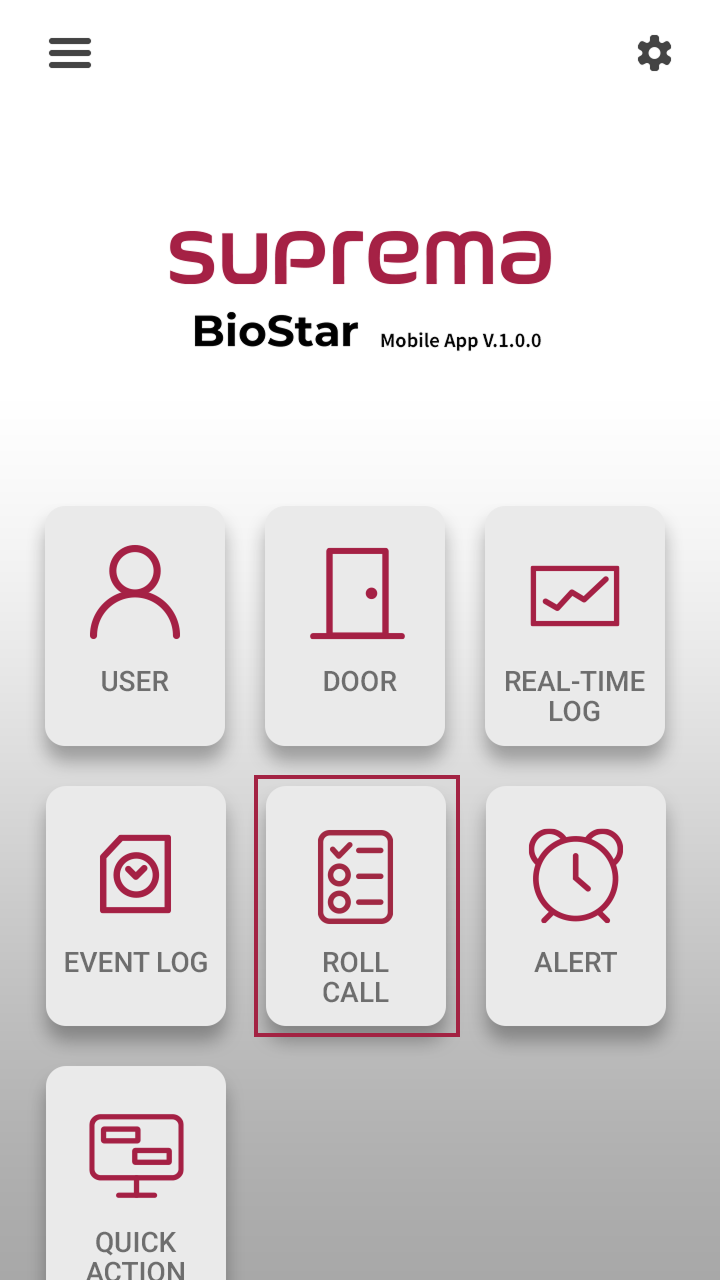
You can also access it through the side menu. Tap → Monitoring → Roll Call.
-
In the Roll Call list, tap for the item you want to execute roll call.

-
When the confirmation message appears, tap Yes.
Roll call will start, and by tapping on the ongoing roll call item, you can check the status of the roll call.
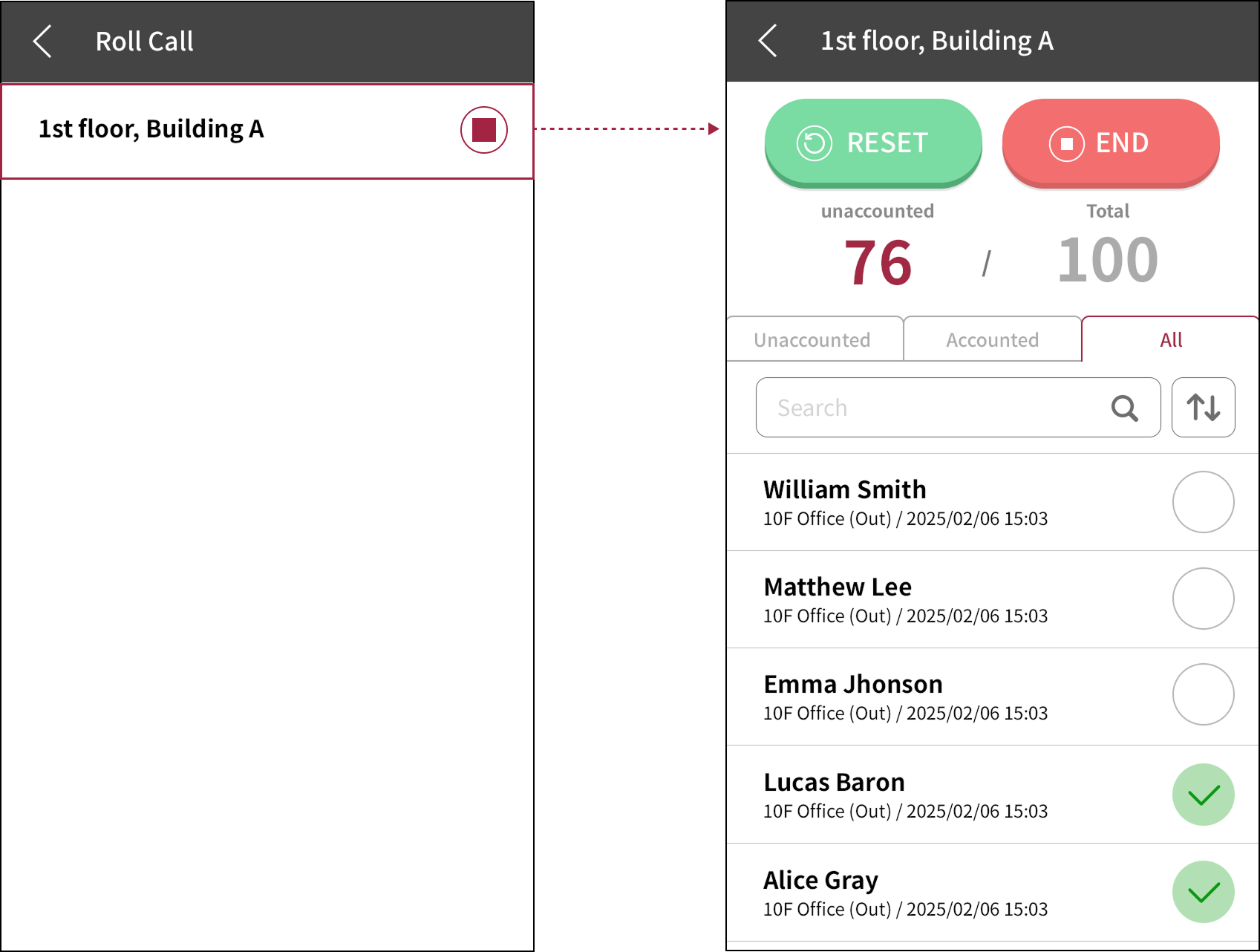
Ongoing roll call control
-
Users entering will be marked with the icon. When all users have entered, a message indicating that roll call has ended will appear. To end the roll call, tap Yes.
-
The administrator can manually change the user's entry or status. Long press the round button on the far right of the user whose status you wish to change from the user list.

-
To reset the roll call, tap Reset. All progress is discarded and the roll call restarts from the beginning.
-
If roll call is ended by another administrator, a notification message will appear.
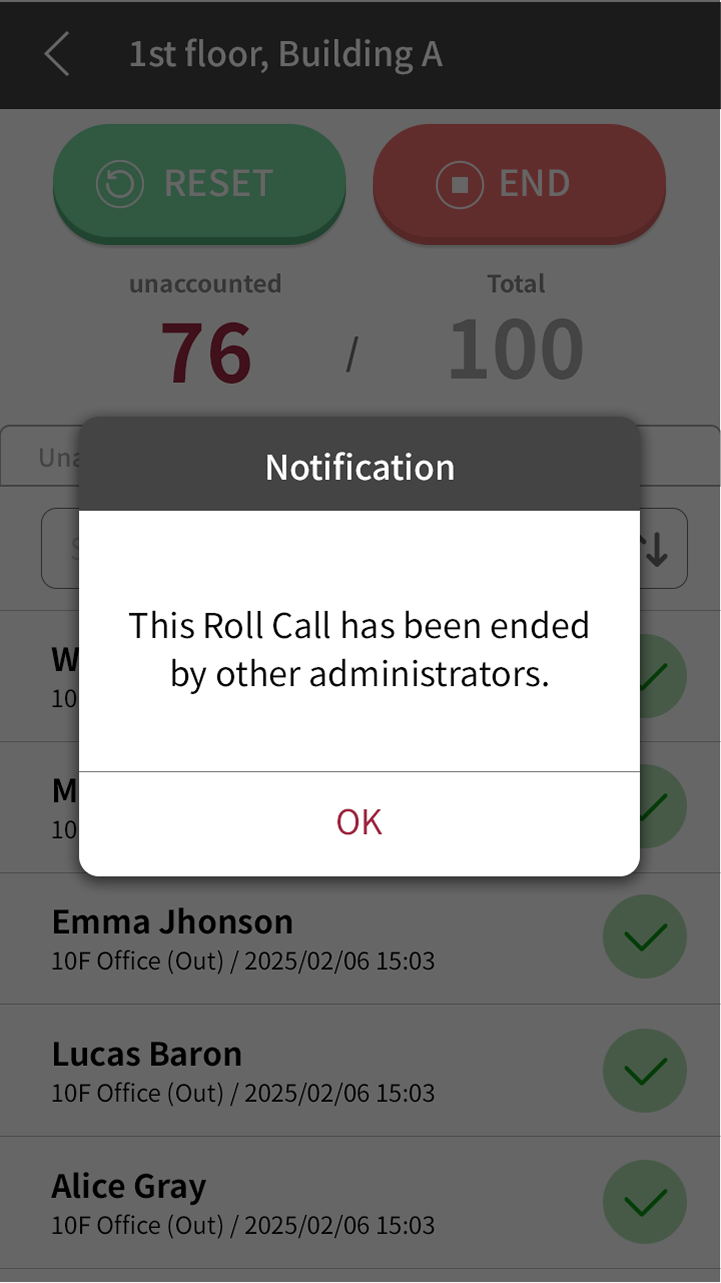
-
To end an ongoing roll call, tap the button in the roll call list screen, or tap END button in the roll call status screen.
-
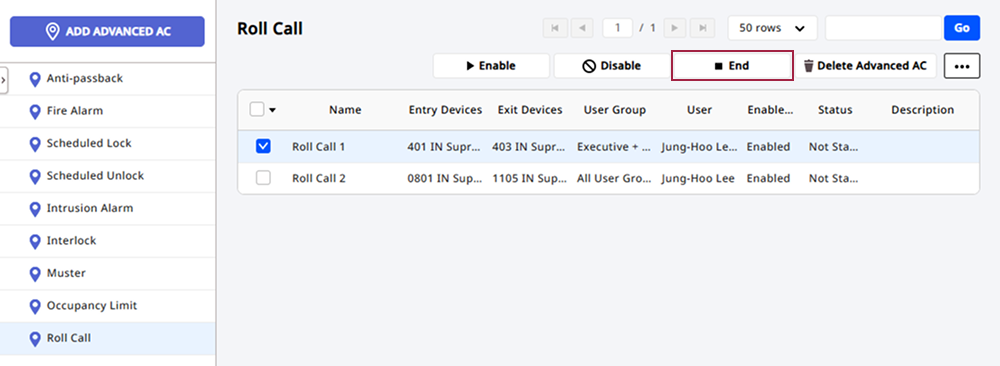
You can also end the ongoing roll call in BioStar X. Go to the Settings → Advanced AC → Events → Roll Call menu, select the ongoing roll call item, and click the End button at the top right of the screen.
User information during roll call
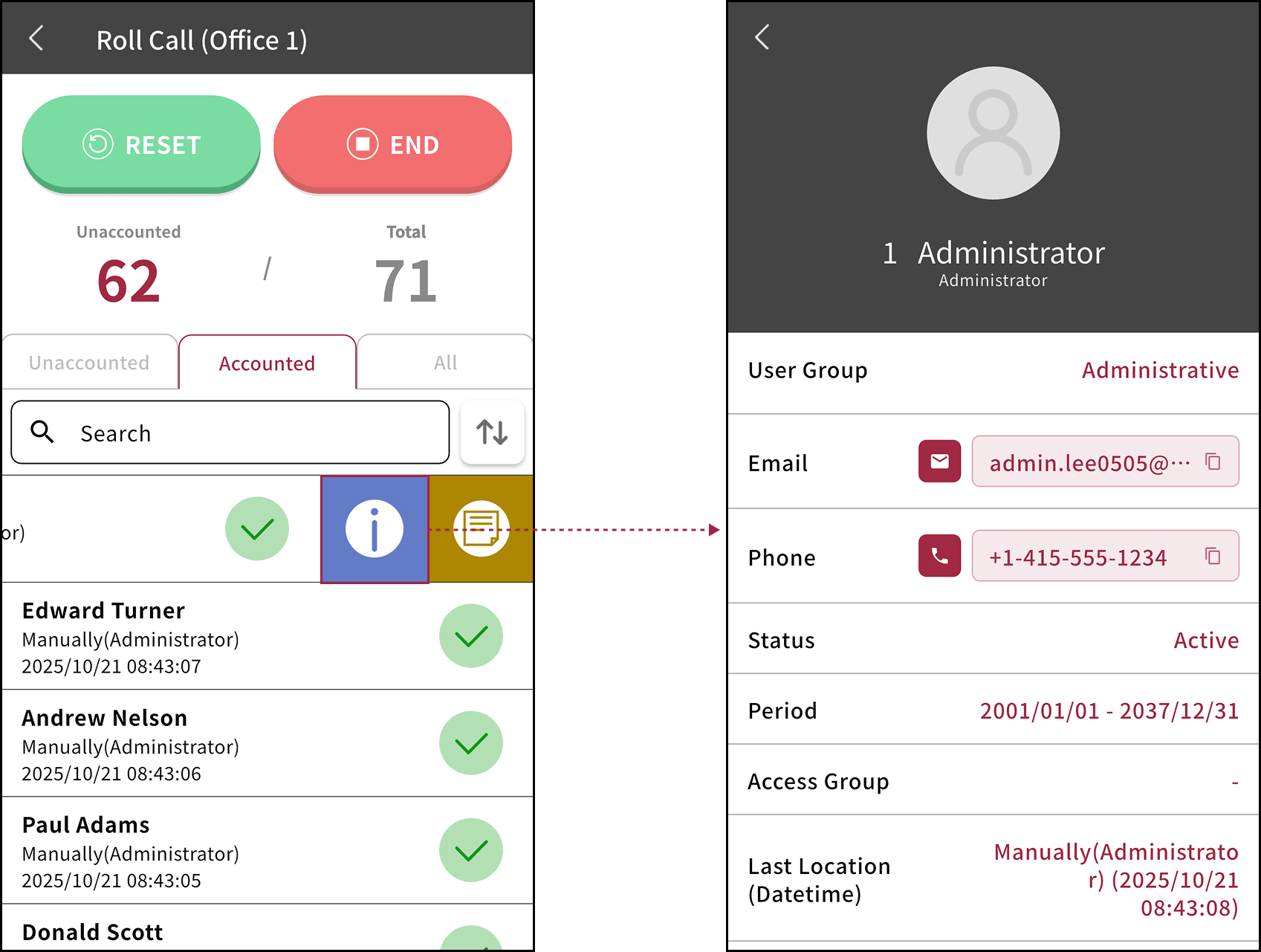
During roll call in the mobile app, you can check each user's information. View details such as contact information for emergency contact and the user's last known location.
Swipe left on the user item for which you want to check details during roll call. Then tap .
Leave a note for users during roll call
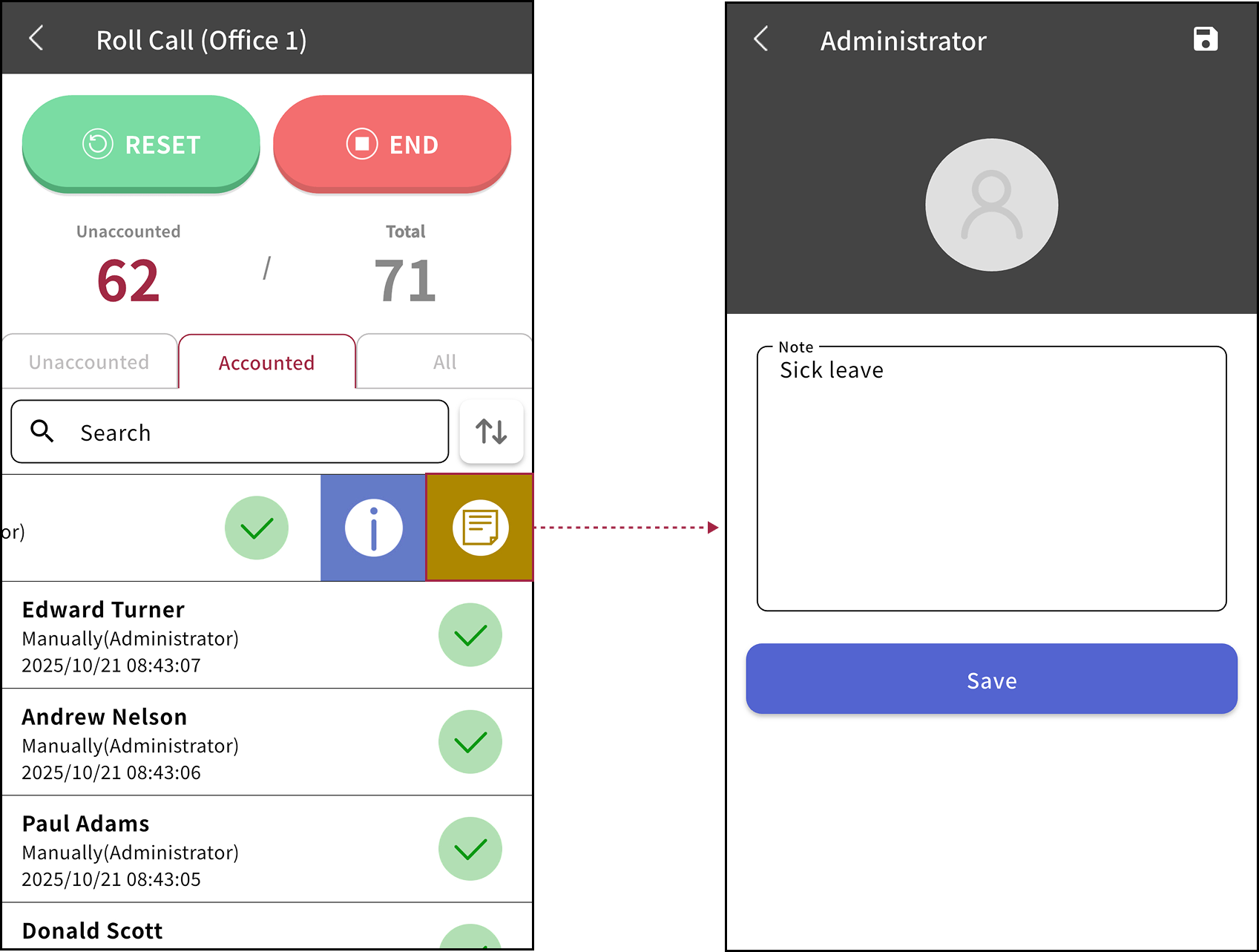
If a specific user has not entered during roll call in the mobile app, you can leave a note for that user.
Swipe left on the user item where you want to input a note during roll call. Then tap . On the note input screen, enter the content and tap Save.
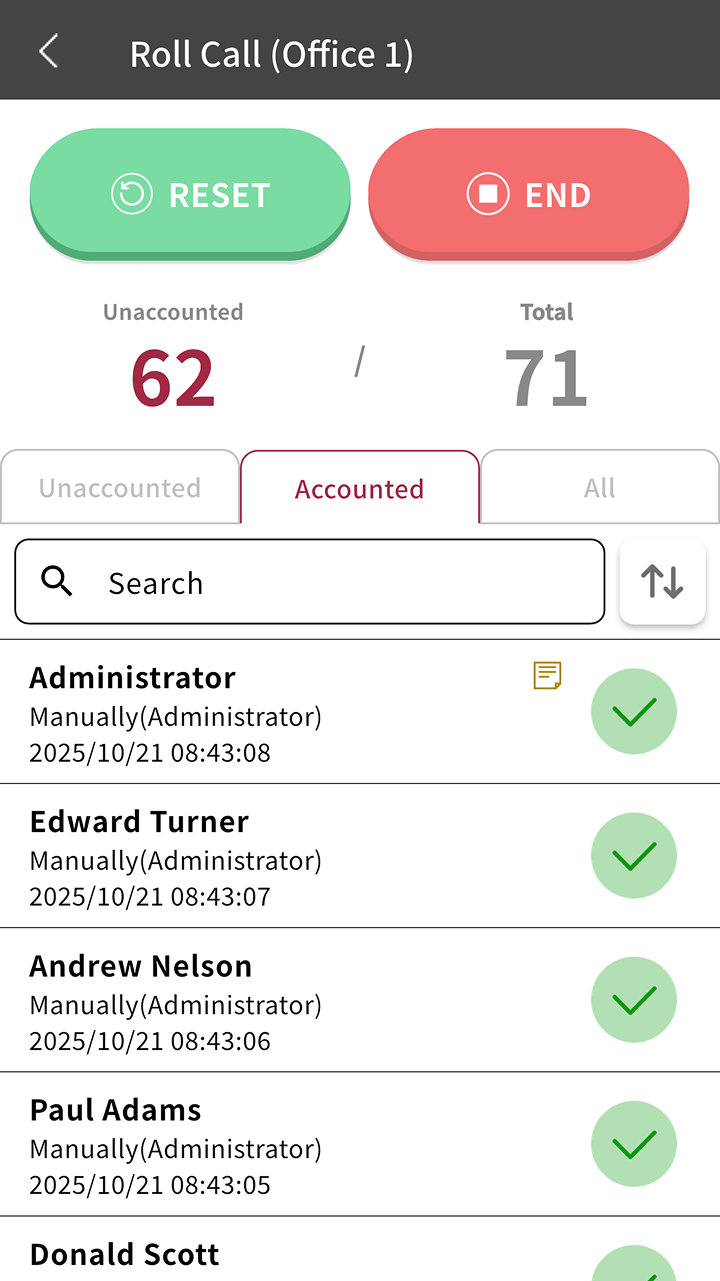
Users who have entered notes will be marked with the icon in the roll call list.
Check roll call details
You can check the details of the roll call settings in the mobile app.
-
Launch the BioStar X mobile app on your mobile device.
-
From the app home screen, tap ROLL CALL.
You can also access it through the side menu. Tap → Monitoring → Roll Call.
-
Swipe left on the item to check details from the list, then tap .
