View Door Details
Select a door to view the current status and configured devices. If a problem occurs, control it immediately or view recent activity logs.
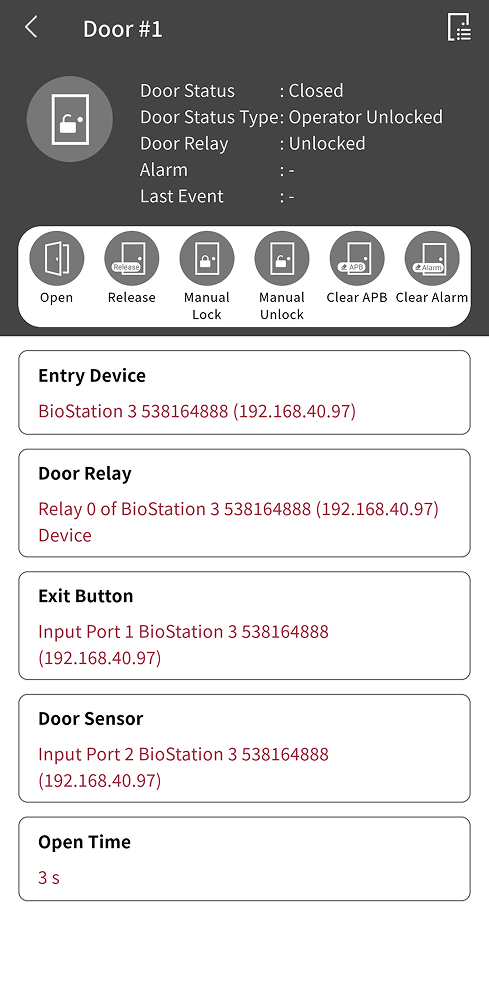
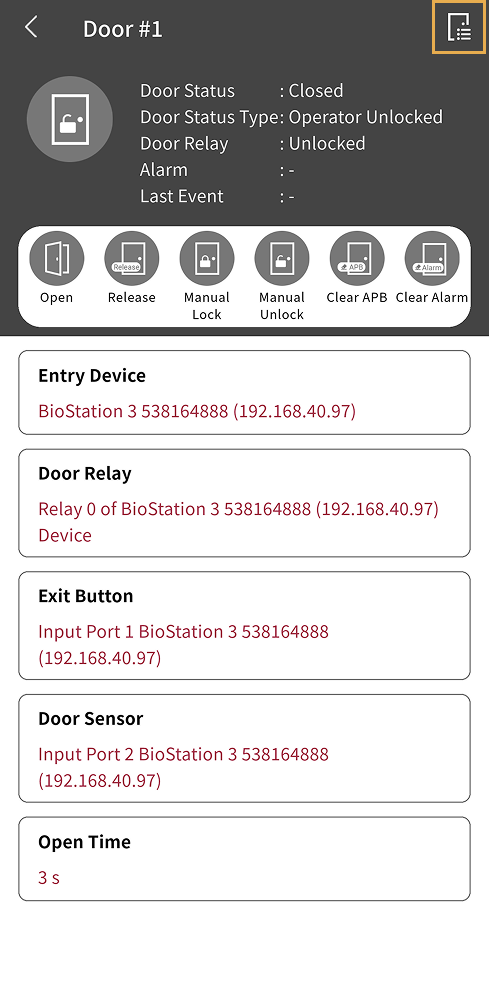
View the door's status information, remote control feature, device information assigned to the door, and open time.
-
Tap DOOR on the app home screen.
You can also access it through the side menu. Tap → Door.
-
Tap the door whose details you want to view in the door list.
Door status information
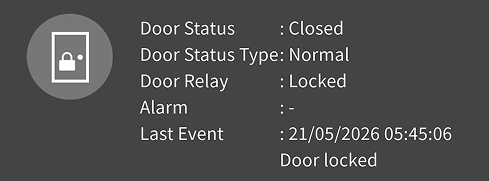
View the door's current status in real time.
-
Door Status: Shows whether the door is open or closed.
-
Door Status Type: Shows the door status type. For example, Normal, Operator Unlocked, and Operator Locked.
-
Door Relay: Shows the status of the relay connected to the door.
-
Alarm: Shows alarm events that occurred at the door.
-
Last Event: Shows the date, time, and event type of the last event that occurred at the door.
Remote control feature
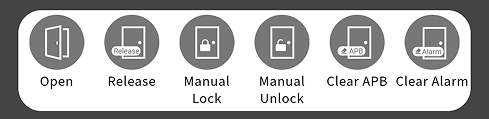
Control the door remotely to manage access.
-
Open: Temporarily opens the door to allow access. The door closes automatically after the set time.
-
Release: Sets the door to allow access only for authenticated users. The door status changes according to the schedule set for the door.
-
Manual Lock: Manually locks the door to block access. This feature locks the door without a time limit. In this state, access is blocked for all users.
-
Manual Unlock: Manually unlocks the door to allow access. This feature unlocks the door without a time limit. In this state, access is allowed for all users.
-
Clear APB: Clear APB status for all users at the selected door.
-
Clear Alarm: Clear the alarm that occurred at the door.
-
The time the door stays open temporarily before it closes automatically is shown in Open Time below.
-
After you manually lock or unlock a door, the door status does not change automatically. For security, use Release to make the door operate according to the set schedule.
Door device information
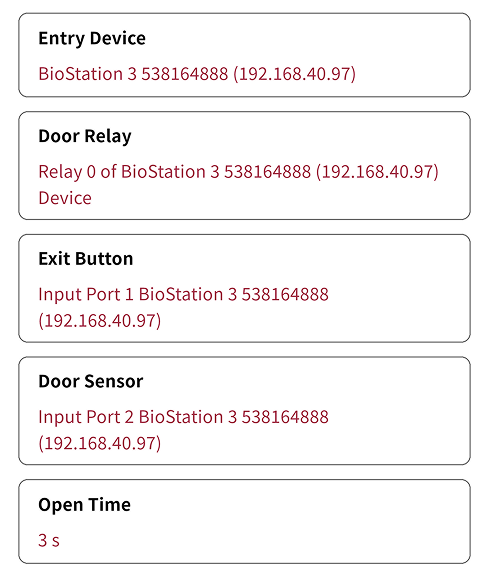
View the device information assigned to the door.
-
Entry Device: The device information assigned as the entry device.
-
Door Relay: The relay information that operates as the door lock.
-
Exit Button: The port information of the device used as the exit button.
-
Door Sensor: The port information of the device assigned as the sensor that detects the door opening and closing.
-
Open Time: The time the door stays open after it is opened temporarily before it closes automatically.
For more information on the Open Time setting, see Open → Open Time in Register Door.
View door log events
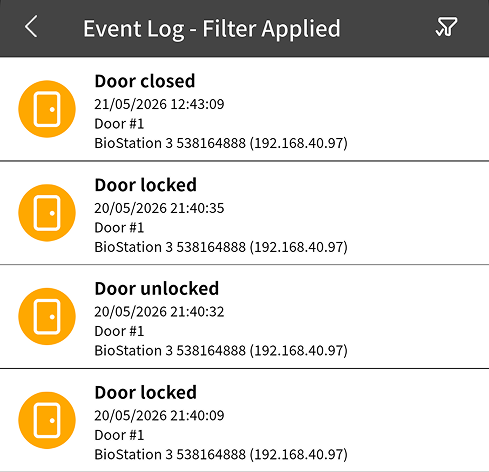
View log events that occurred at the door and check events such as access attempts and alarms.
-
On the Door Details screen, tap in the upper right corner.
-
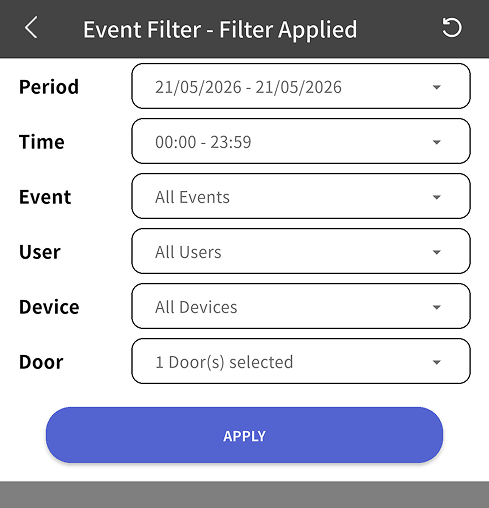
To filter door log events, tap in the upper right corner of the screen.
-
Period: Set the period when the log event occurred.
-
Time: Set the time when the log event occurred.
-
Event: Select the log event type. For example, select access authentication success or access authentication failure.
-
User: Select the user who triggered the log event.
-
Device: Select the device where the log event occurred.
-
Door: View log events for doors other than the current door.
-
-
When the filter criteria appear, set the desired criteria.
-
To filter log events with the selected criteria, tap Apply.
To reset the filter conditions, tap → in the upper right corner of the screen.