View Past Event Logs
View past logs to check access history that occurred during a specific period and at a specific location. Filter logs to easily find events that match your desired conditions.
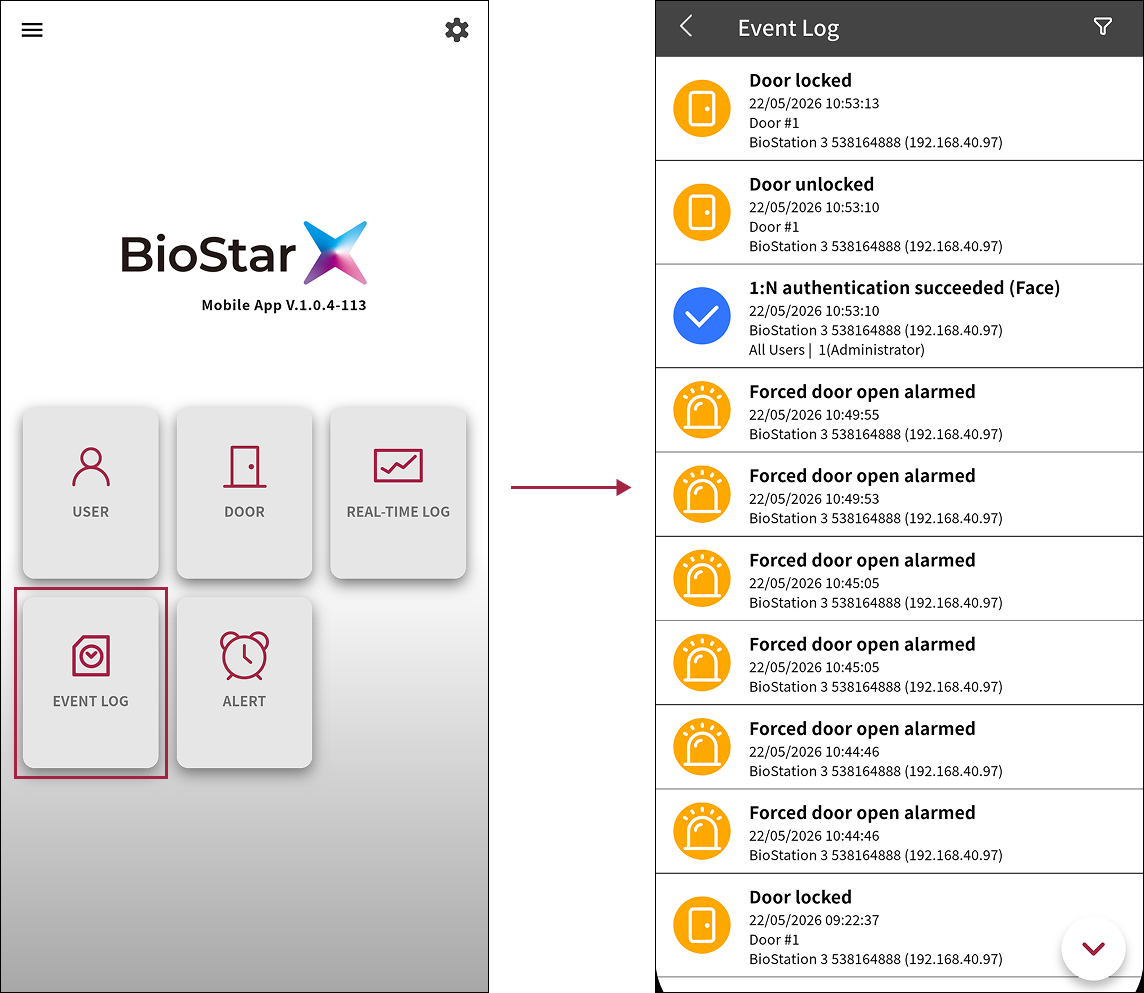
Use the EVENT LOG feature in the following situations.
-
Check a specific user's past access history
-
Track security event history within a specific period
-
Audit and report access control
Differences from real-time logs
-
Real-time logs: Monitor current events immediately. Real-time logs are useful when you need to understand the current situation and respond immediately.
-
Past logs: Search and view event history for a specific period.
View past event logs
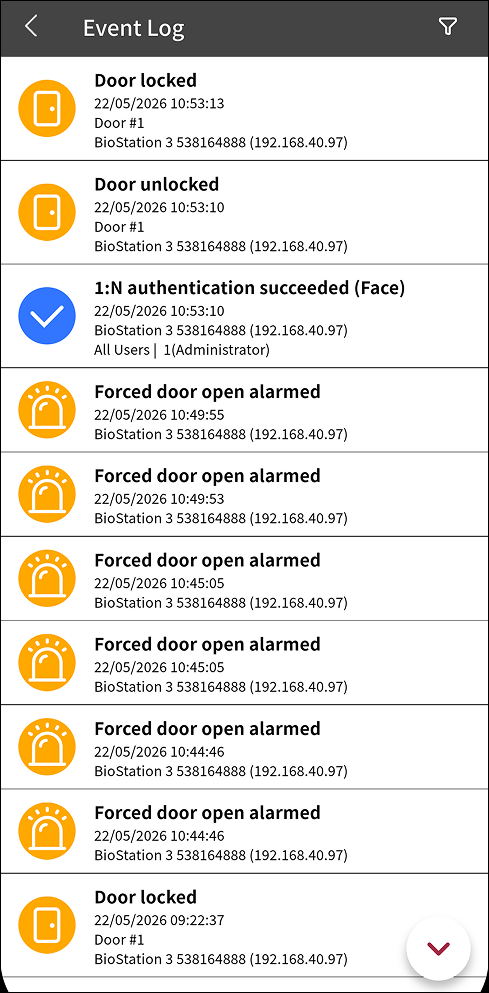
From the app home screen, tap EVENT LOG.
-
Each log shows the event type, time, door/device, and user information.
-
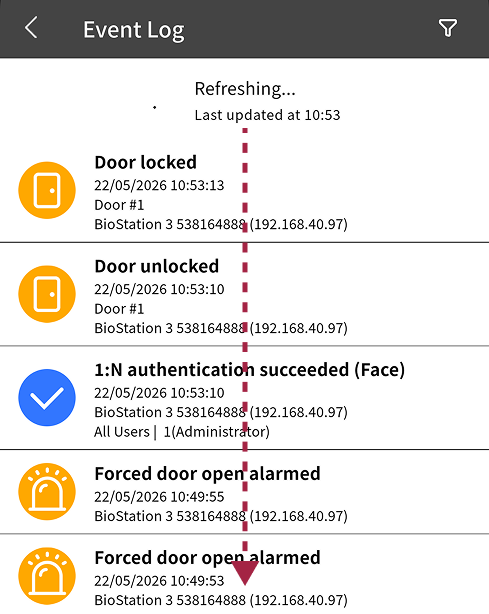
Pull down the log list to refresh it and show the latest logs.
-
The date and time shown in the logs follow the BioStar X server locale settings. For more information on date and time display format settings in BioStar X, refer to Configure Settings.
-
You can also open the Event Log screen by tapping the side menu () → Monitoring → Event Log.
View only specific logs
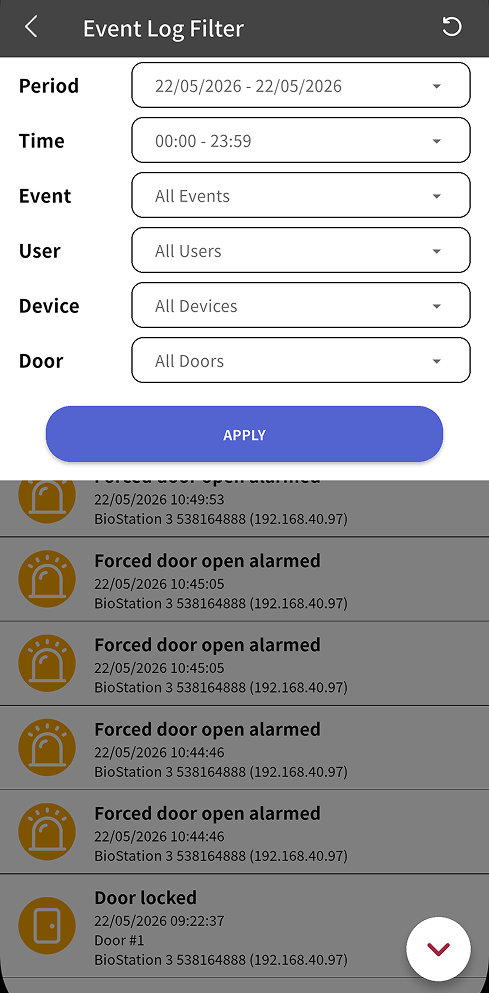
Filter the log list to show only logs related to a specific event, user, door, or device.
-
Tap in the upper right corner of the screen.
-
Set the following filter conditions to show only the logs you want.
-
Period: Set the event period
-
Time: Set the event time
-
Event: Select a specific event type (for example, facial authentication failure, intrusion alarm, and more)
-
User: Select a specific user (for example, a VIP user's access history)
-
Device: Select a specific device (for example, an event from a specific access control device)
-
Door: Select a specific door (for example, the first-floor main entrance)
-
-
To filter the log list with the set conditions, tap Apply.
To reset the filter conditions, tap → in the upper right corner of the screen.
View log details
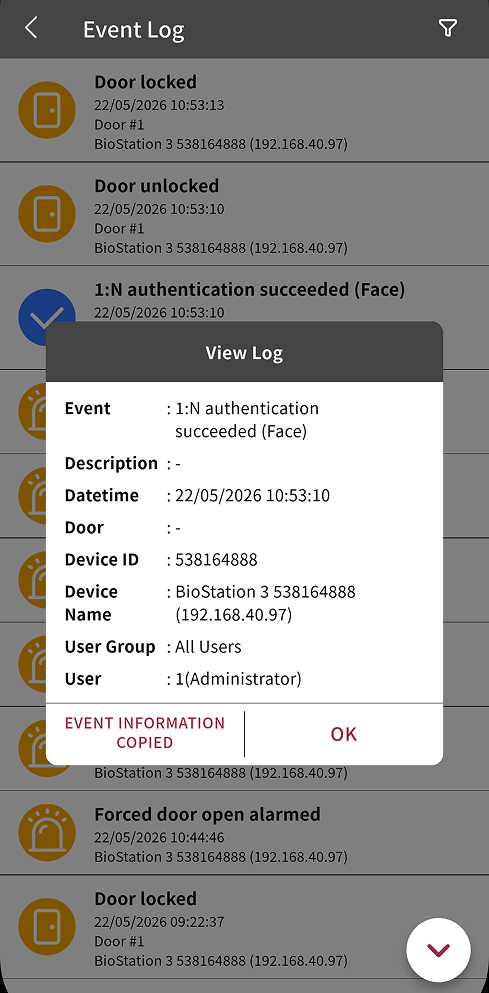
Tap the log you want in the log list to view its details.
-
Event: The event type that occurred (for example, access authentication success, access authentication failure, alarm triggered, and more)
-
Description: Event description
-
Datetime: The date and time the event occurred
-
Door: The door where the event occurred
-
Device Name: The device where the event occurred
-
User Group: The group name of the user who triggered the event
-
User: The user who triggered the event
Tap the buttons at the bottom of the details popup to perform the following actions.
-
To copy the event information to the clipboard, tap EVENT INFORMATION COPIED.
-
To close the details popup, tap OK.
If the event log is related to a door, additional information regarding door control is displayed in the log details.