Real-time Log Monitoring
View events that occur on the BioStar X server in real time. On the app home screen, tap REAL-TIME LOG.
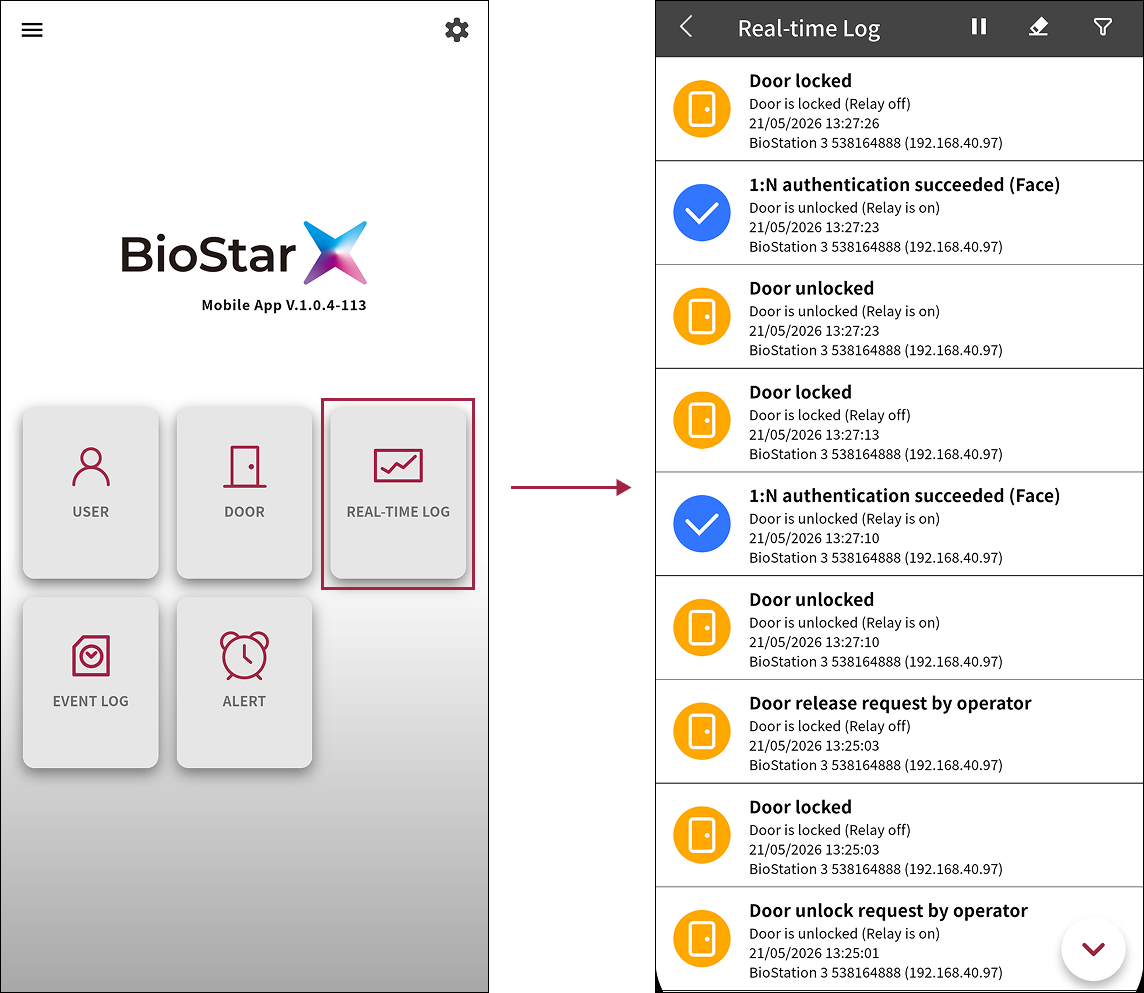
Use the REAL-TIME LOG feature in the following situations.
-
Monitor access attempts during commute hours
-
Check currently received events in real time
View real-time logs
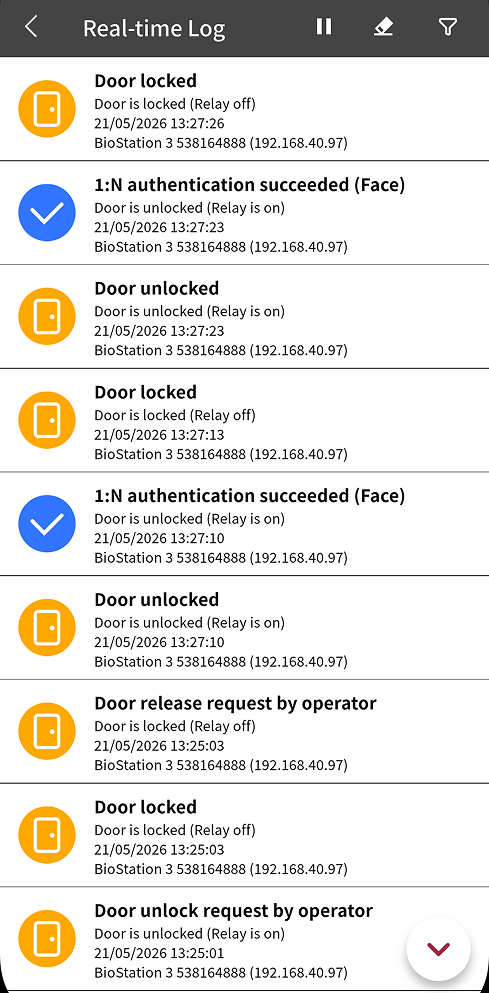
On the app home screen, tap REAL-TIME LOG. When you first open the Real-time Log (Real-time Log) screen, the list is empty.
-
When a new event occurs, it is automatically added to the list in real time. There is no limit to the number of rows in the list, and new events are added at the top.
-
To pause real-time event reception, tap in the upper right corner of the screen. When paused, new events are not added to the list, but they are queued in the background. To resume real-time event reception, tap . Events added to the queue appear before newer events.
-
To clear the real-time log list, tap in the upper right corner of the screen. The log list is cleared, and new events are added in real time as they occur.
-
Filter the real-time log list to show only related logs such as certain events, users, doors, or devices. For more information, refer to #viewSpecificLog.
-
If you move to another menu and return to Real-time Log, the log list is cleared, and new logs are added in real time as they occur.
-
The date and time shown in the logs follow the BioStar X server locale settings. For more information on date and time display format settings in BioStar X, refer to Configure Settings.
-
You can also open the Real-time Log screen by tapping Side menu () → Monitoring → Real-time Log.
View only certain logs
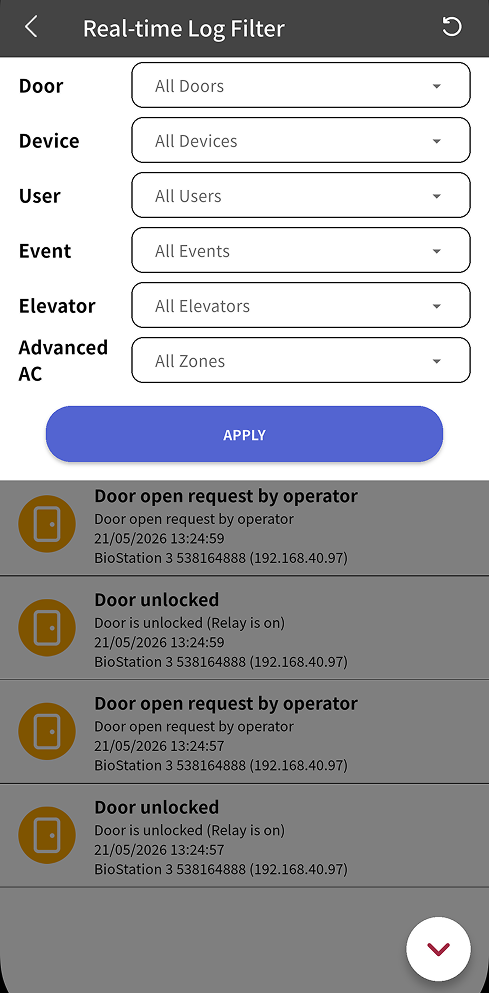
Filter the Real-time Log list to show only related logs such as certain events, users, doors, or devices.
-
Tap in the upper right corner of the screen.
-
Set the following filter conditions to show only the logs you want.
-
Door: A certain door (for example, the first-floor main entrance)
-
Device: A certain device (for example, an event generated by a certain access control device)
-
User: A certain user (for example, access records for a VIP user)
-
Event: A certain event type (for example, facial authentication failure, intrusion alarm, and more)
-
Elevator: A certain elevator (for example, an elevator on a certain floor)
-
Advanced AC: Certain advanced access control events (for example, anti-passback, fire alarm, scheduled open/lock, and more)
-
-
To filter the log list with the set conditions, tap Apply.
-
To reset the filter conditions, tap → in the upper right corner of the screen.
-
Elevators and advanced access control are available when the Advanced license or higher is active. For more information on the licensing policy, see License Policy.
View log details
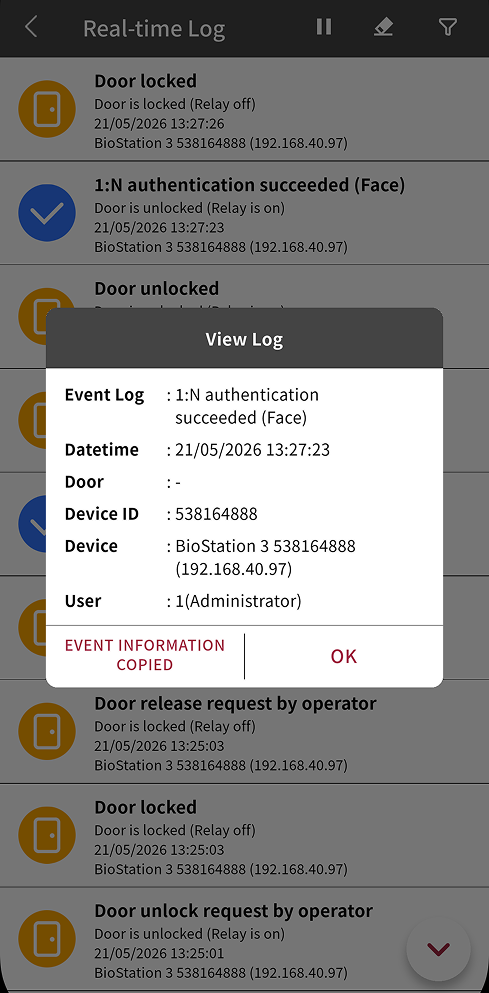
Tap a log entry to view detailed information about that log.
-
Event Log: The event type. Shows which type of event occurred.
-
Datetime: The date and time the event occurred.
-
Door: The door where the event occurred.
-
Device: The device where the event occurred.
-
User: The user who triggered the event. For example, for an access authentication event, the user who attempted access appears.
Tap the buttons at the bottom of the details popup to perform the following actions.
-
To copy the event information to the clipboard, tap EVENT INFORMATION COPIED.
-
To close the details popup, tap OK.