View User Log Events
View a user's access history to check for abnormal access or access outside authorized hours. Filter log events to easily find history for a desired period and location.
View user access history
-
On the app home screen, tap USER.
You can also access it through the side menu. Tap → User.
-
Tap the user whose log events you want to view in the user list.
-
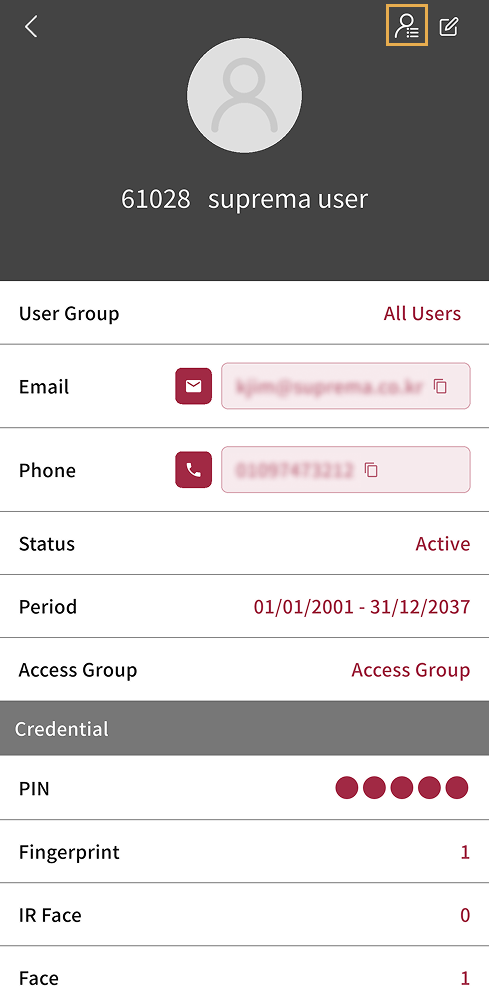
Tap in the upper right in user details.
-
In Event Log, you can view the user's access history.
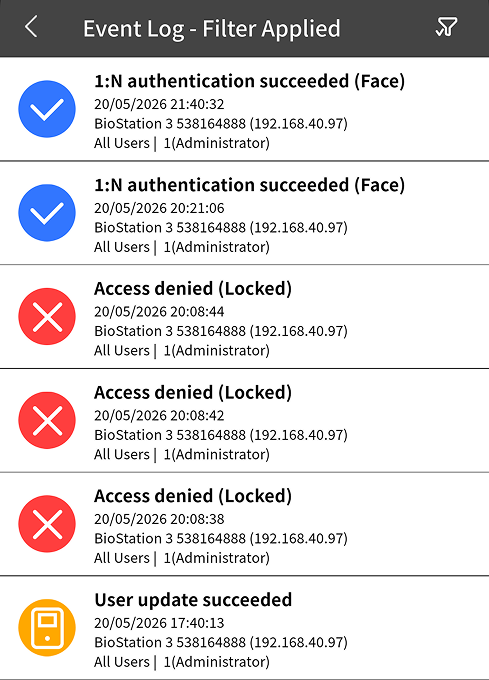
The latest log events are displayed first, and you can review the access location and event details.
Filter log events
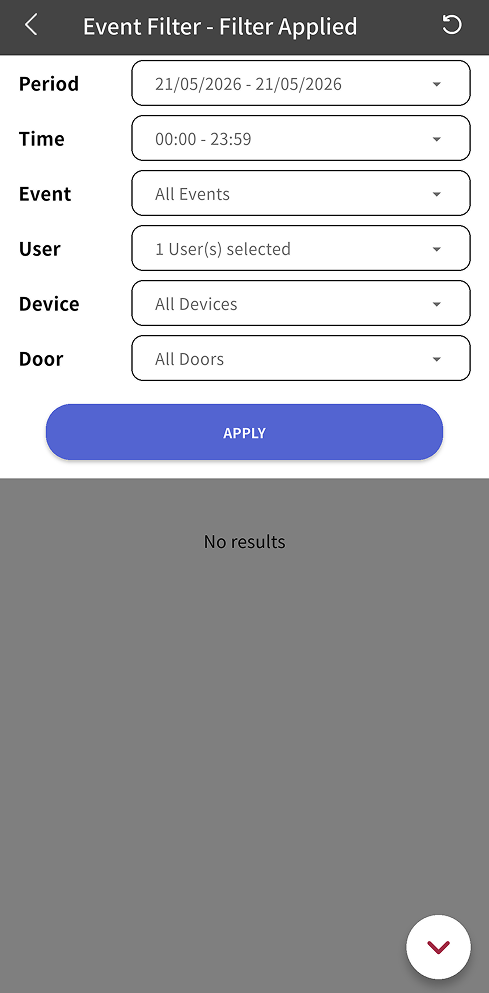
You can filter a user's log events by various conditions, such as date and time, event type, and access location.
-
Tap in the upper right of Event Log.
-
When the filter criteria appear, set the desired criteria.
-
Period: Set the period when the log event occurred.
-
Time: Set the time when the log event occurred.
-
Event: Select the log event type. For example, select access authentication success or access authentication failure.
-
User: View log events for users other than the current user.
-
Device: Select the device where the log event occurred.
-
Door: Select the door where the log event occurred.
-
-
To filter log events with the selected criteria, tap Apply.
To reset the filter conditions, tap → in the upper right corner of the screen.