Add Device
To use a CLUe device, complete enrollment and assignment in the web portal. Only the Branch manager can enroll devices, and the Distributor manager or Place group manager assigns enrolled devices to their assigned place.
Customers who purchased a new device should check that the CLUe firmware and certificate are applied, then request device enrollment from the Suprema branch.
Device enrollment (Branch manager)
Only the Branch manager can enroll devices. Check the device serial number before enrolling the device. Find the serial number on the sticker attached to the back of the device.
-
Log in to the CLUe web portal.
-
On the initial screen, select the Branch to enroll the device.
-
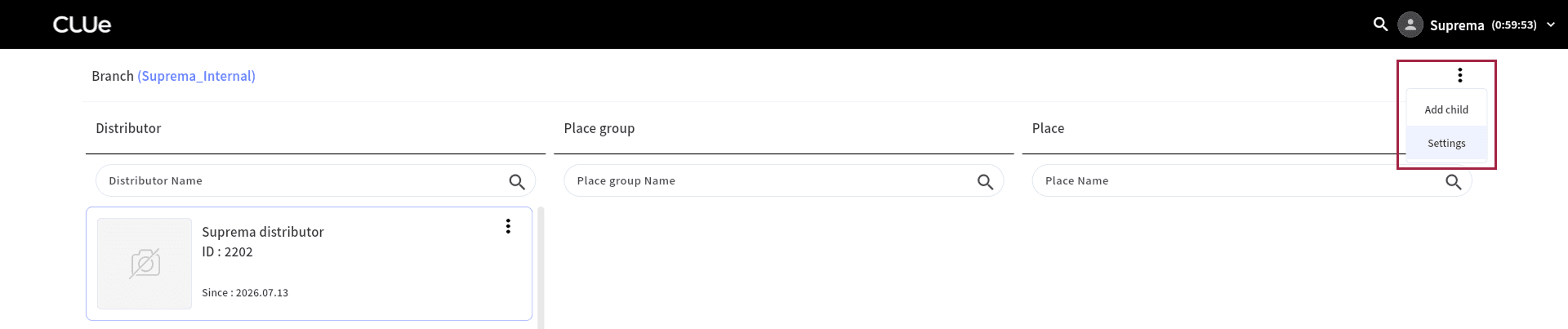
In the upper-right corner of the screen, click → Settings.
-
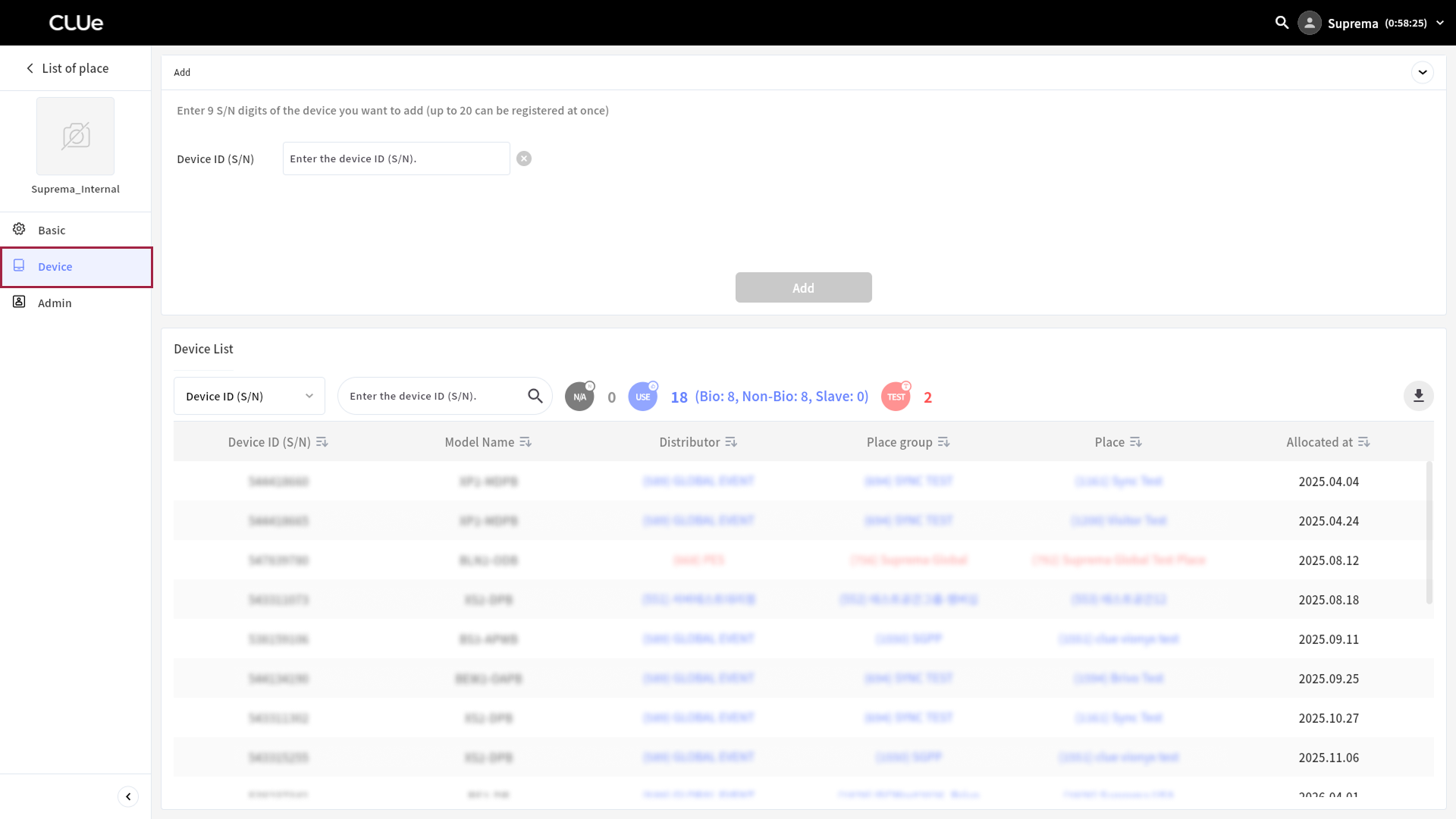
Click Device in the left sidebar.
-
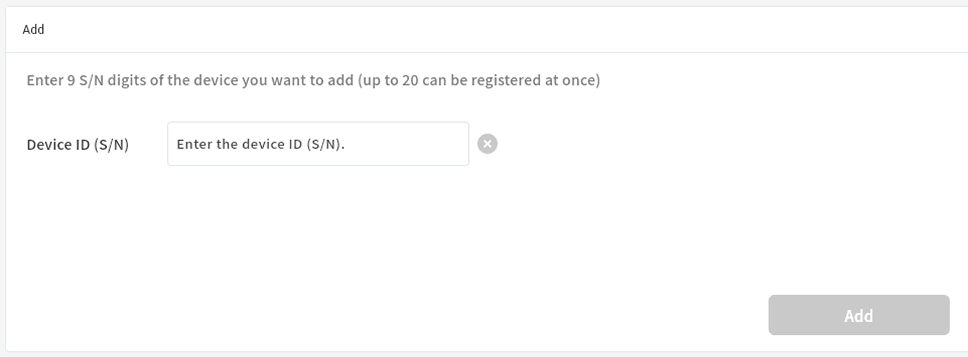
In the Add section, enter the device serial number in the Device ID (S/N) input field, then click Add.
-
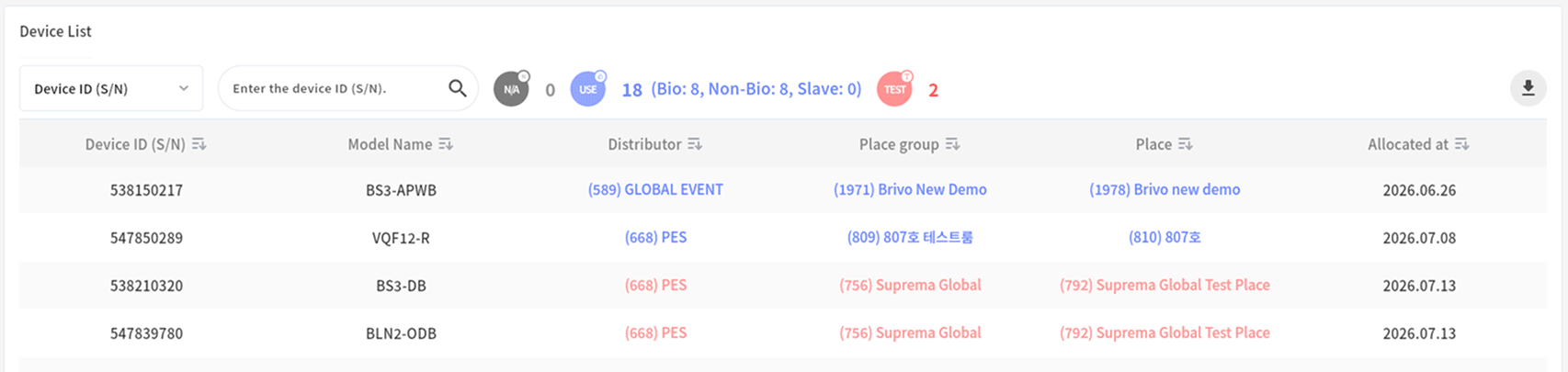
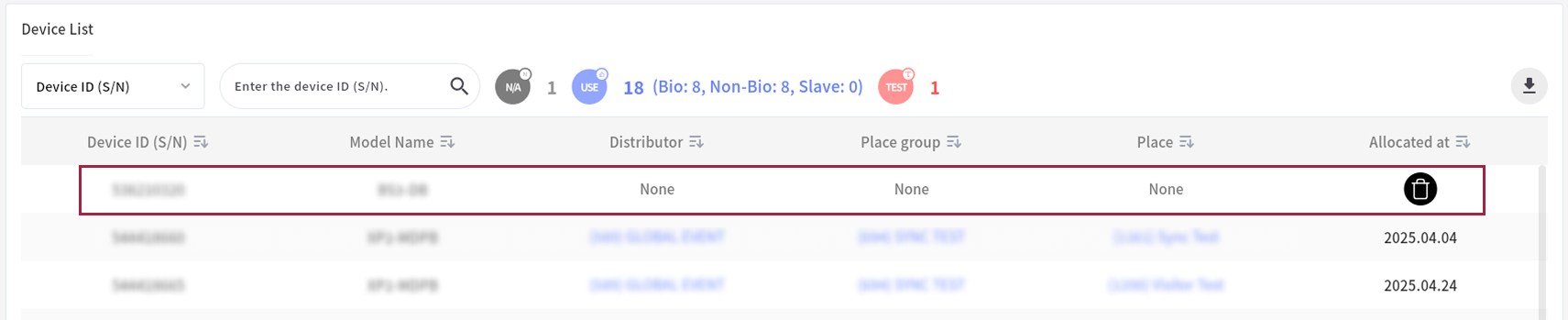
The added device appears in Device List.
-
To enable edit mode, click the None field and select .

-
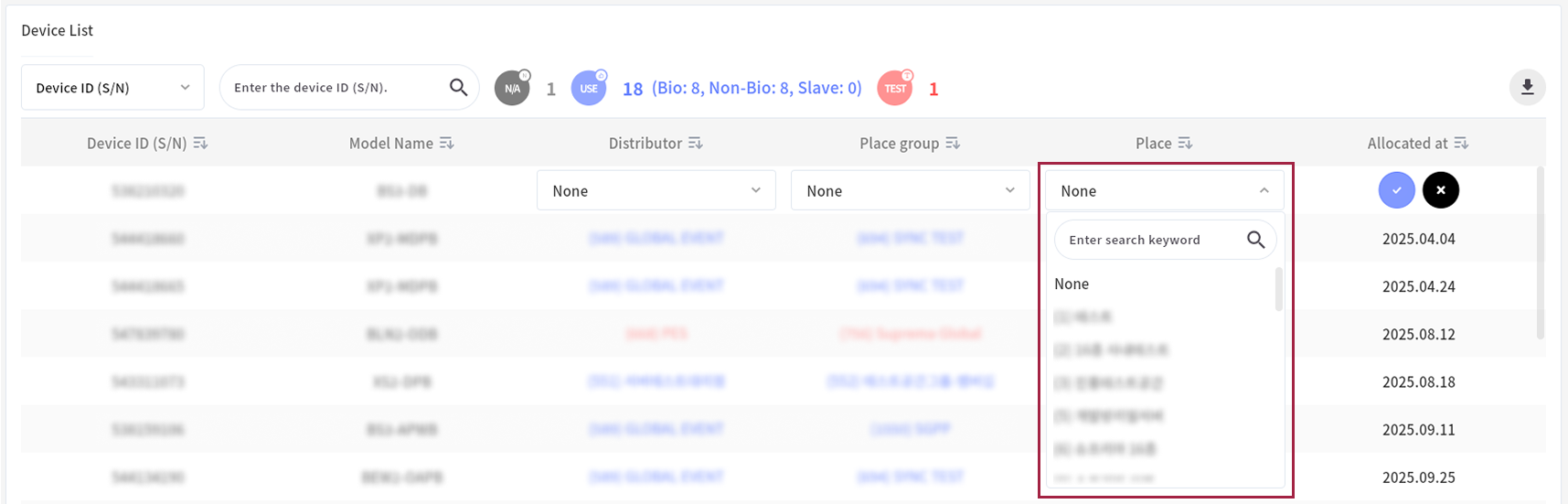
Select the Distributor, Place group, or Place to assign the device.
-
Click to apply the selected option.
A success message for device assignment appears at the top of the screen. When you click each field, the button activates, and you can move to the corresponding Distributor, Place group, or Place. Click the button to move to the location, then set the device and door.

Device assignment
Distributor manager
The Distributor manager can assign devices assigned to them to a lower Place group or an individual Place. If the device that needs enrollment does not appear in the list, contact the relevant Suprema branch or headquarters.
-
Log in to the CLUe web portal.
-
On the initial screen, select the Distributor to assign the device.
-
In the upper-right corner of the screen, click → Settings.

-
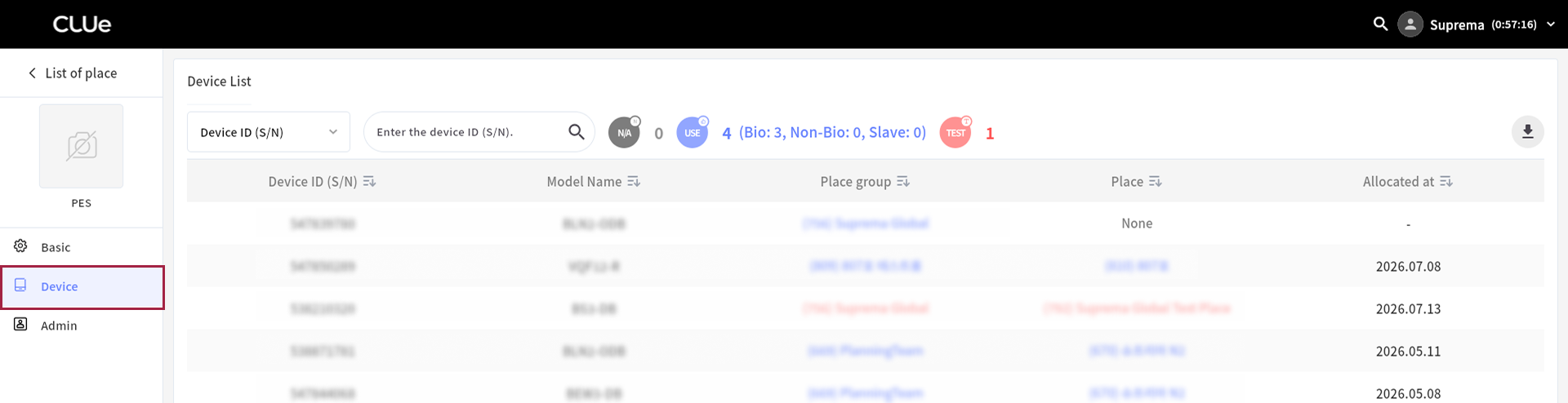
Click Device in the left sidebar.
-
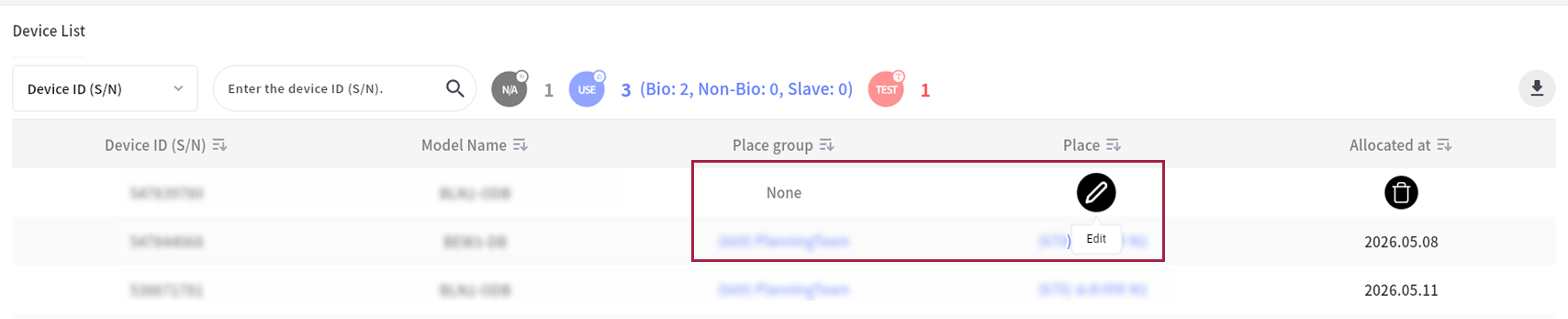
To enable edit mode, click the None field and select .
-
Select the Place group or Place to assign the device.
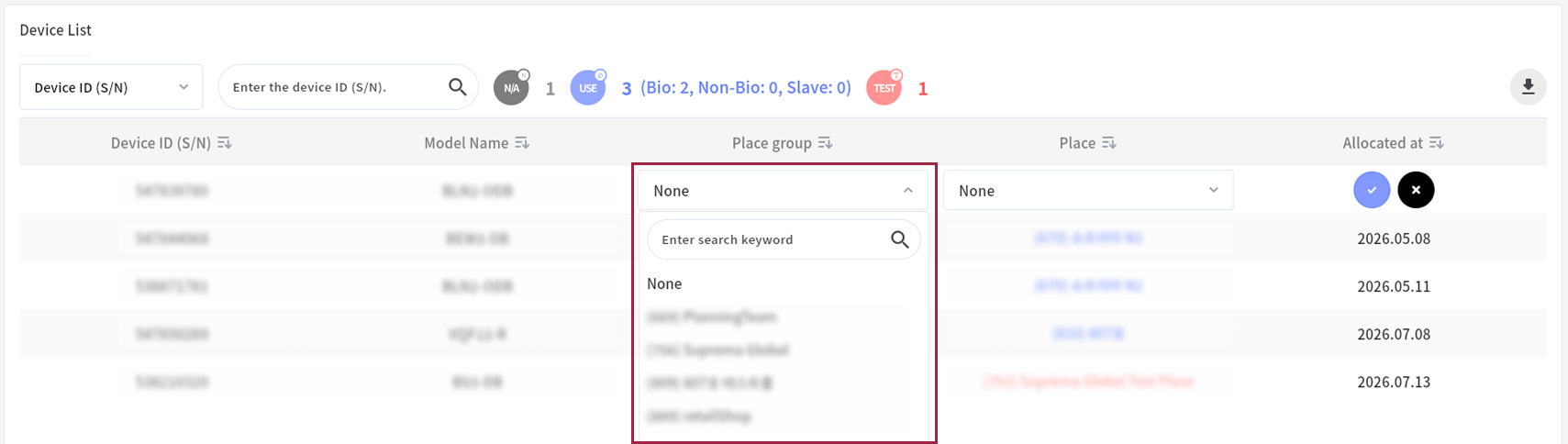
-
Click to apply the selected option.
A success message for device assignment appears at the top of the screen. When you click each field, the button activates, and you can move to the corresponding Place group or Place. After assignment, move to the Place and add a door.
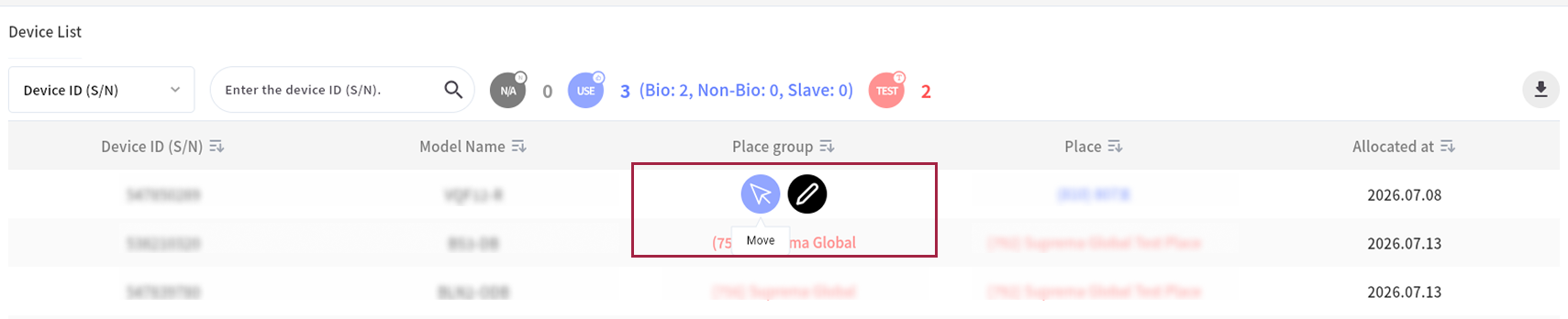
-
By default, the Distributor manager cannot view the Users and Monitoring tabs under the privacy policy. If access is required, request an invitation from the Place group, Place manager.
-
When you delete a device, it returns automatically to the Branch-level device list and becomes unassigned. If you deleted a device by mistake, ask the Branch manager to reassign it.
Place group manager
The Place group manager can assign devices assigned to them to a lower Place.
-
Log in to the CLUe web portal.
-
On the initial screen, select the Place group to assign the device.
-
In the upper-right corner of the screen, click → Settings.

-
Click Device in the left sidebar.
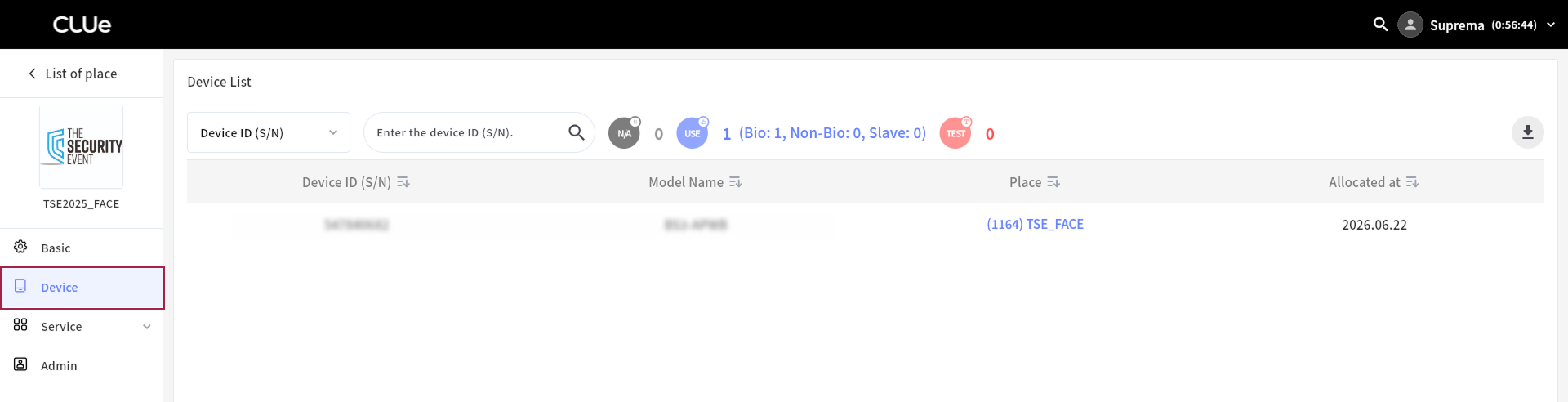
-
To enable edit mode, click the None field and select .

-
Select the Place to assign the device.
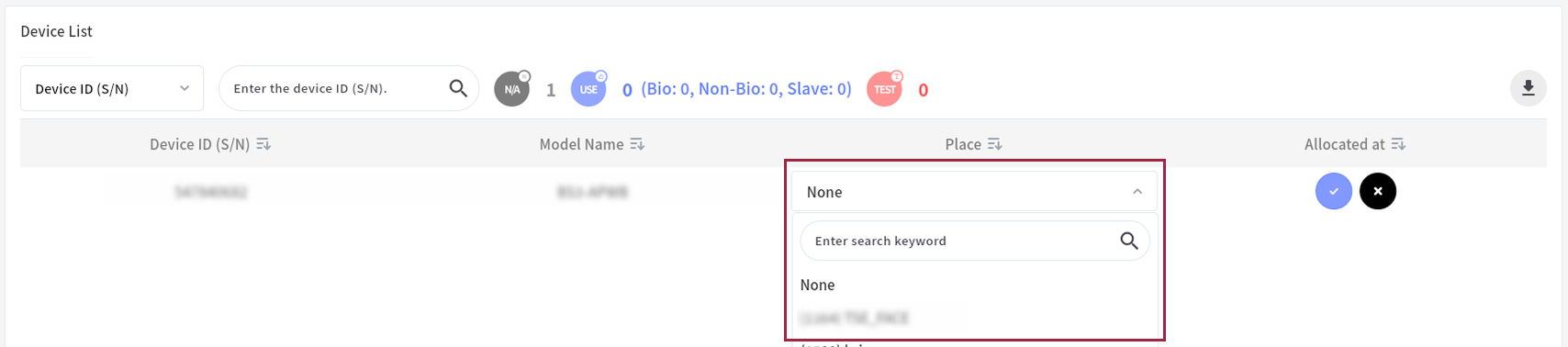
-
Click to apply the selected option.
A success message for device assignment appears at the top of the screen. After device assignment, move to the corresponding Place and add a door.

Test place setting (Branch manager)
Because subscriptions are based on the number of devices, separate test devices and exclude them from the total. To do this, users with the Branch manager role can designate certain places as "test places" in Place settings.
-
Log in to the CLUe web portal.
-
Select the Place to designate as a test place.
-
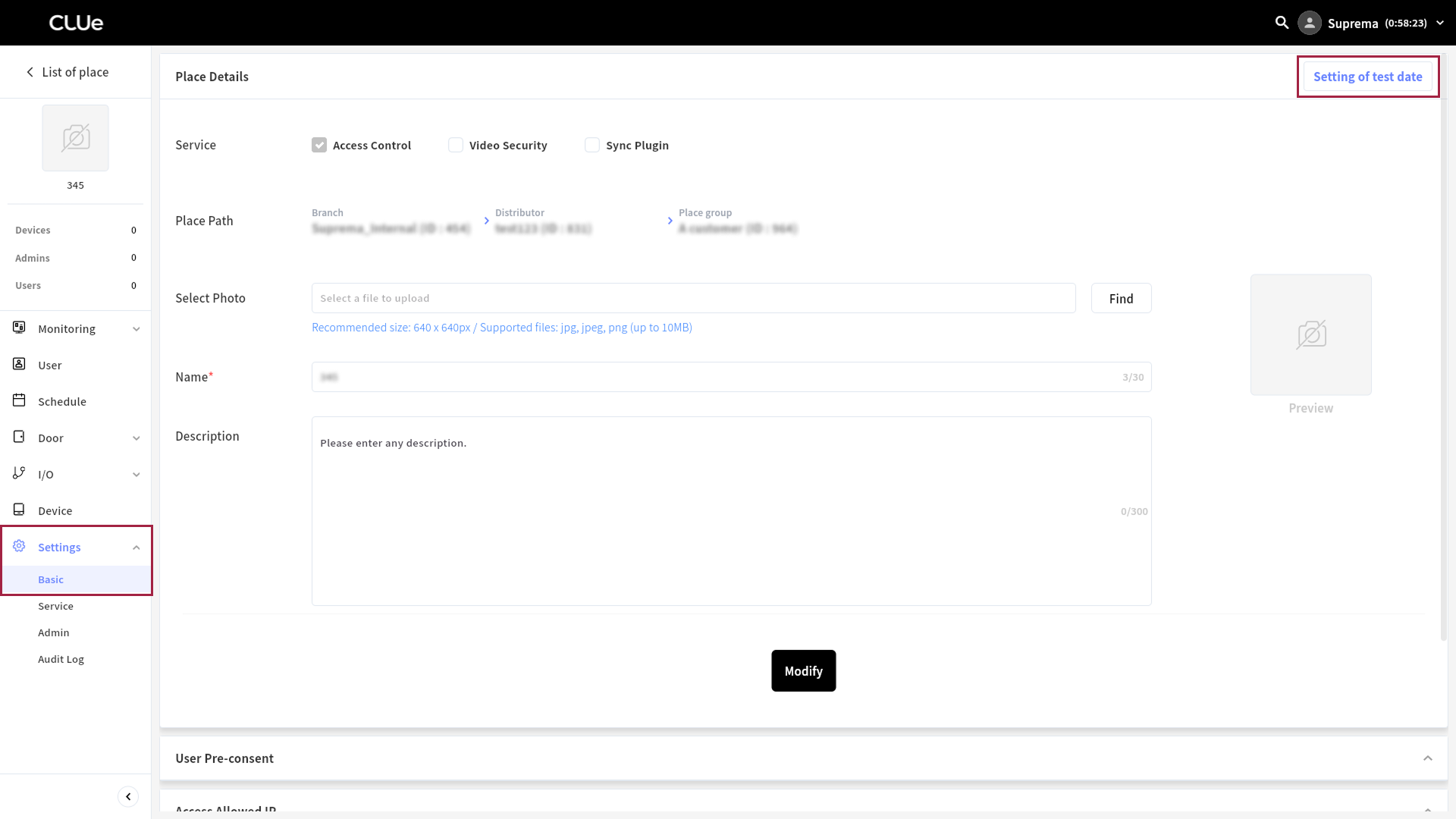
On the left sidebar, click Settings → Basic.
-
Click Setting of test date in the upper-right corner of the screen.
-
When the Test Period popup appears, set the test period.
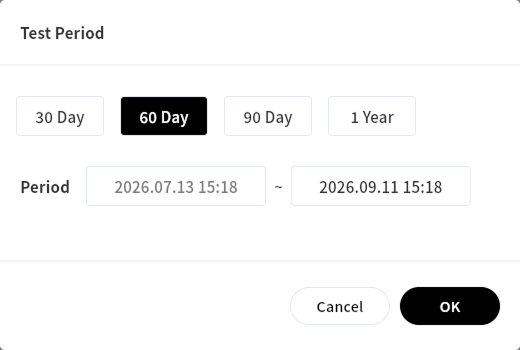
To use it without a time limit, set the end date to 9999.12.31 23:59.
-
To finish, click OK.
All devices in the Place appear in red in the device list, so they are identified as test devices. You can also check the total quantity information.