Add Doors
Door settings are required in CLUe. If you do not configure doors, communication with the server, including user synchronization, will not work properly. Complete this step before you start the service.
Access control setting
-
Log in to the CLUe web portal.
-
Select the Place where you want to add a door.
-
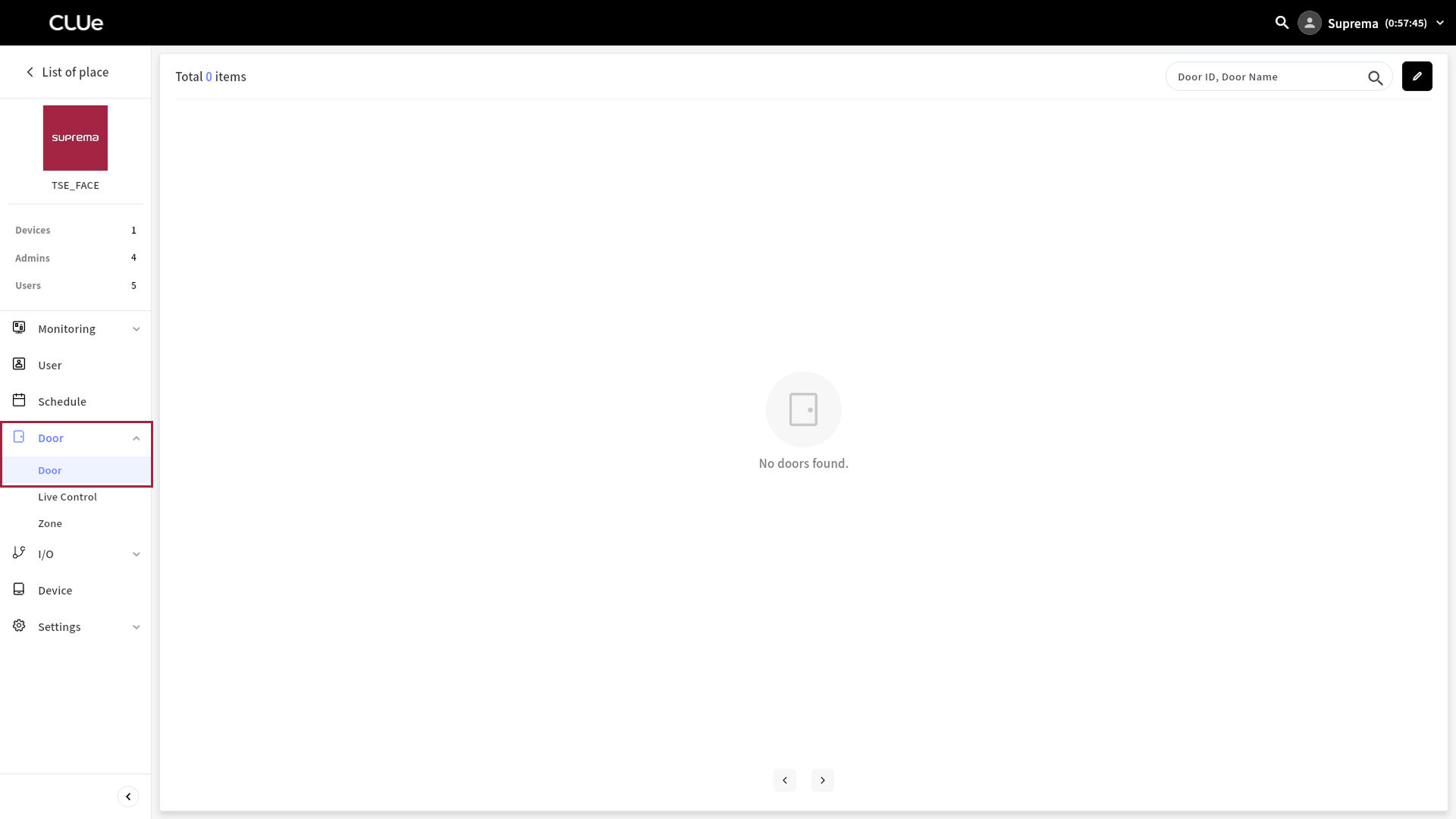
On the left sidebar, click Door → Door.
-
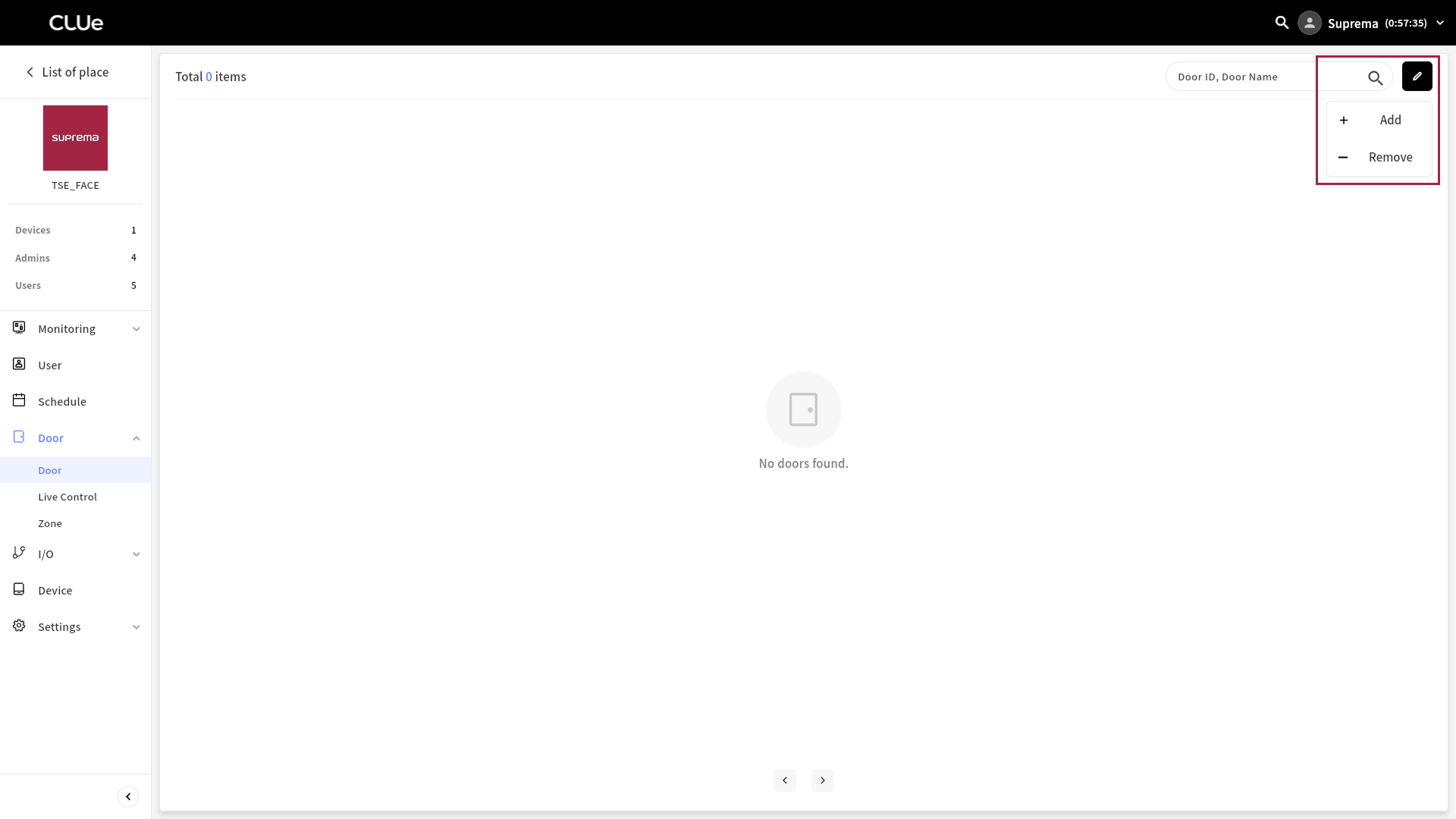
At the top right of the screen, click → Add.
-
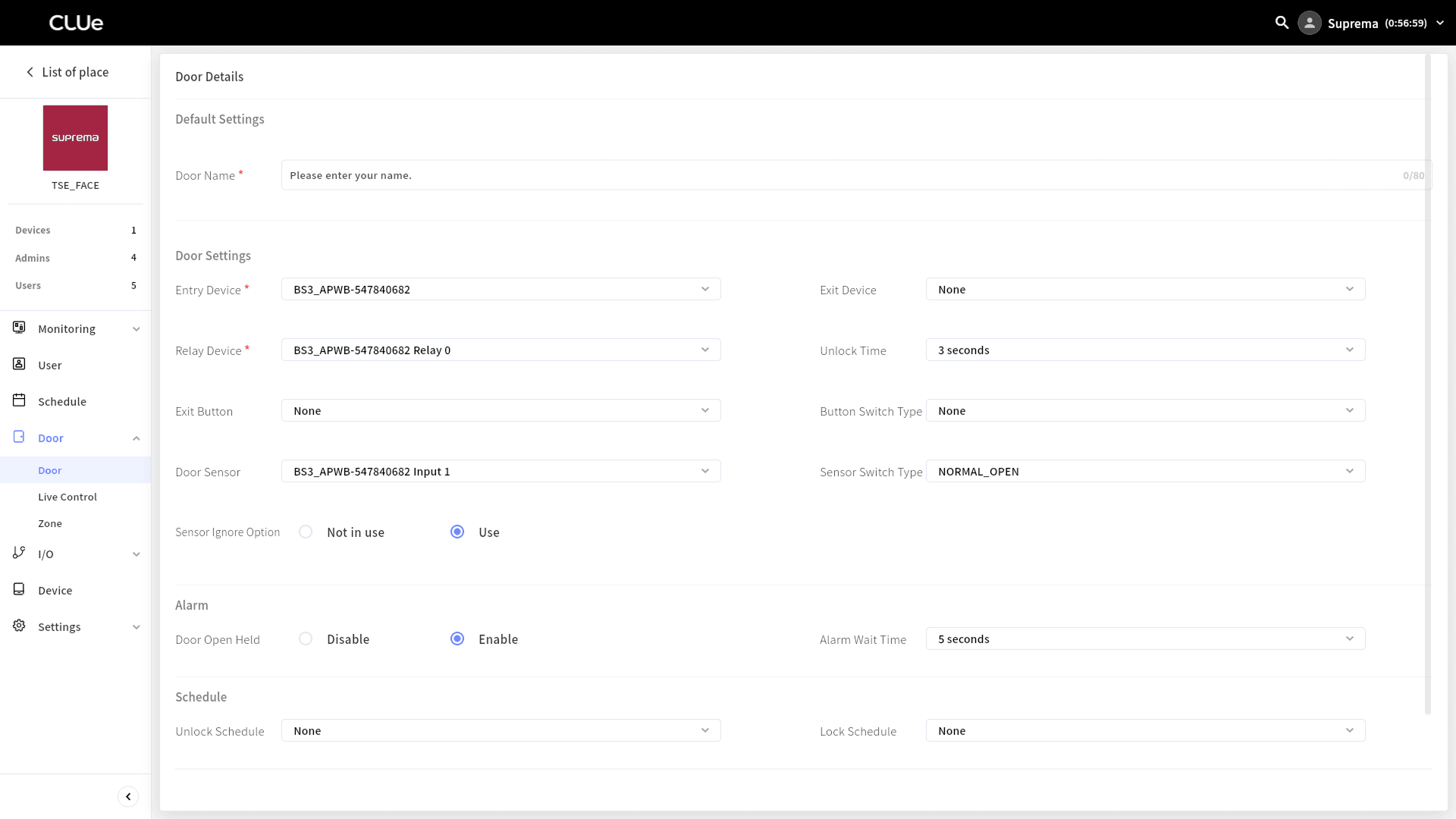
Enter the door name, and select any other required settings, such as the entry device, relay, and exit button.
-
After you complete the door settings, click the Add button.
-
Use: The door relay changes state after the lock time passes, regardless of the door sensor status.
-
Not in use: The door relay does not return to its original state, even if the door sensor detects an open state. Select this option if you configure an automatic door.
Use slave device relays
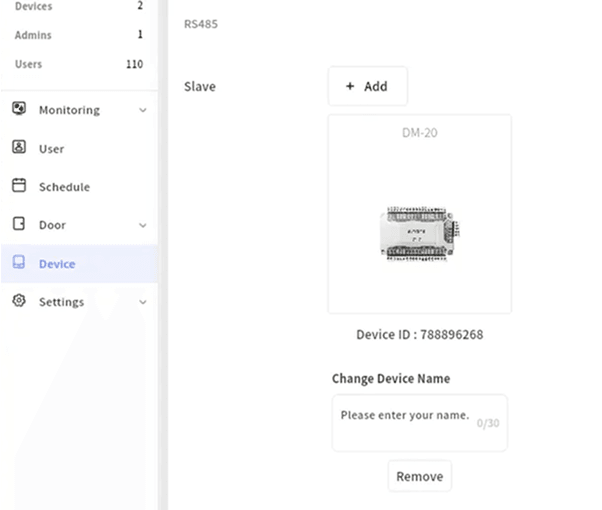
If you use an RS485 slave device, such as SIO2, DM-20, or DI-24, assign it to a separate Place, even if it connects to the master device. Assign it to a Place the same way you assign a standard device. For information on how to assign a device to a Place, see Add Device.
-
Check the slave devices in the device list.

-
Select the master device, and add the connected slave devices. Then, you can use the relay and input ports on the slave devices.