Upgrade Firmware
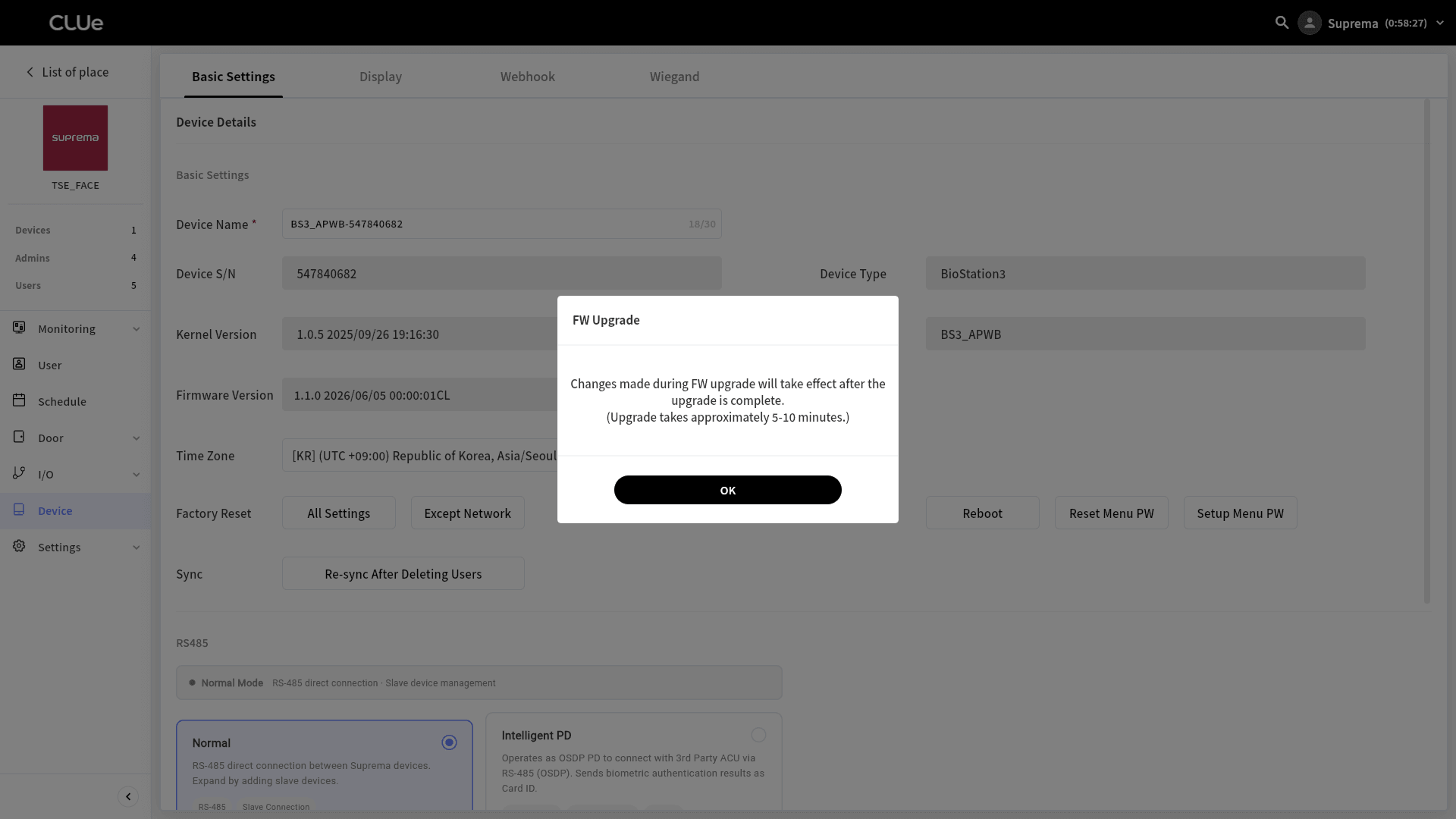
Upgrading the firmware on a CLUe device lets you apply new features, performance improvements, and security patches. The upgrade takes only a few clicks in the CLUe web portal and takes about 5 to 10 minutes to complete.
Before starting the upgrade, check the following:
-
You cannot use the device during the upgrade, and when it restarts, the door may briefly open or close depending on the lock connection method.
-
If you change device settings during the upgrade, the changes apply after completion.
Go to a place
To upgrade an access device assigned to a place, go directly to that place, or navigate through the upper Branch, Distributor, or Place group.
-
Log in to the CLUe web portal.
-
On the initial screen, select a Branch, Distributor, or Place group.
-
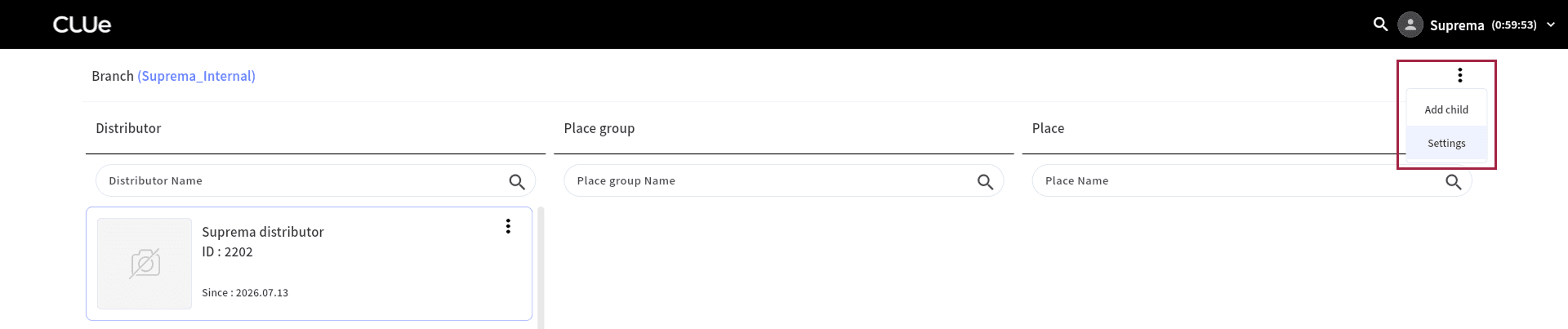
Click → Settings in the upper right of the screen.
-
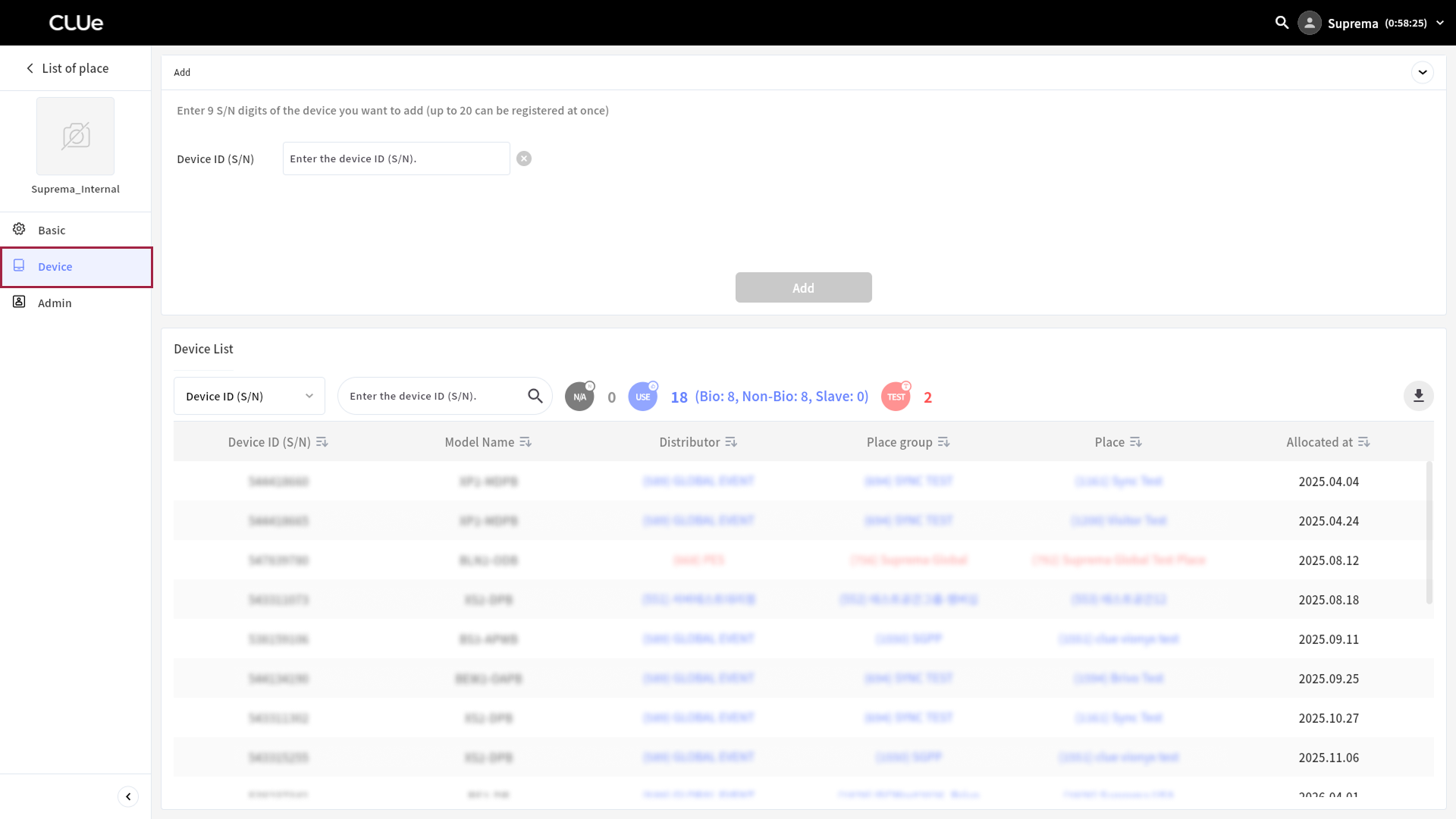
Click Device in the left sidebar.
-
In Device List, click the Place column for the device whose firmware you want to upgrade.

-
When the button becomes active, click it.
The selected device moves to the Device screen for the assigned place.
Firmware upgrade
-
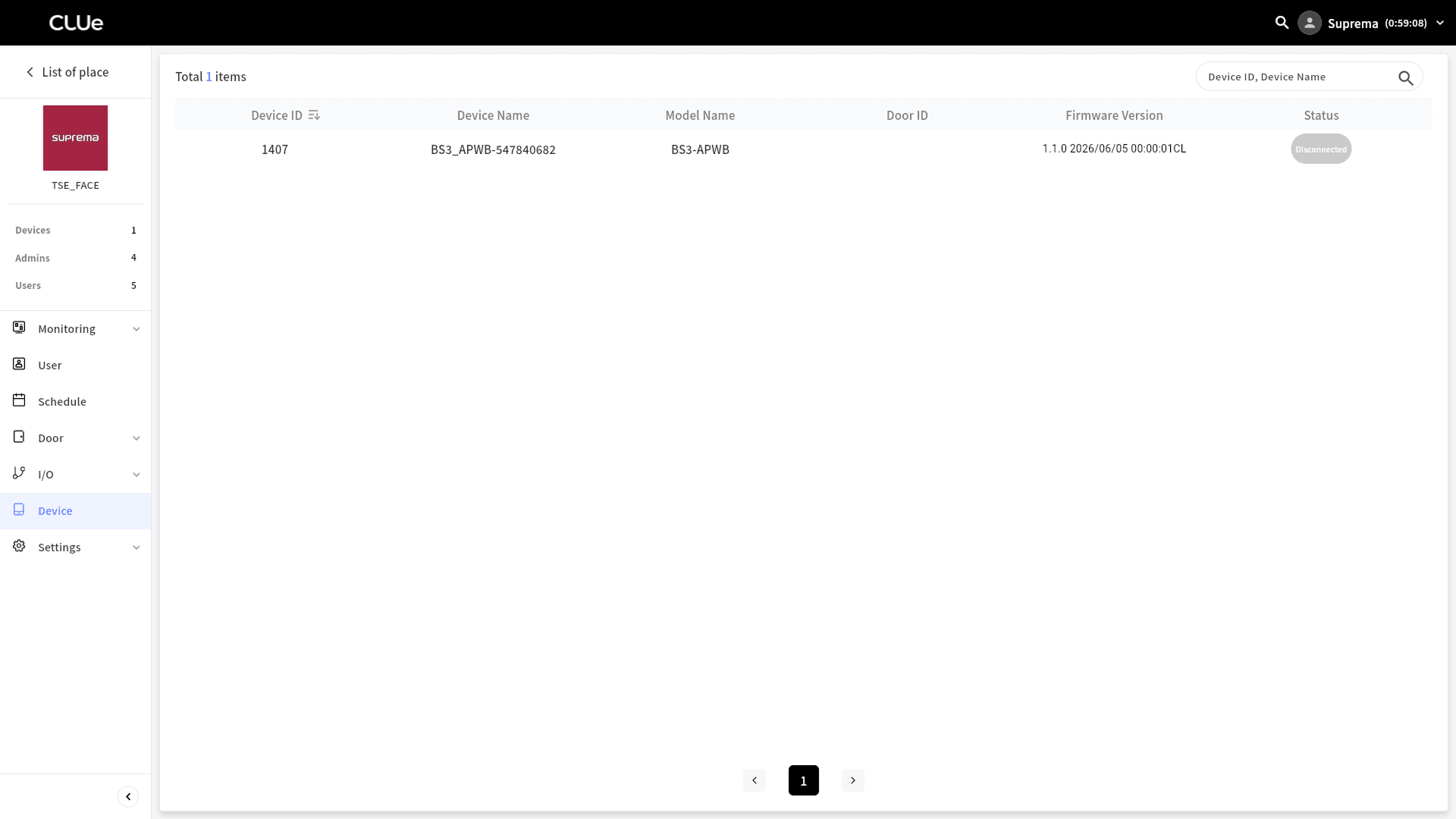
In the Device list for the assigned place, click the device you want to upgrade.
-
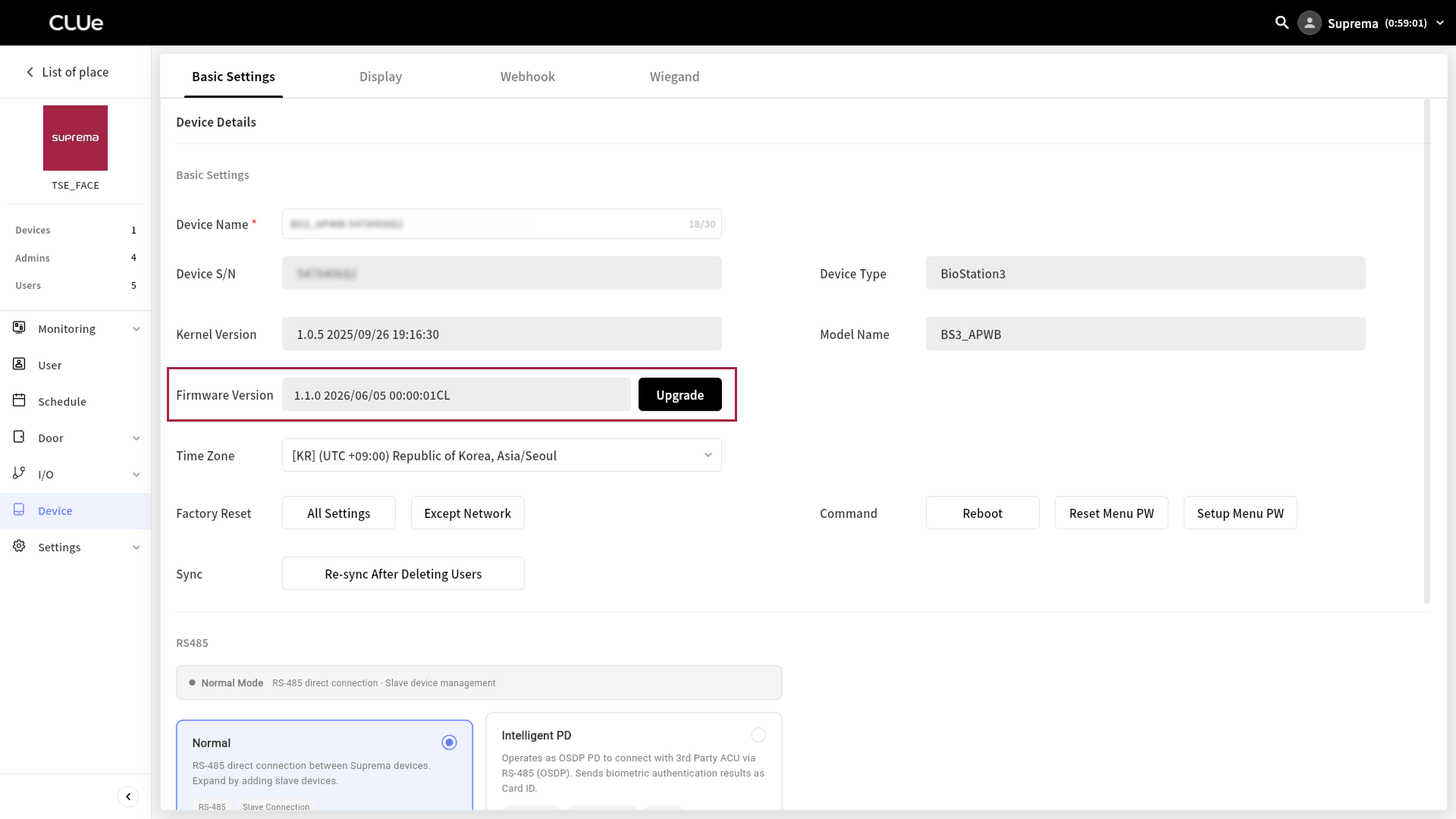
When the selected device’s Basic Settings screen appears, check the current firmware version in Firmware Version.
-
Click the Upgrade button.
-
When the firmware selection window appears, click the checkbox for the firmware you want to upgrade.
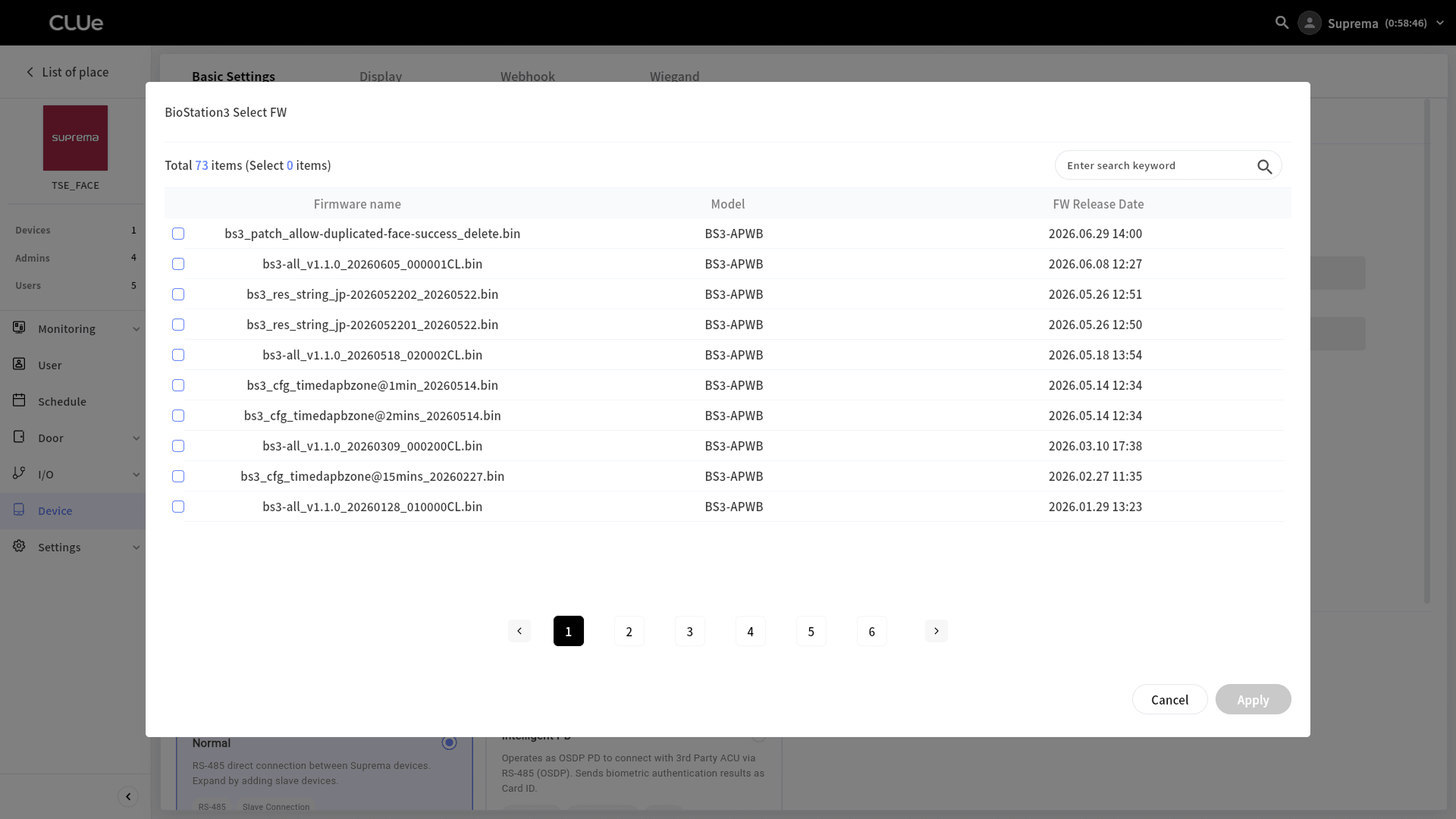
You can select only one firmware version.
-
Click the Apply button in the lower right.
-
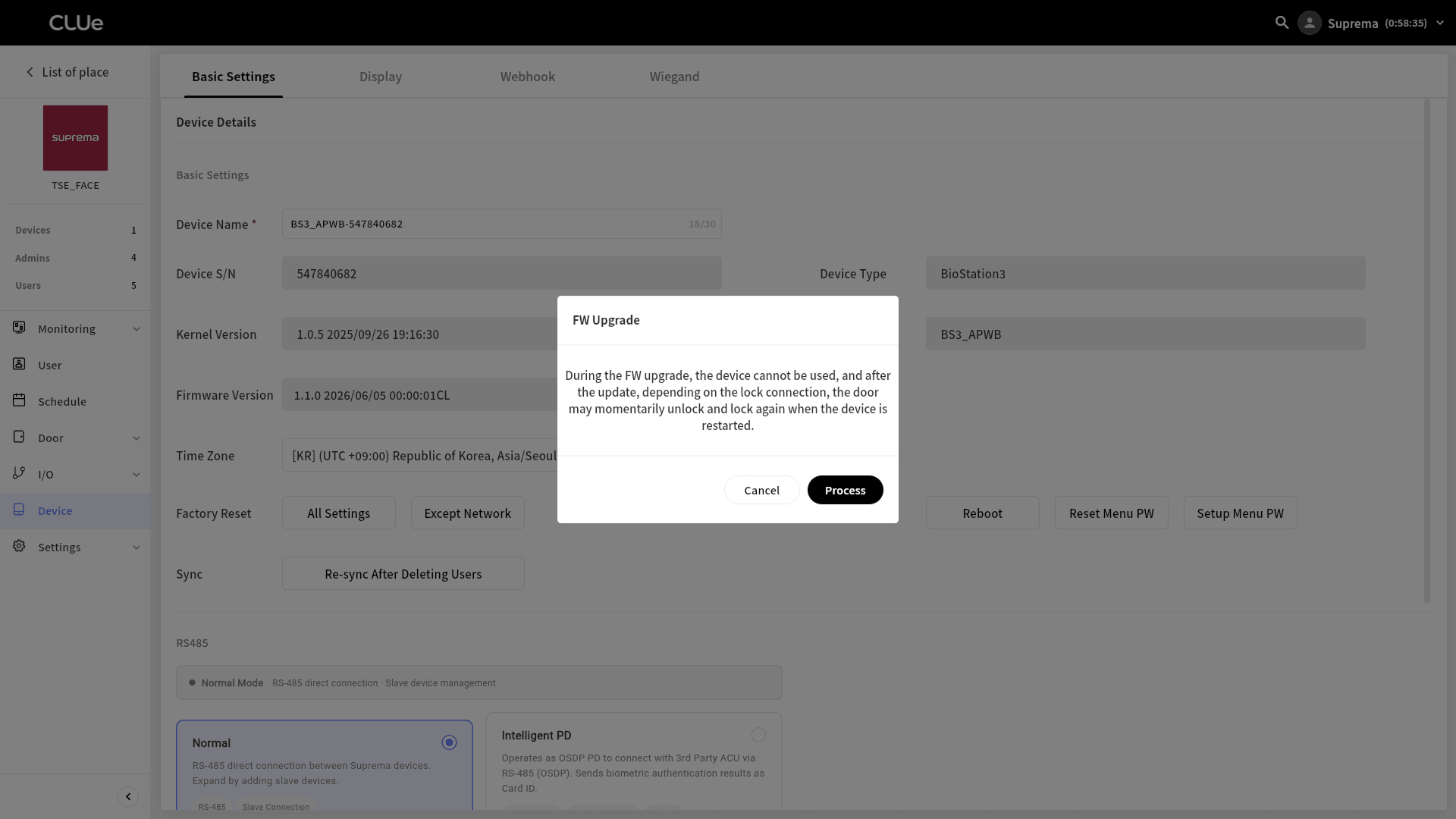
When the upgrade confirmation window appears, click the Process button.
-
When the message window appears, review the contents, and click the OK button.