View Audit Logs
The Audit Log feature records and tracks all activities that occur in a Place in the CLUe portal. Administrators can use Audit Log to check who performed which activity and when, and meet security and compliance requirements.
View audit logs
-
Log in to the CLUe web portal.
-
Select the Place where you want to view audit logs.
-
In the left sidebar, click Settings → Audit Log.
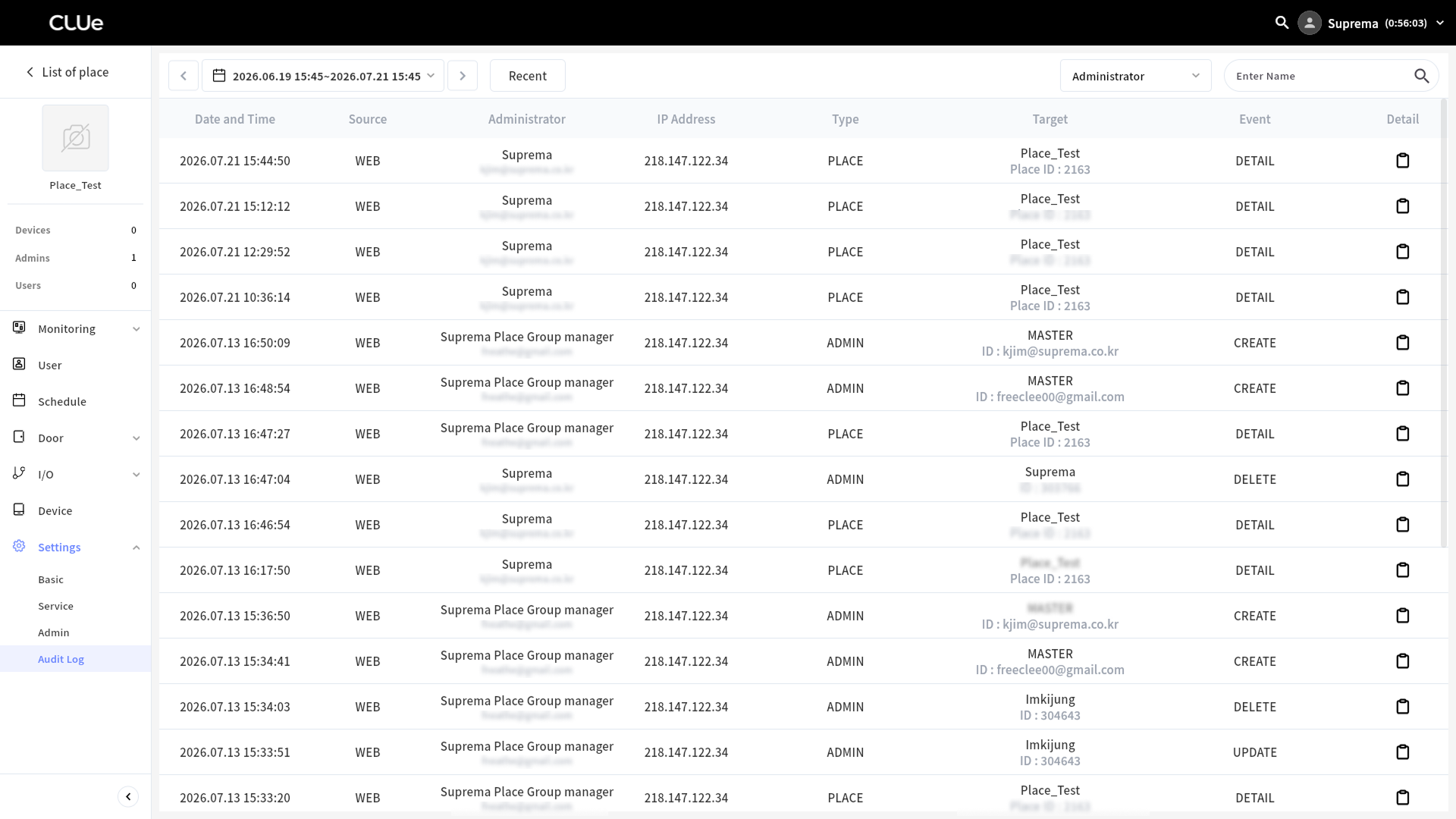
The most recent audit logs appear first in the list. Each log entry lets you check the Date and Time, Source, Administrator, IP Address, Type, Target, and Event for the activity.
View details
To view detailed information for an audit log entry, click the button in the Detail column at the far right of the list. The Detail panel appears on the right side of the screen.
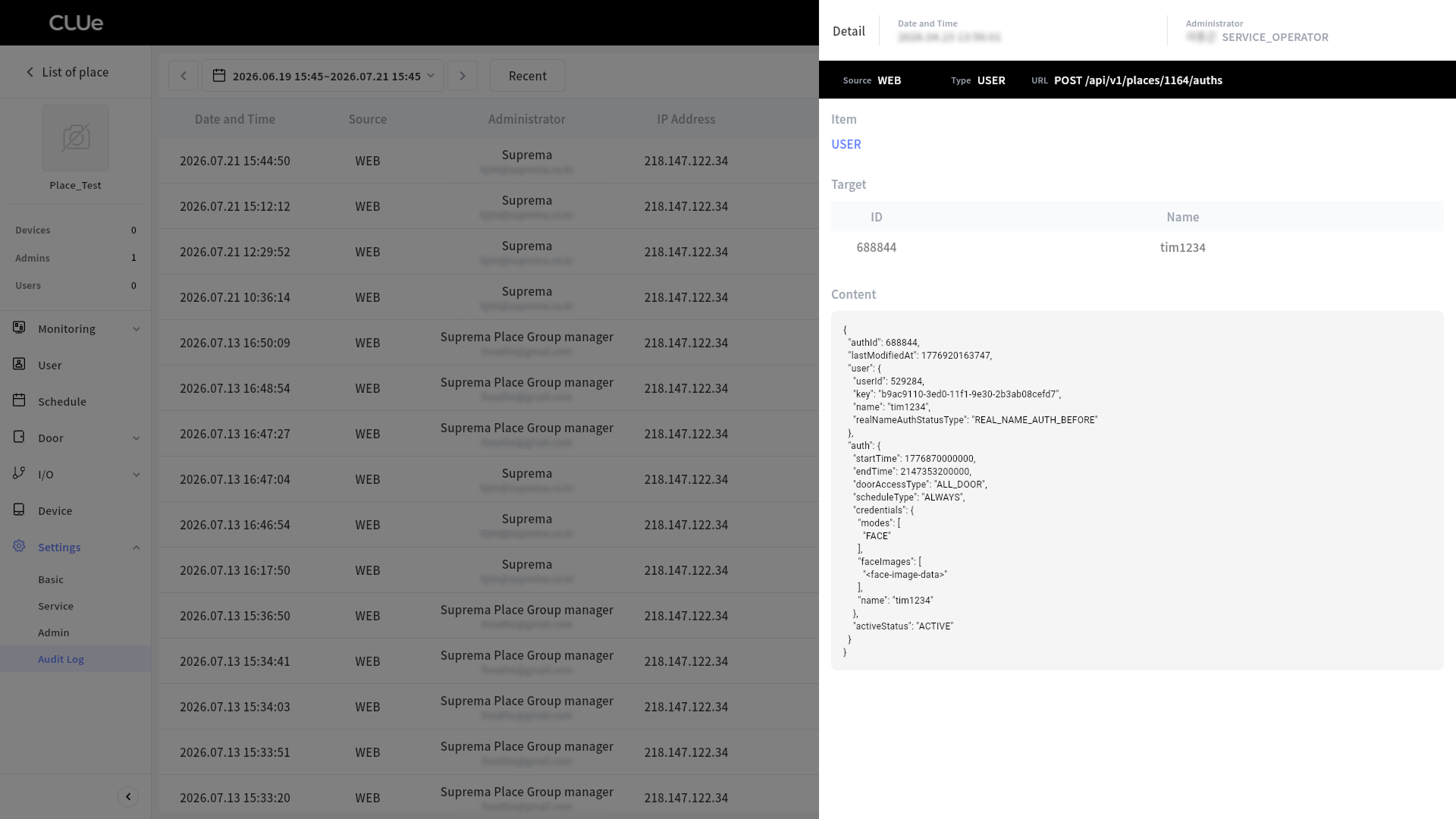
In the Detail panel, you can check Source, Type, and related APIs along with the date, time, and administrator account. It also provides the following information:
-
Item: Shows the category where the activity occurred.
-
Target: Shows the ID and name of the target where the activity applied.
-
Content: Shows the API request body data. If no request body exists, it appears as an empty value (
{}).
Set search period
To change the search period by the currently set unit, click or at the upper left of the audit log list.
To view audit logs for a certain period, click the date and time area (). When the Setting date and time window appears, set the start date and time, and the end date and time. You can view audit logs for the set period.
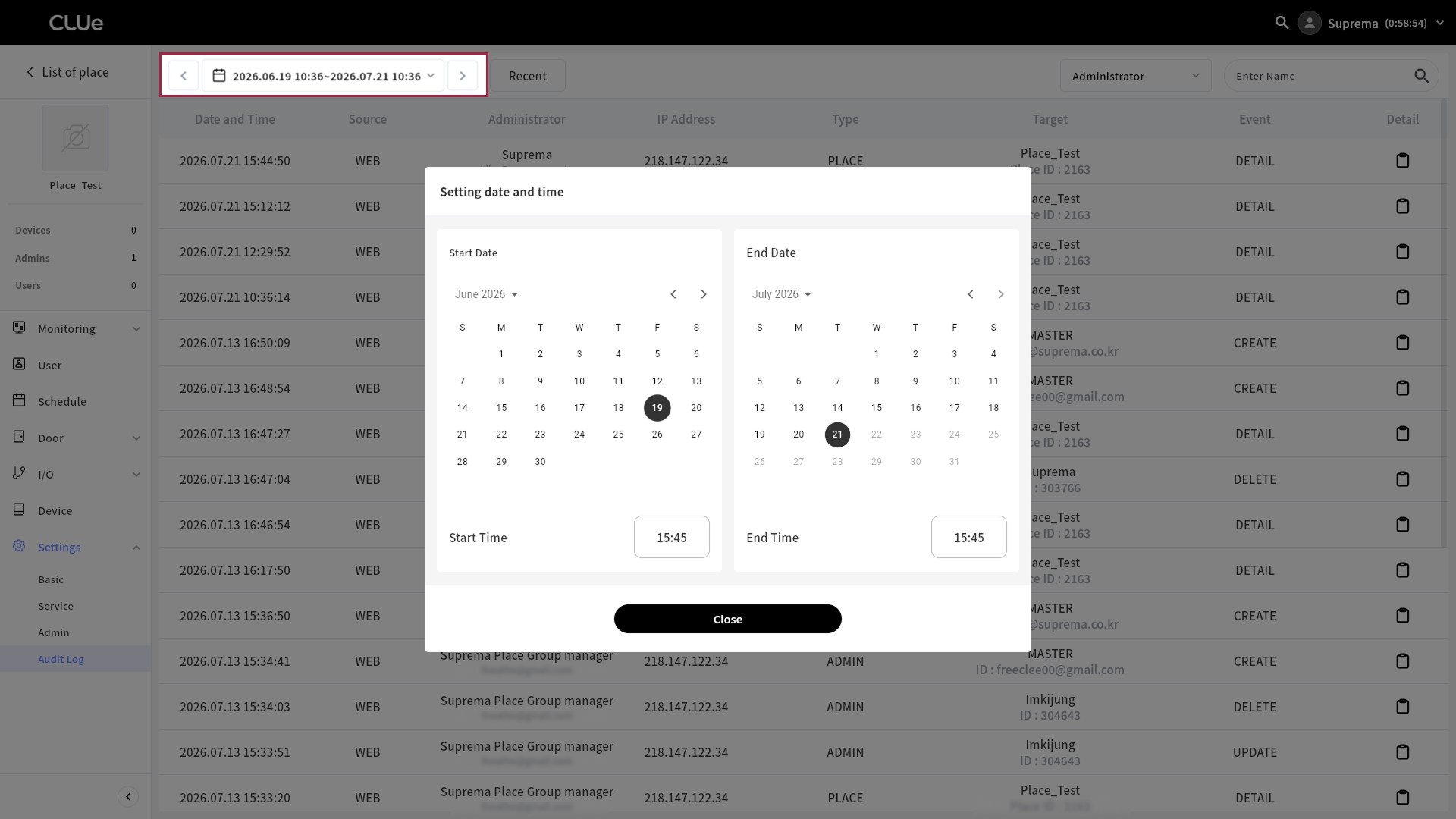
To clear the set search period, click the Recent button.
Search
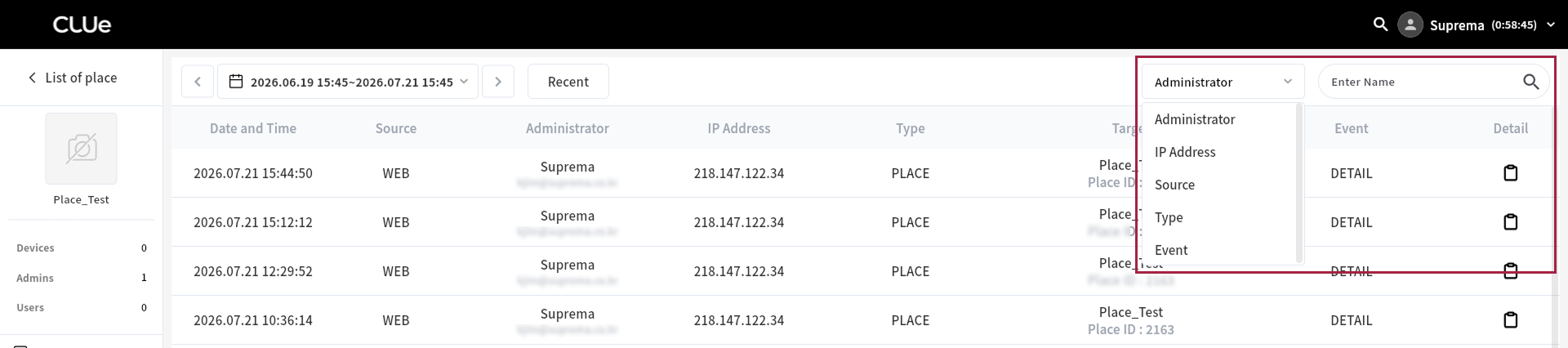
Search or filter the data you need based on each column value in the audit log list. Use the search tools at the upper right of the audit log list.
-
Administrator: Enter an administrator name to search. Searches are case-sensitive.
-
IP Address: Search by IP address. Enter the exact IP address.
Example: 192.168.1.1
-
Source: Select the condition for the platform where the user acted.
Web(WEB), Mobile(MOBILE), API(API_TOKEN)
-
Type: Select the user's activity category.
DEVICE, DOOR, PLACE, USER, PLACE STRATEGY, ADMIN, Access to personal information
-
Event: Select the following event condition.
DETAIL, LIST, CREATE, UPDATE, DELETE, COMMAND
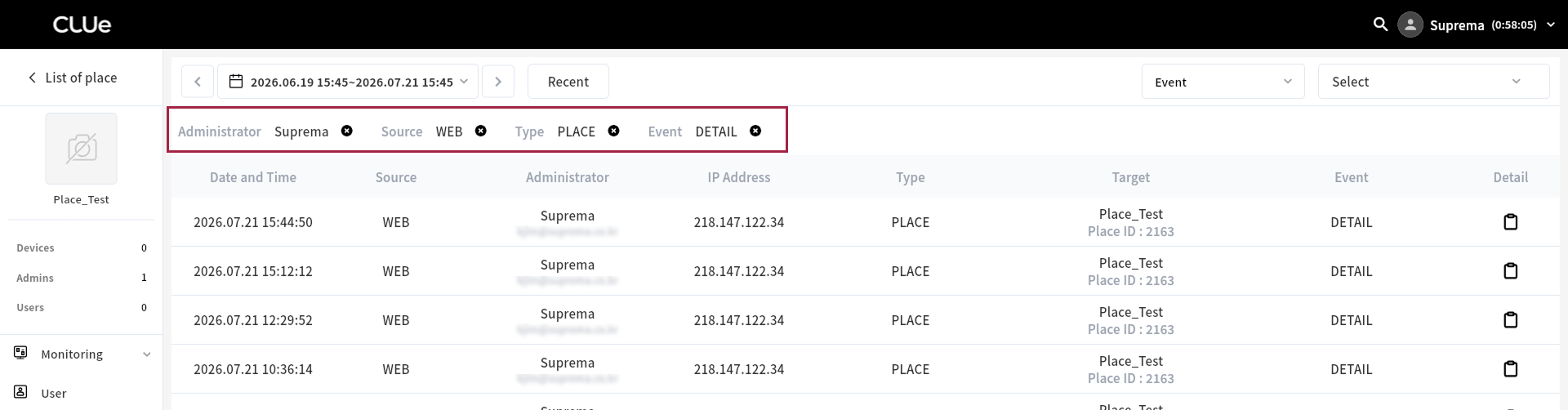
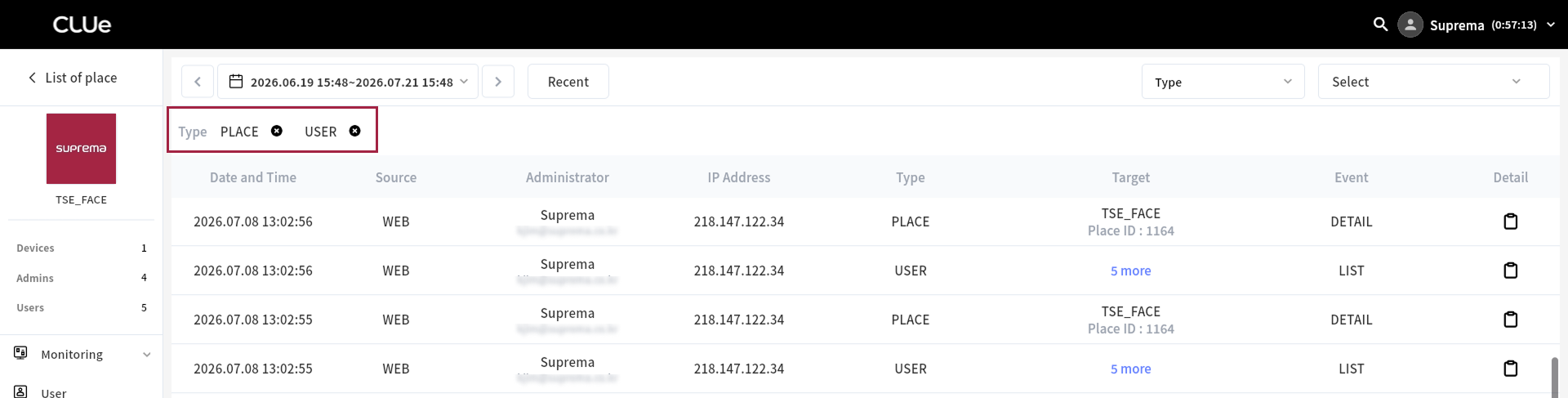
Select multiple filter fields together to filter. If you select different fields, filtering uses the AND condition. If you select multiple values for the same field, filtering uses the OR condition. To clear filtering, click the button.