Getting Started with the CLUe Web Portal
If you are new to the CLUe web portal, start by understanding the administrator permission structure. This document explains how to add distributors, place groups, and places under a branch.
Understand administrator levels
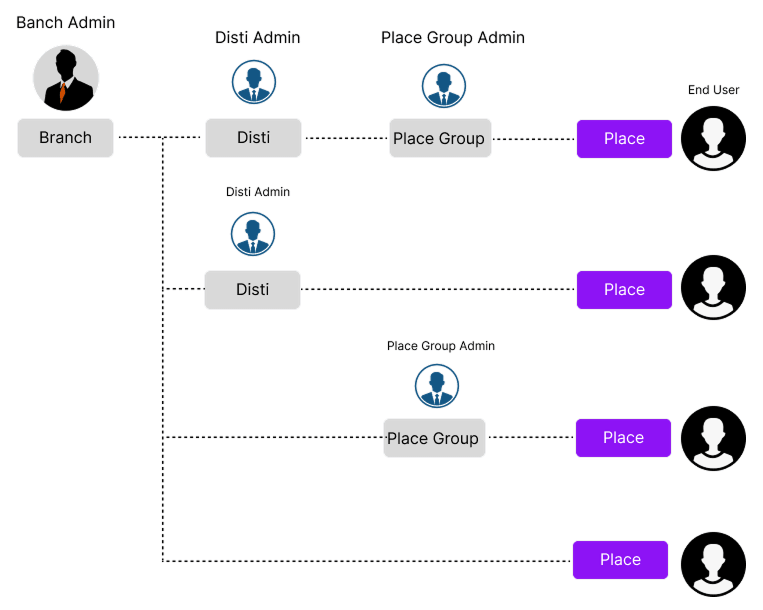
CLUe is a multi-tenant system with a three-level hierarchy designed for distribution channel environments that operate customer services across multiple branches.
-
Branch Admin: A Branch Admin can create Distributor/Place group/Place subitems.
-
Distributor Admin: A Distributor Admin can create Place group/Place subitems.
-
Place Group Admin: A Place Group Admin can create Place subitems.
Invite customers by email. Invited customers can sign up through the link in the email and access the invited place group.
One branch can have multiple distributors, and one distributor can also have multiple place groups. At the Distributor Admin level, you can view only your own distributor and its subitems.
Which item does the customer or end user belong to?
In the hierarchy above, the Place group is the item assigned to the customer or service provider. A place group represents a customer unit that operates multiple places, so enter that customer's admin email when creating a place.
Add subitems
-
Log in to the CLUe web portal.
-
After logging in, you can view the list of invited branches. Select the branch you want.
-
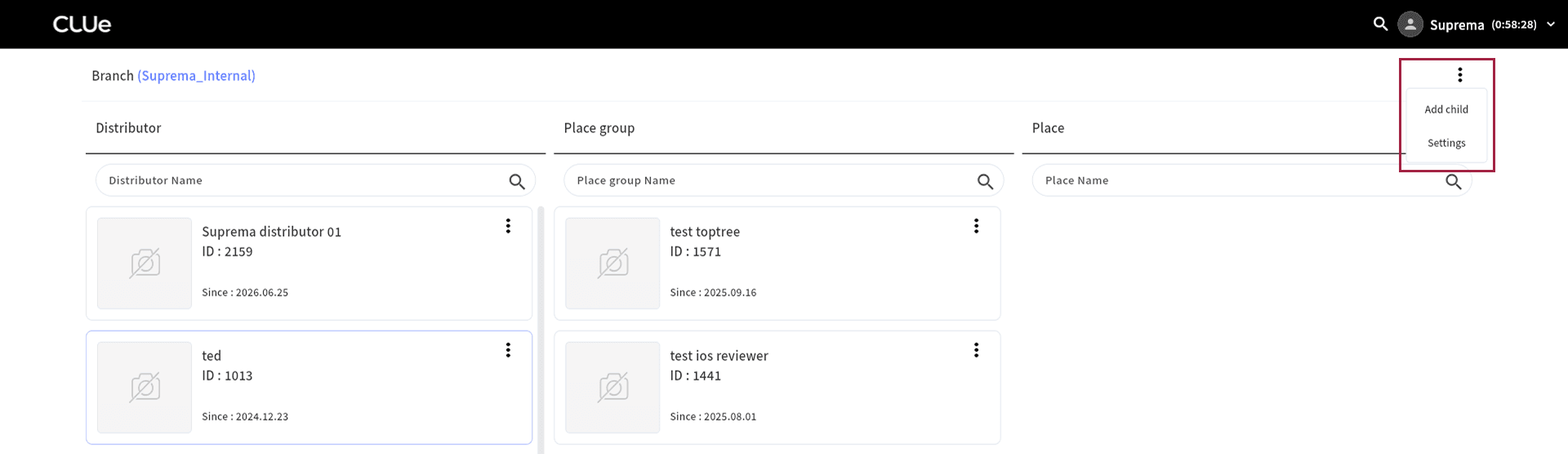
When the list of subitems under the selected branch, such as distributors, place groups, and places, appears, click the button in the top-right corner of the screen.
-
Click Add child from the popup menu.
-
When the Add Distributor popup appears, enter each field.
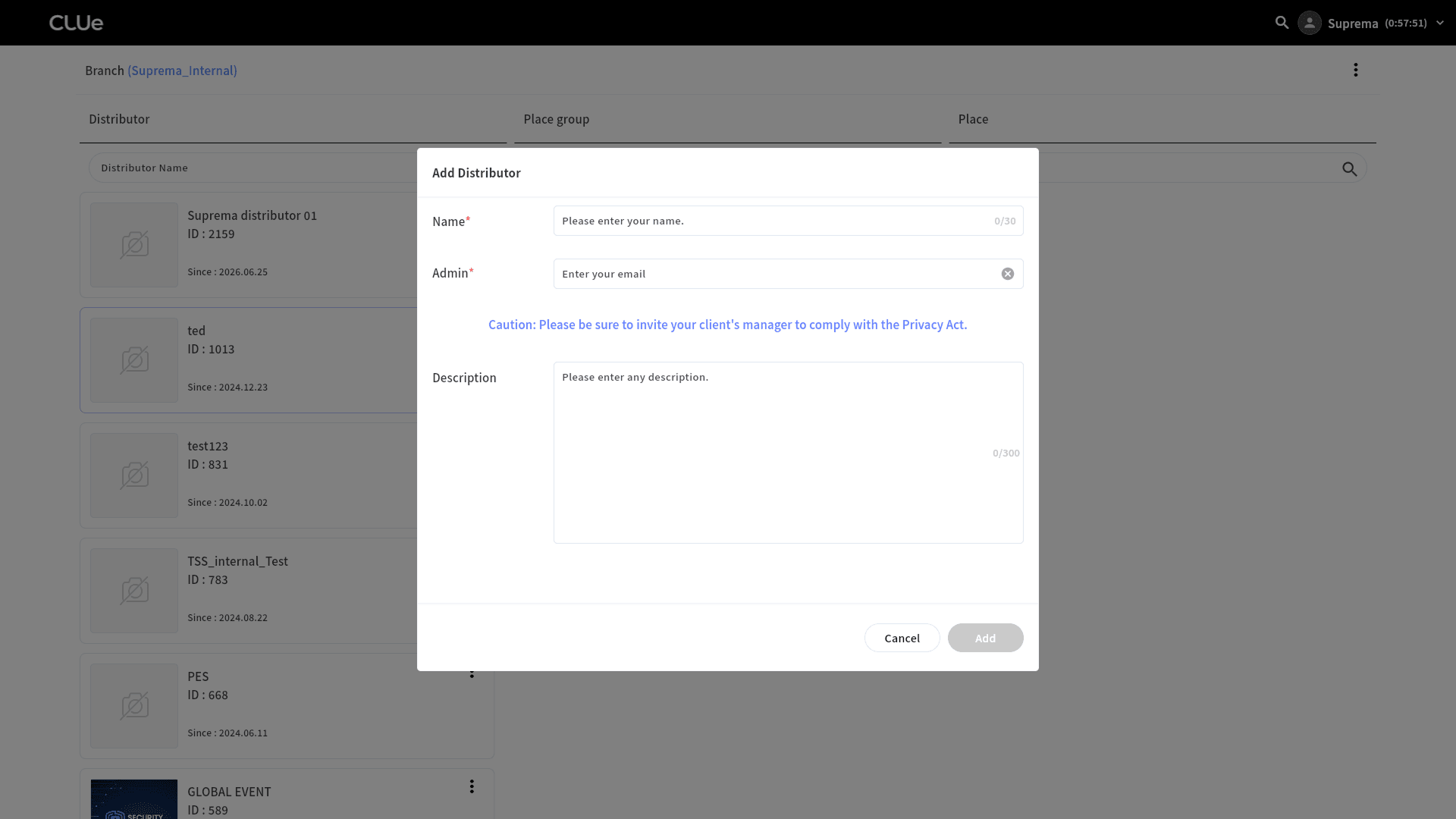
Why enter the admin email?
By default, the super admin can access only menus unrelated to the customer's personal data, such as device or door settings. Access to customer personal data requires the customer's consent, so invite the customer admin first.
If access to personal data is needed later, the customer can invite the super admin again. The invited super admin can access menus that include personal data, such as users, admins, and monitoring.
-
After you finish all entries, click the Add button at the bottom.
-
When the item is added, the system automatically moves to the Basic page, where you can change the name or photo.
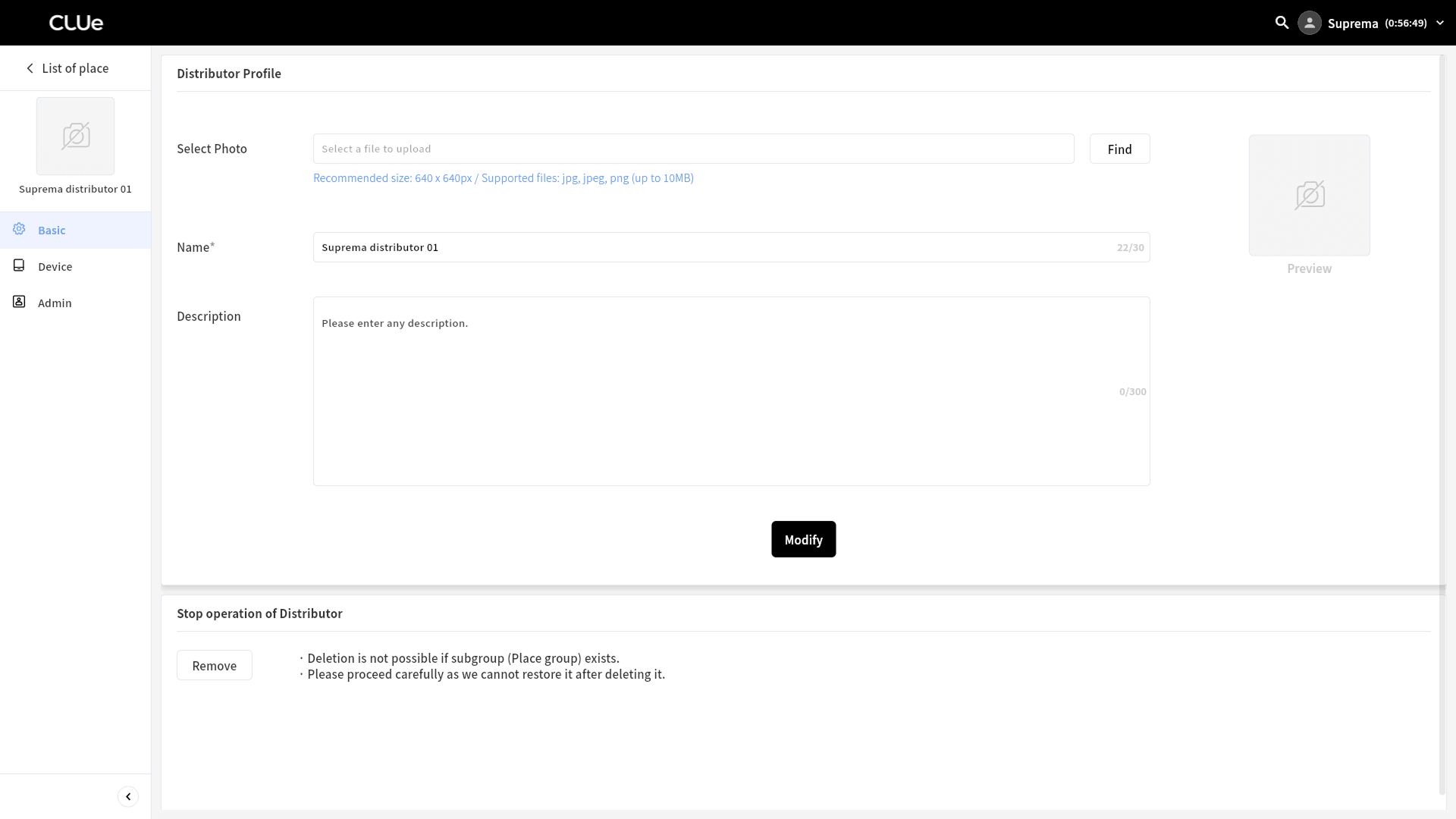
Likewise, click → Add child in the distributor, place group, or place list to add a subitem.
Invite Administrators
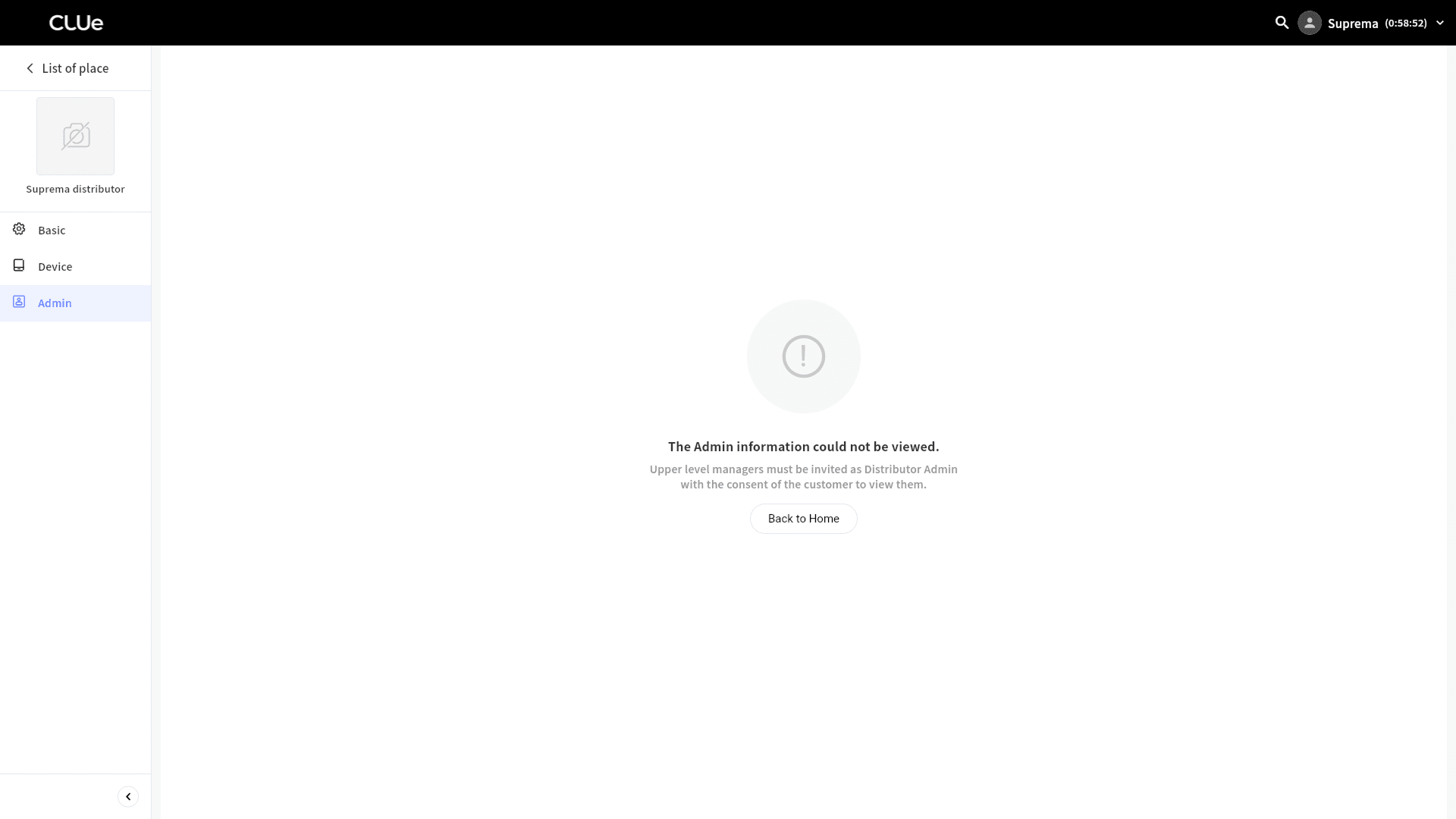
The Admin menu appears, but you cannot view admin information without the customer's consent. View access is available only after the customer company, a distributor or place group admin, invites a higher-level admin.
In the Admin menu, enter an email address to easily invite an admin at the same level. After the invited user completes sign-up, they gain administrator permissions at the same level.
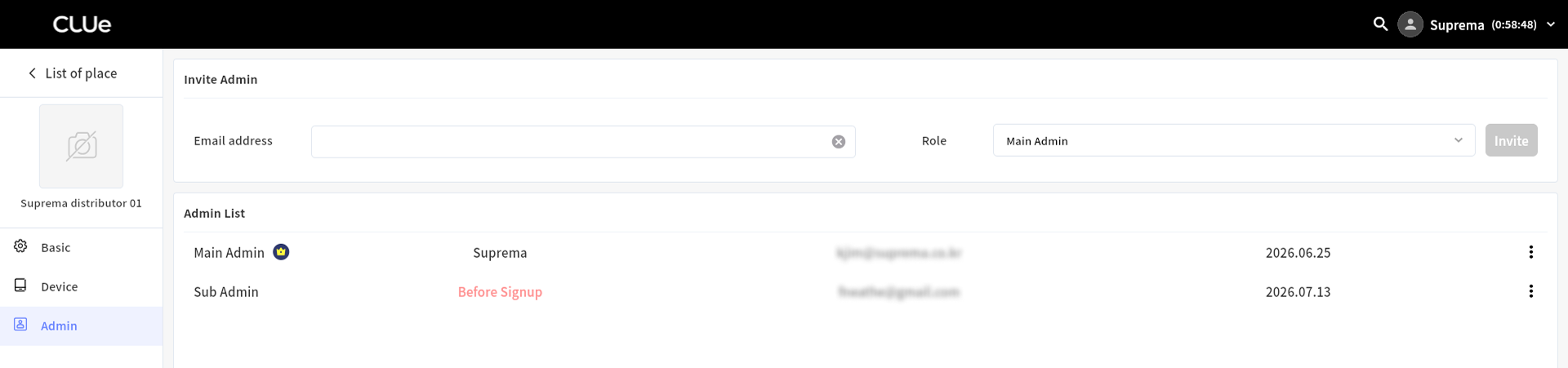
Main Admin / Sub Admin: There is no functional difference. This ensures that at least one main admin remains. However, a sub admin cannot delete the main admin.