Instalación
Requisitos mínimos del sistema
| Ítem | Servidor para pequeña empresa | Servidor para mediana empresa | Servidor para empresa grande | |
|---|---|---|---|---|
| Entorno | Total Dispositivos | 50 | Hasta 100 | Más de 100 |
| Requisito del sistema | SO | Microsoft Windows 10 o posterior (64 bits) | ||
| CPU | 8 núcleos o más | 16 núcleos o más | La implementación de nivel empresarial requiere consulta previa | |
| RAM | 32 GB o más | 64 GB Core o más | ||
| Comunicación | Admite el protocolo estándar de comunicación de red Transmission Control Protocol (TCP/IP) entre servidores, clientes y dispositivos. | |||
| Admite Dynamic Host Configuration Protocol (DHCP) o una dirección IP estática. | ||||
| Admite la configuración de red. | ||||
| Admite Network Time Protocol (NTP). | ||||
| Admite comunicación HTTPS protegida por Secure Socket Layer (SSL) entre el cliente (navegador web) y la plataforma. | ||||
| Cifrado | Admite AES-256 para la plantilla de huella dactilar y la plantilla facial. | |||
| Admite AES-256 para la plantilla de huella dactilar y la plantilla facial (opcional). | ||||
Para un funcionamiento estable, Suprema recomienda usar un servidor dedicado para los Plugins de Suprema.
Consulta las especificaciones del servidor a continuación.
Requisitos previos
Especificación del servidor
Suprema recomienda usar un servidor dedicado para el Plugin de Suprema para garantizar un funcionamiento estable.
-
Especificación recomendada: CPU de 8 núcleos / RAM de 32 GB o más
Escala de despliegue Recomendación 0-20 dispositivos La instalación en un servidor existente puede ser posible, pero requiere revisar la especificación del servidor y los recursos. Hasta 100 dispositivos Se recomienda un servidor dedicado para el plugin. Más de 100 dispositivos Se recomienda un servidor adicional para el plugin.
Synergis cloud link
-
Habilitación del protocolo RIO.
https://[IP Address of Cloud link]/Features/DuiRIO/Enabled/Set?value=true -
Recomendado y máximo. Conexión de dispositivos.
No. de usuarios Dispositivos recomendados por cada enlace de nube Máx. Dispositivos posibles 20,000 + Hasta 40 No recomendado Menos de 10,000 Hasta 50 Hasta 64 Precaución-
Se requieren enlaces de nube dedicados para dispositivos Suprema.
-
No se recomienda conectar al Cloud Link dispositivos que no sean productos Suprema.
-
Base de datos
-
La base de datos del complemento (Device y Extractor) se crea automáticamente en el mismo servidor SQL de Directory.
-
El administrador puede modificar la ubicación de instalación de la base de datos.
-
Admite copia de seguridad y restauración.
-
-
La cuenta de SQL necesita los siguientes permisos.
-
Roles del servidor: db_creator, processadmin, public
-
Roles de base de datos: db_backupoperator, db_datareader, db_datawriter, public
-
Dispositivo de enrolamiento de huellas dactilares
Para usar un dispositivo de enrolamiento de huellas dactilares de tipo USB, se requiere instalar un controlador aparte.
Comuníquese con el equipo de socios comerciales de Suprema para obtener ayuda.
Instalación del complemento
-
Ejecute el archivo de instalación (setup.exe) como administrador.

-
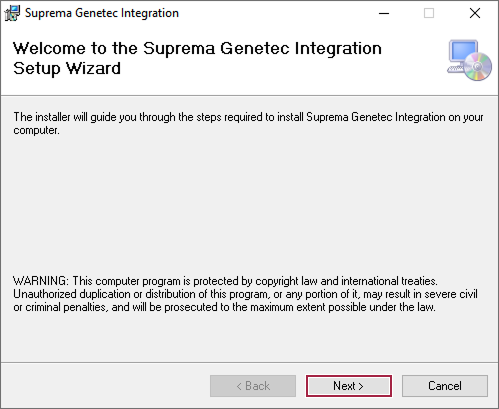
Haga clic en Siguiente.
-
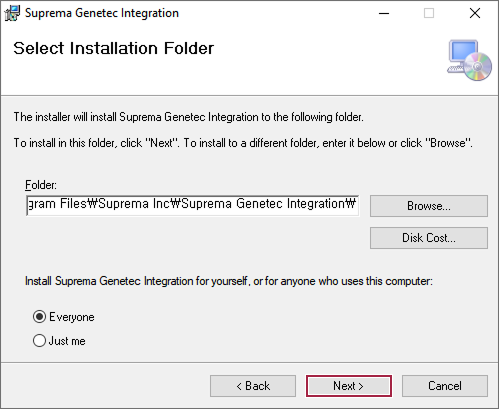
Establezca la ruta donde se instalará el complemento Suprema y luego haga clic en Siguiente.
-
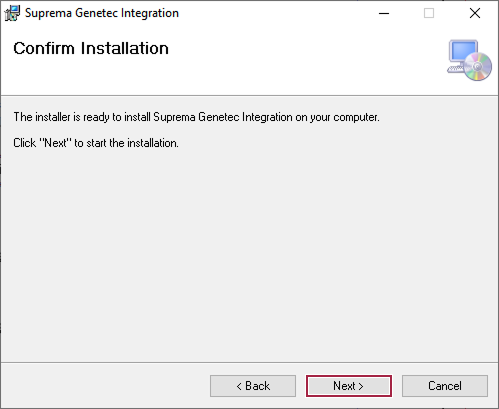
Si la instalación está lista, haga clic en Siguiente.
-
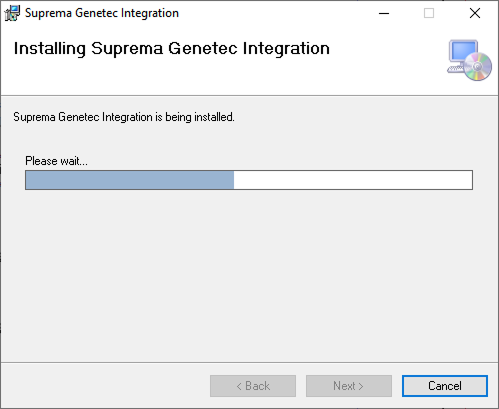
La instalación comenzará. Espere hasta que termine correctamente.
-
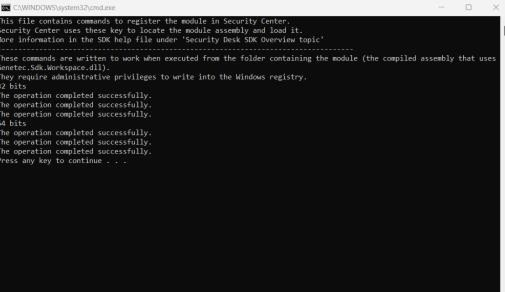
Cuando termine la instalación, aparecerá una ventana del símbolo del sistema. Presione cualquier tecla para cerrar la ventana.
-
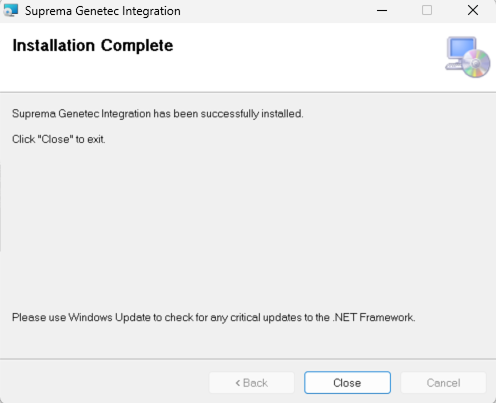
Haga clic en el botón Cerrar.
-
Presione cualquier tecla para finalizar.
Complemento Suprema agregado en Genetec Config Tool
-
Ejecute Config Tool de Genetec.

-
Haga clic en Plugins en Tareas.

-
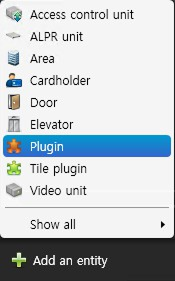
Haga clic en Agregar una entidad en la pantalla Plugins y luego seleccione Plugin de la lista.
-
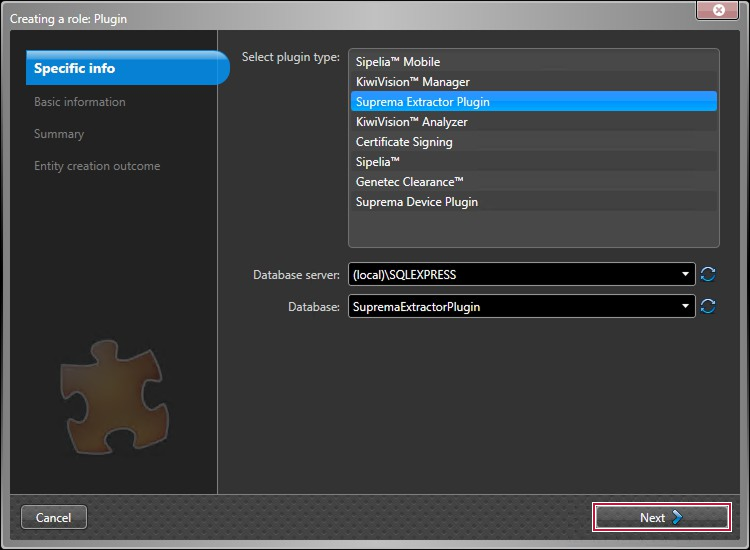
En Select plugin type, seleccione Suprema Extractor Plugin y haga clic en Siguiente.
-
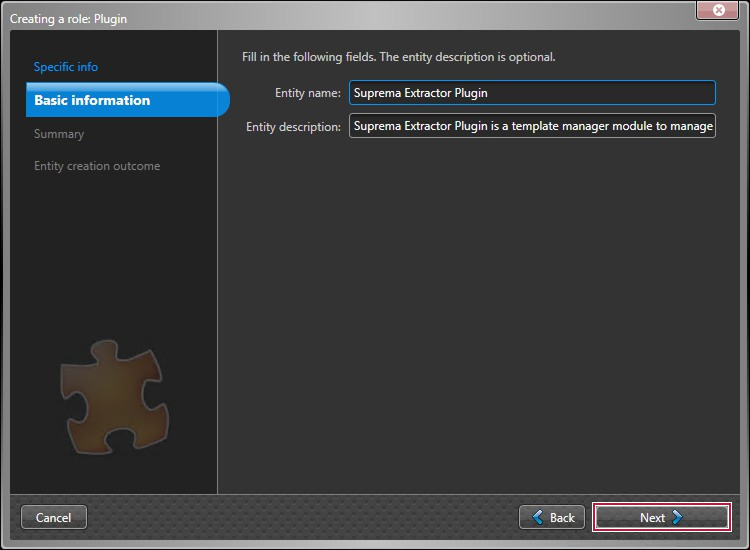
Ingrese el Entity name y la Entity description, y luego haga clic en Siguiente.
 Información
La Entity description es opcional.
-
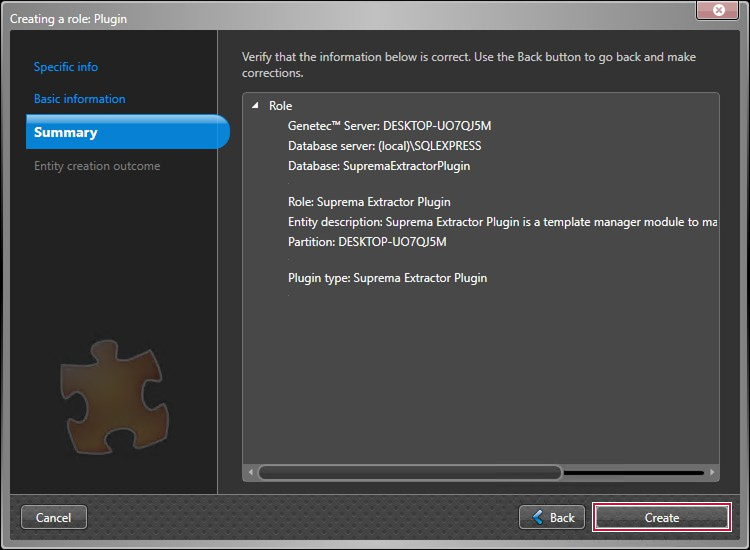
Verifique la información y haga clic en Crear.
-
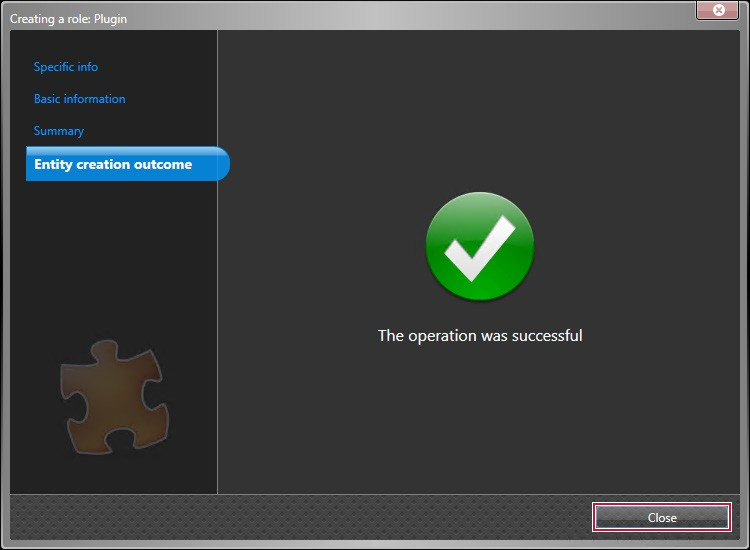
Se creará el Suprema Extractor Plugin. Haga clic en Cerrar.
-
Haga clic en Agregar una entidad en la pantalla Plugins y luego seleccione Plugin de la lista.
-
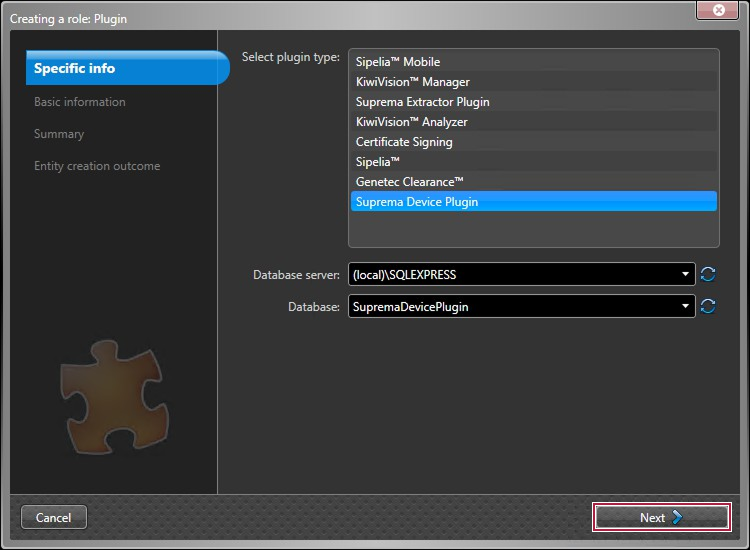
En Select plugin type, seleccione Suprema Device Plugin y haga clic en Siguiente.
-
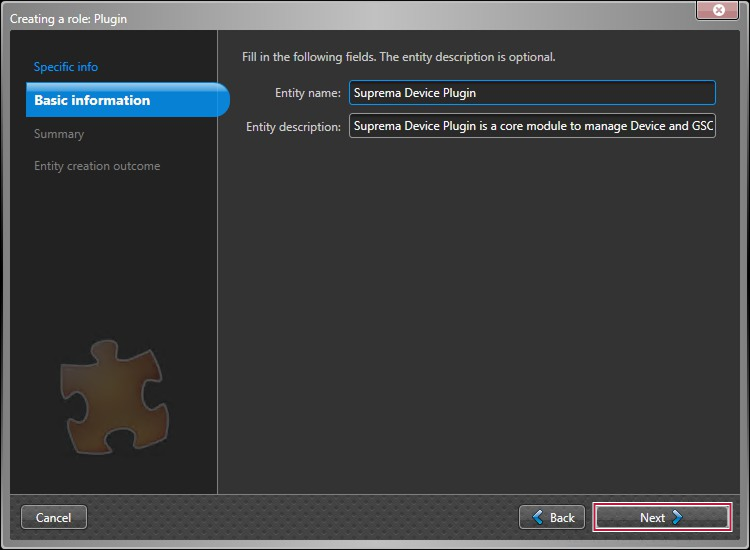
Ingrese el Entity name y la Entity description, y luego haga clic en Siguiente.
 Información
La Entity description es opcional.
-
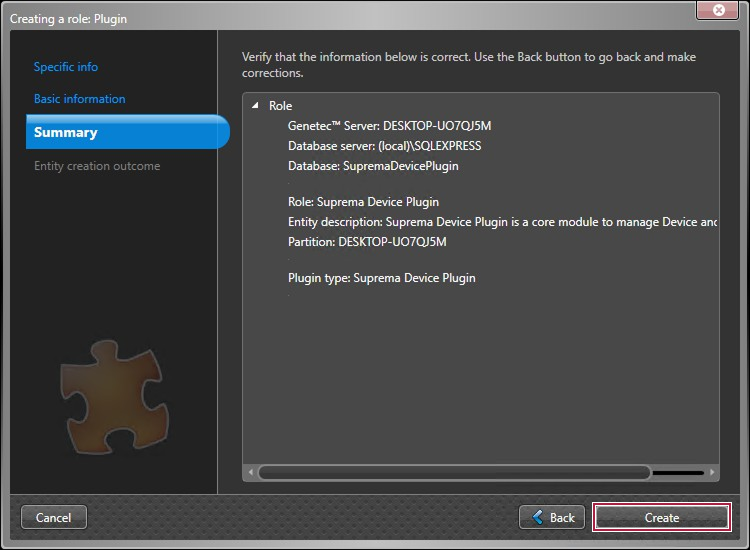
Verifique la información y haga clic en Crear.
-
Se creará el Suprema Device Plugin. Haga clic en Cerrar.
-
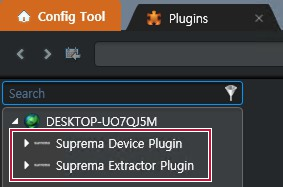
La adición del Suprema Plugin se completó.