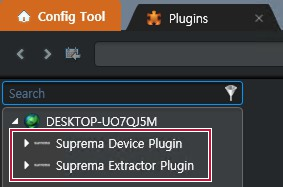
Installation
Minimum System Requirements
| Item | Small Business Server | Medium Business Server | Enterprise Business Server | |
|---|---|---|---|---|
| Environment | Total Devices | 50 | Up to 100 | More than 100 |
| System requirement | OS | Microsoft Windows 10 or later (64-bit) | ||
| CPU | 8 Core or higher | 16 Core or higher | Enterprise-level deployment requires prior consultation | |
| RAM | 32 GB or higher | 64 GB Core or higher | ||
| Communication | Supports the Standard Transmission Control Protocol (TCP/IP) networking communication protocol between servers, clients, and devices. | |||
| Supports Dynamic Host Configuration Protocol (DHCP) or Static IP address. | ||||
| Supports network configuration. | ||||
| Supports Network Time Protocol (NTP). | ||||
| Supports HTTPS communication protected by Secure Socket Layer (SSL) between the client (web browser) and platform. | ||||
| Encryption | Supports AES-256 for Fingerprint Template, and Face Template. | |||
| Supports AES-256 for Fingerprint Template and Face Template (Optional). | ||||
For stable operation, Suprema recommends using dedicated server for the Suprema Plugins.
Please refer to the server specifications below.
Prerequisites
Server Specification
Suprema recommends using a dedicated server for the Suprema Plugin to ensure stable operation.
-
Recommended specification: CPU 8 Core / RAM 32 GB or higher
Deployment Scale Recommendation 0-20 devices Installation on an existing server may be possible, but server specification and resource review are required. Up to 100 devices Dedicated Plugin server recommended. More than 100 devices Additional plugin server recommended.
Synergis cloud link
-
Enabling RIO Protocol.
https://[IP Address of Cloud link]/Features/DuiRIO/Enabled/Set?value=true -
Recommended and Max. Device connection.
No. of Users Recommended Devices per one Cloud link Max. Possible devices 20,000 + Up to 40 Not recommended Below 10,000 Up to 50 Up to 64 주의-
Dedicated Cloud Links for Suprema devices are required.
-
Connecting devices other than Suprema products to the Cloud Link is not recommended.
-
Database
-
Plugin Database (Device & Extractor) is automatically created in same SQL server of Directory.
-
Admin can modify the database installation location.
-
Supports backup/restore.
-
-
SQL account needs below authority.
-
Server roles: db_creator, processadmin, public
-
Database roles: db_backupoperator, db_datareader, db_datawriter, public
-
Fingerprint enrollment device
To use a USB-type fingerprint enrollment device, a separate driver installation is required.
Please contact the Suprema Partner Business Team for assistance.
Plugin Installation
-
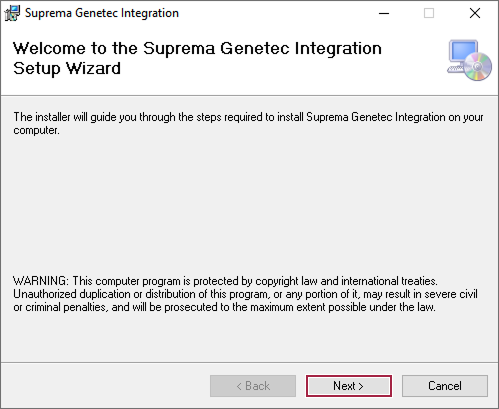
Run the installation file (setup.exe) as an administrator.

-
Click Next.
-
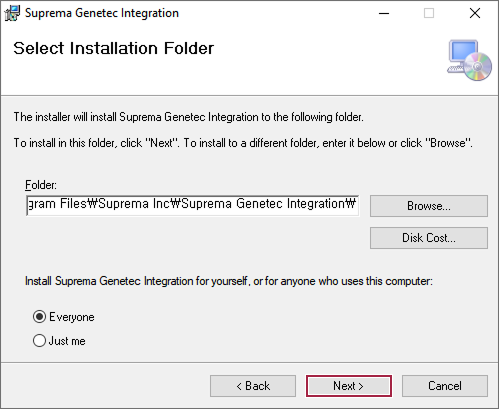
Set the path where Suprema Plugin will be installed, then click Next.
-
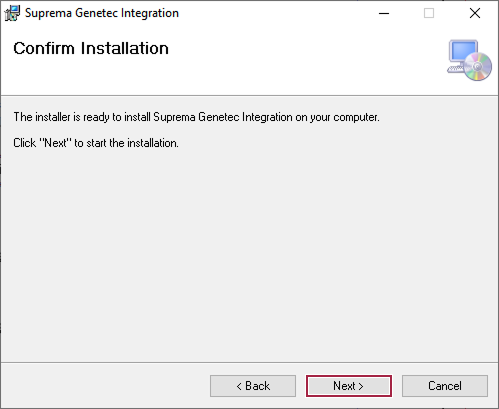
If the installation is ready, click Next.
-
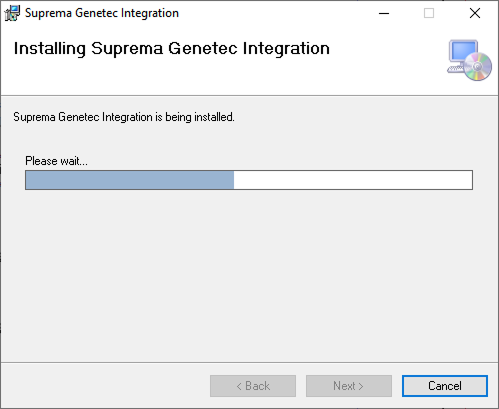
The installation will begin. Please wait until it completes successfully.
-
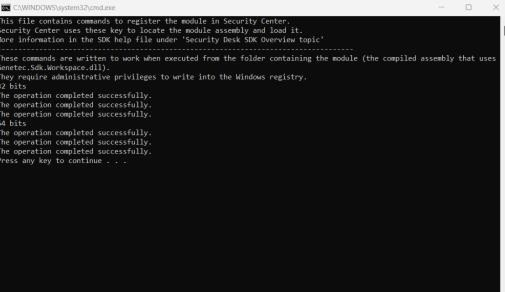
Once the installation is complete, a command prompt window will appear. Press any key to close the window.
-
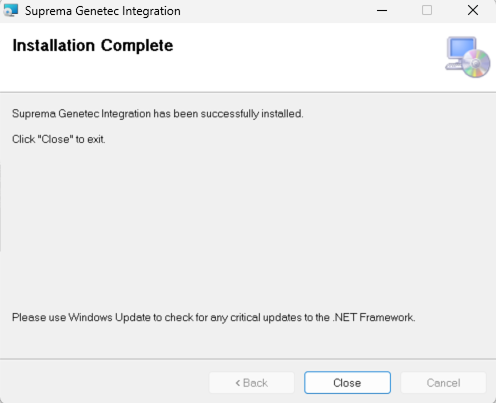
Click Close button.
-
Press Any Key to complete.
Added Suprema Plugin in Genetec Config Tool
-
Run the Genetec Config Tool.

-
Click the Plugins under Tasks.

-
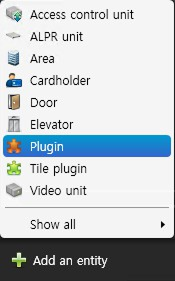
Click Add an entity under the Plugins screen, then select Plugin from the list.
-
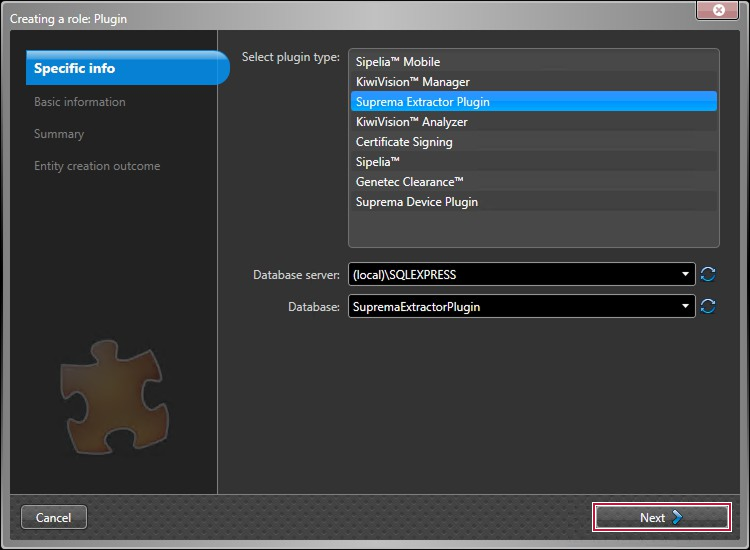
In Select plugin type, select Suprema Extractor Plugin and click Next.
-
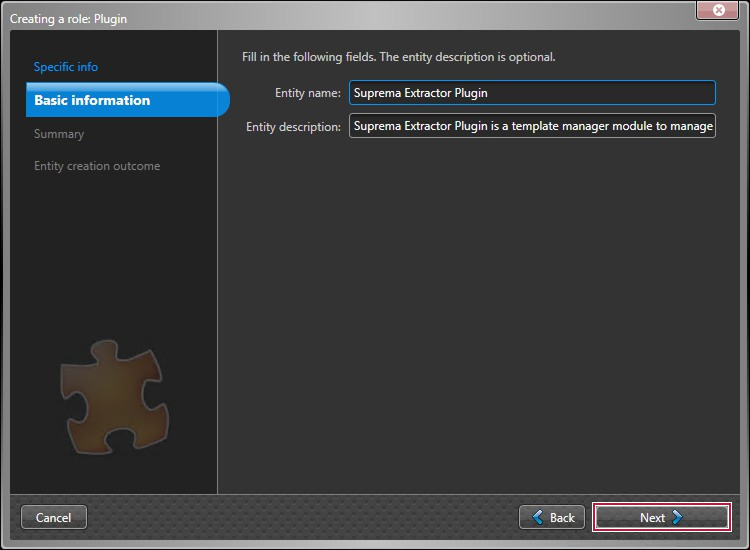
Enter the Entity name and Entity description, then click Next.
 알아두기
알아두기The Entity description is optional.
-
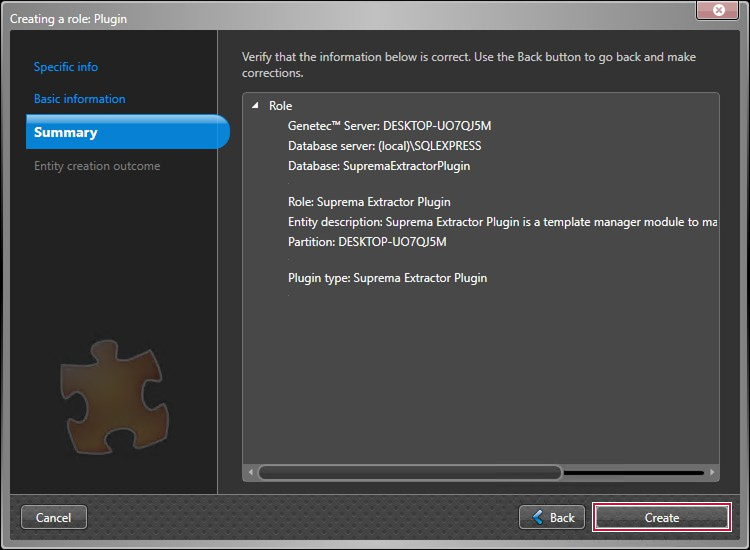
Verify the information and click Create.
-
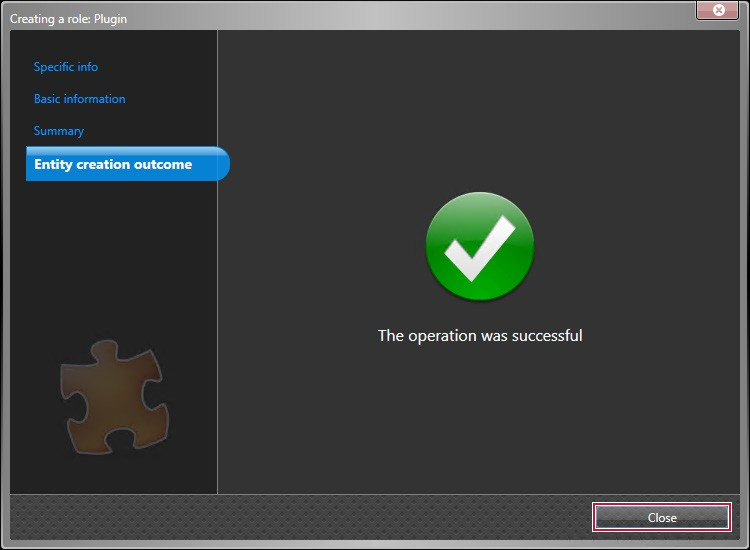
The Suprema Extractor Plugin will be created. Click Close.
-
Click Add an entity under Plugins screen, then select Plugin from the list.
-
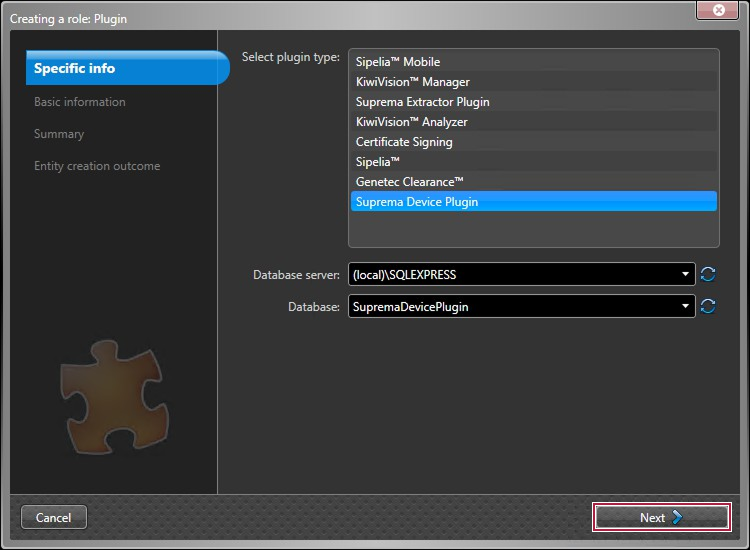
In Select plugin type, select Suprema Device Plugin and click Next.
-
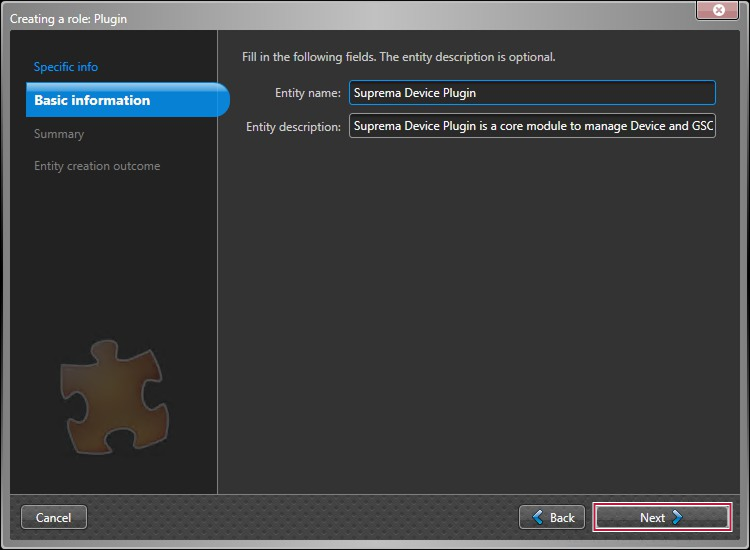
Enter the Entity name and Entity description, then click Next.
 알아두기
알아두기The Entity description is optional.
-
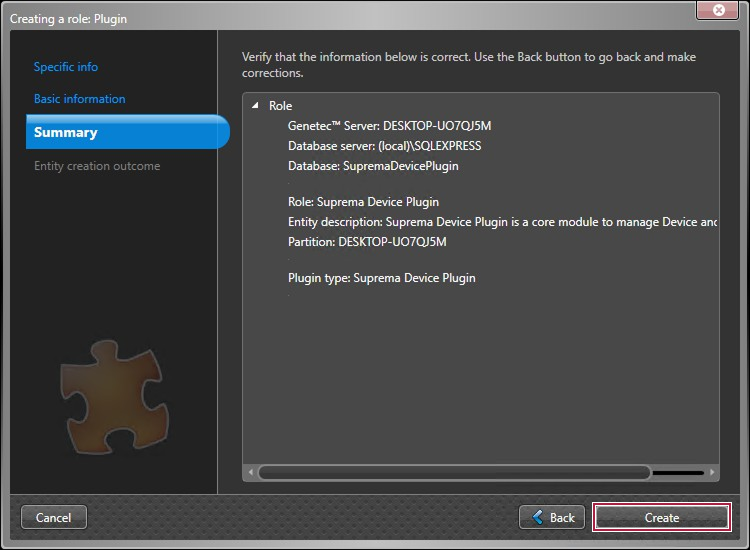
Verify the information and click Create.
-
The Suprema Device Plugin will be created. Click Close.
-
The addition of the Suprema Plugin is complete.