Configuration
Configuration Procedure
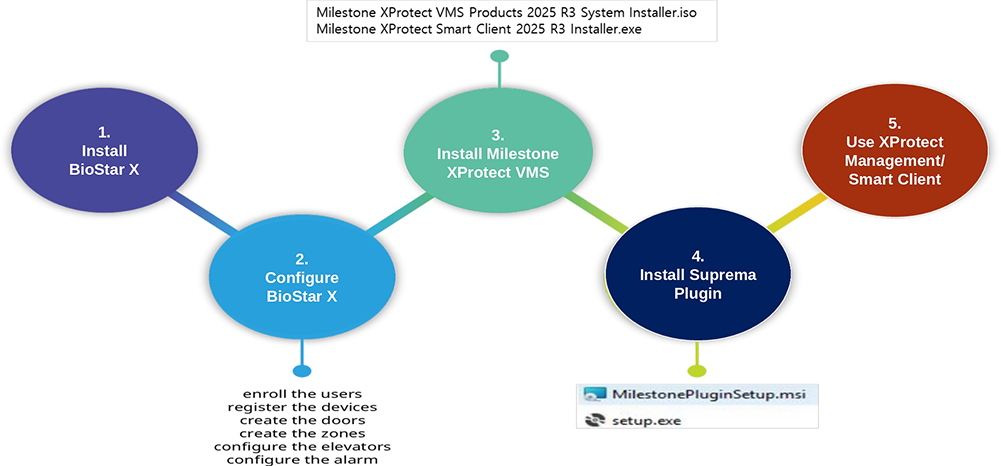
MIPAccessControl Plugin Setup
-
Access control settings must be completed in BioStar X first.
-
Run 'Milestone XProtect Professional+ 2026 R1 Management Client'.
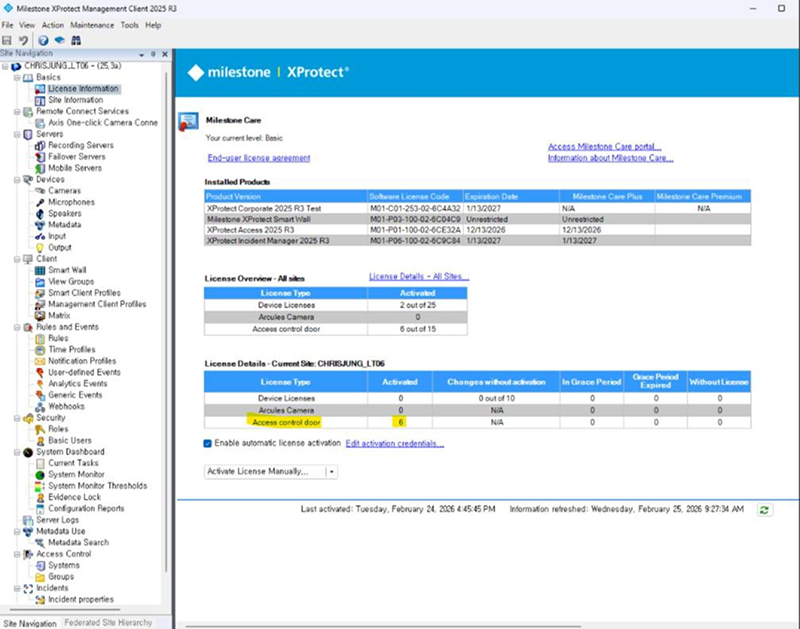
Also, verify that the Access Control door license is included to enable the Suprema Plugin.
-
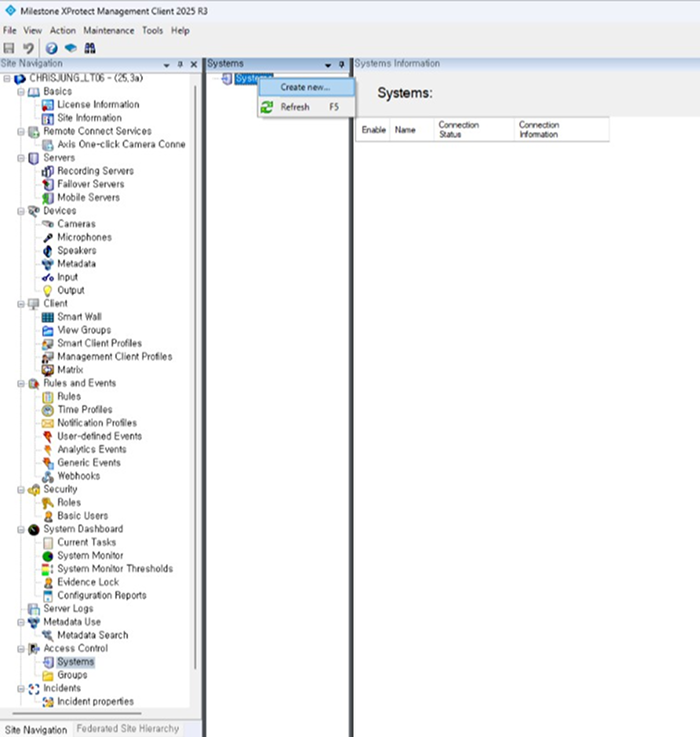
Navigate to the Access Control – system node. Right-click on it and click Create new.
-
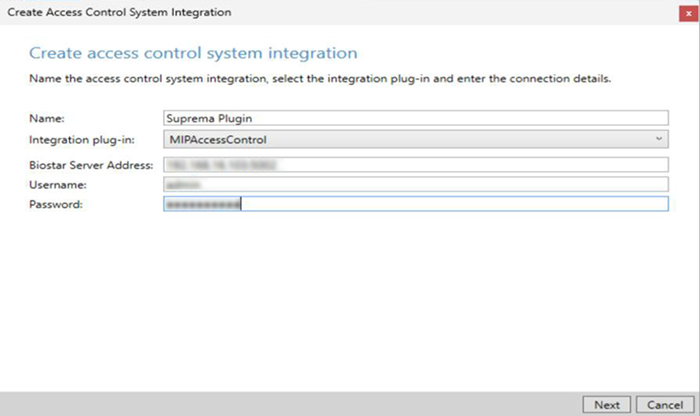
Enter the name of the plugin. Select MIPAccessControl as the Integration plug-in, and enter the BioStar X Server Address, Username, and Password.
-
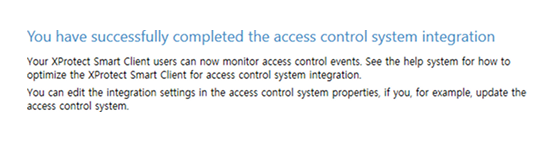
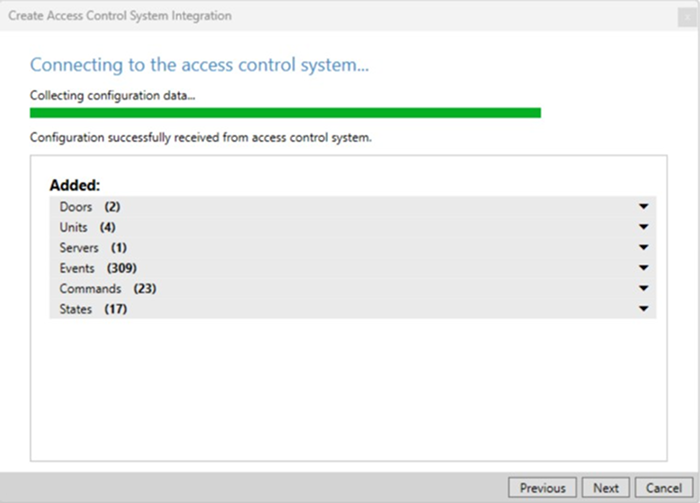
Plugin trigger to retrieve the BioStar X setting and completed.
-
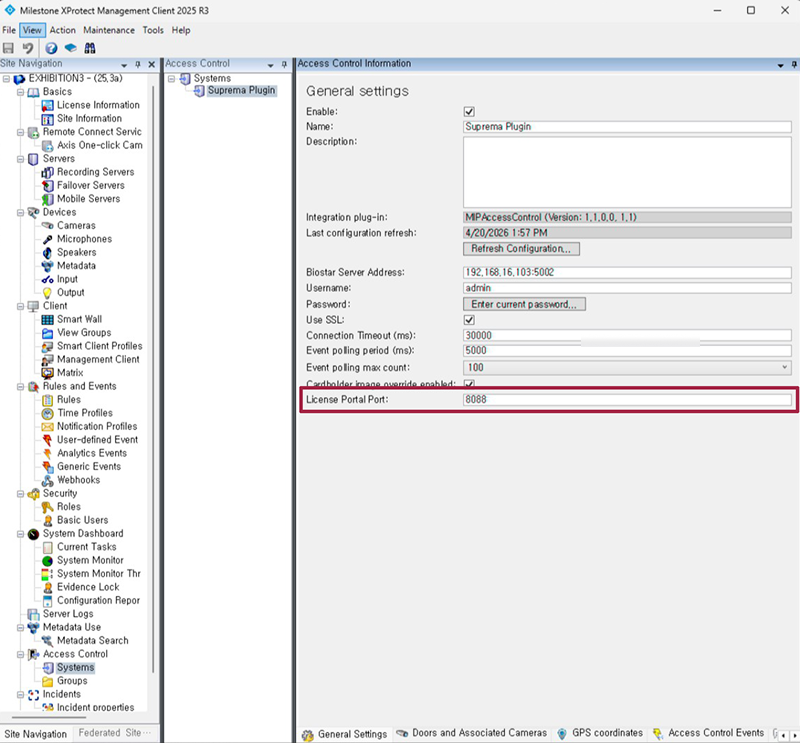
Click the Plugin and tab General settings. You can update the access control system name, network settings, and login information.
If you change any setting on the BioStar X then press Refresh Configuration button every time and don't forget the save button.
-
BioStar X Server Address: 192.168.16.103:5002
알아두기For HTTPS, you can use (your_BioStar X_IP):(HTTPS_PORT).
-
Username / Password: BioStar X ID / PW
-
Connection Timeout (ms): 30000
-
Event polling interval (ms): 5000 (default) → 3000 (Recommended)
-
Event polling max count: 100
-
-
Use the License Portal Port (localhost:8088) to access the license portal.
Setting Description Default Value Range Connection Timeout Connection timeout for API calls, in milliseconds. 30000 5000–120000 Event polling interval (ms) Interval in milliseconds between event polling requests. 5000 (5 seconds) 100–7200000 Event polling max count Maximum number of events retrieved per polling cycle. 100 10, 50, 100, 200, 500 Cardholder image override enabled Allows cardholder images to be overridden from external sources where supported. true true/false Use Captured as Profile Photo Uses captured access control images as profile photos when available. true true/false -
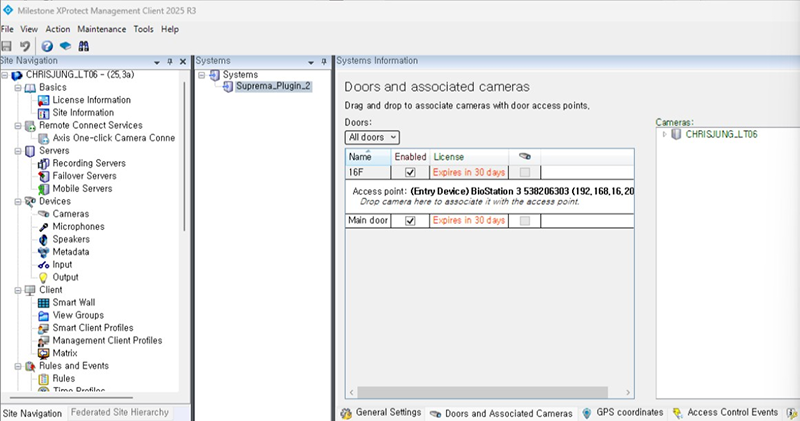
Doors and associated cameras: You can associate the cameras with access points. See Associating the camera.
-
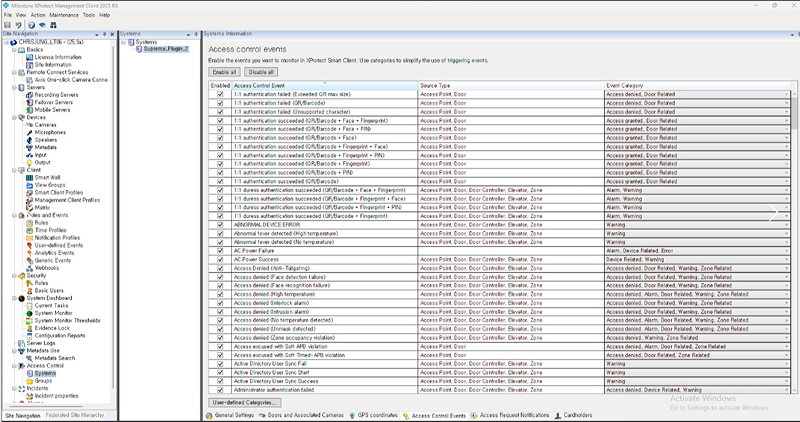
Access control events: You can activate or deactivate the access control event from BioStar X, also create and assign the userdefined categories.
-
Access control actions: You can create an access control action or command which is performed by the operator on the associated access points. For example, when a cardholder requests the door open, XProtect display a notification and then operator sending a door open command.
-
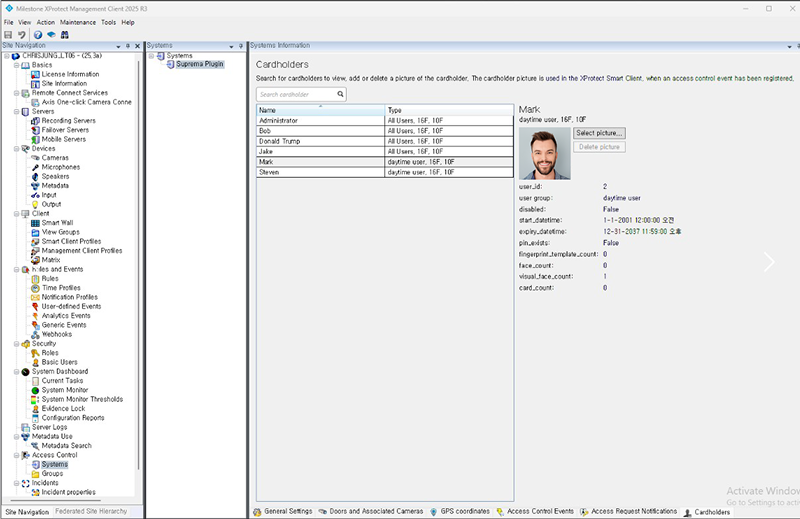
Cardholders: You can view or search the cardholder information. The cardholder information is synchronized with user information of BioStar X. In BioStar X, user information includes user name, access group, RFID card number, fingerprint template, face template, and PIN.
You can see to retrieve related BioStar X settings of users, door, devices.
-
-
Tab Doors and associated cameras. Also, You can associate the cameras with access points. See Associating the camera.
-
Tab Access control events that show all access control events from BioStar X.
You can activate or deactivate the access control event from BioStar X, also create and assign the user defined categories.
-
Tab Cardholders. Show current User (Cardholder) information from BioStar X.
You can view or search for the cardholder information. The cardholder information is synchronized with user information of BioStar X. In BioStar X, user information includes username, access group, RFID card number, fingerprint template, face template, and PIN.
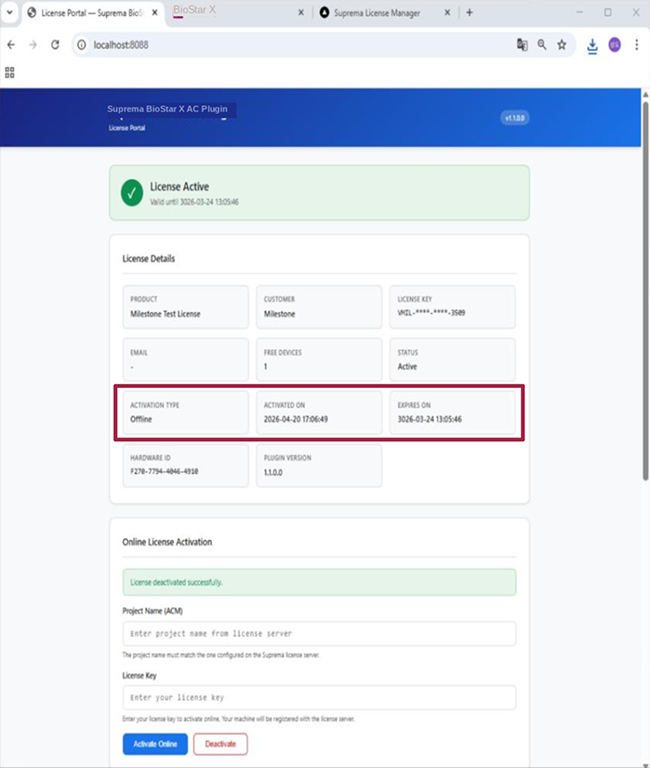
Milestone x Suprema plugin License Portal
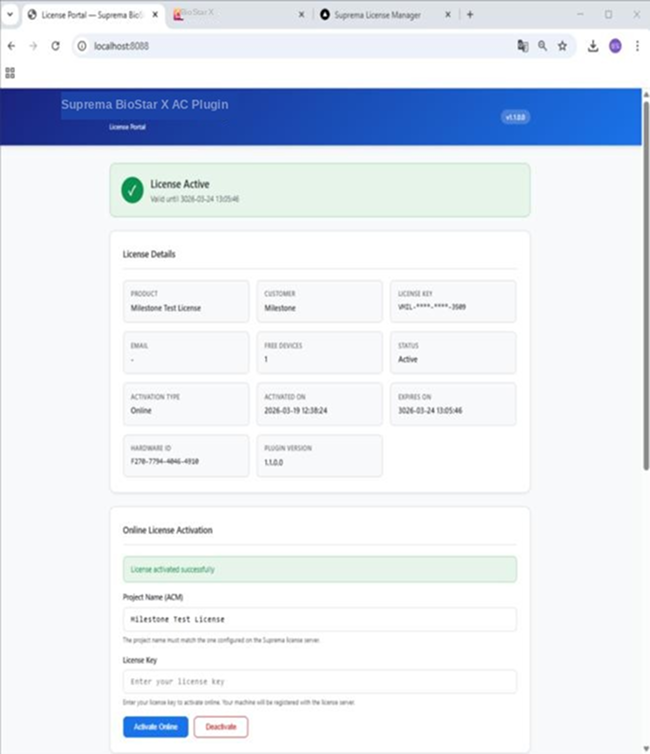
Activate using a license key through the Suprema license service; license data is verified and stored securely. Register the license from the Suprema License server for the Plugin operational condition.
Online Activation
-
Access at License portal,
localhost:8088for online condition (if your server is connected to the internet). Ask Suprema license manager (int@suprema.co.kr) to get unique license key (16 characters) and project name.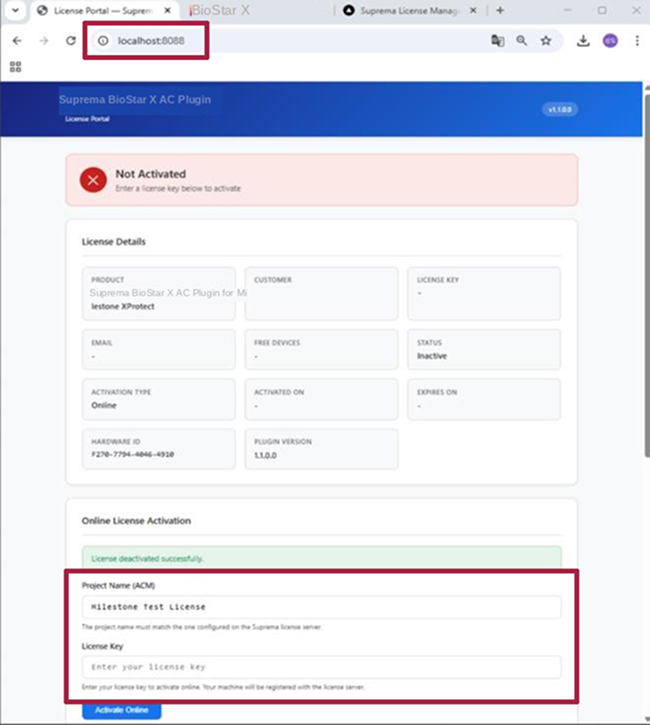
-
If you get the license key and project name, you can apply on it with Activate Online.
Offline Activation
-
Access at License portal,
localhost:8088for offline condition (even though your server is offline (Can't access internet), license portal will be accessed with 'localhost'). Ask Suprema license manager (int@suprema.co.kr) to get unique license key (16 characters) and project name.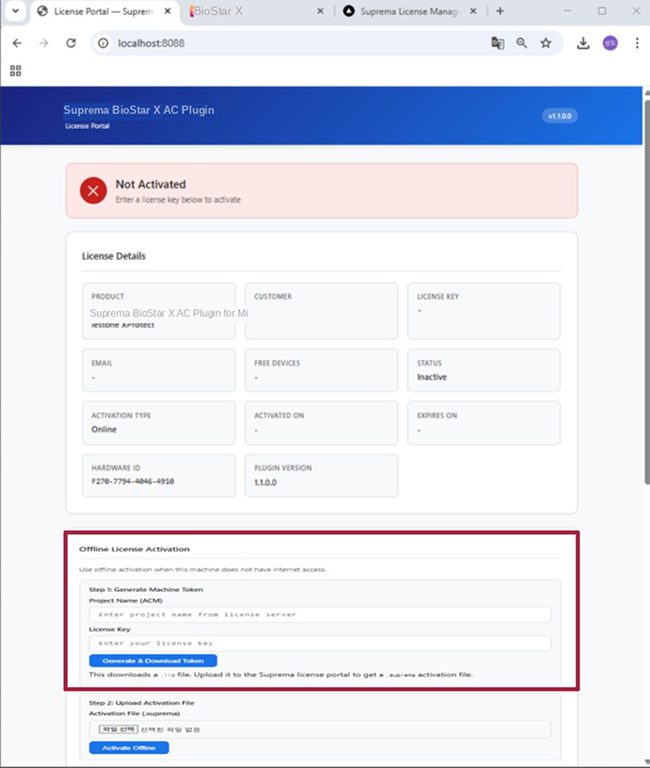
-
If you get the license key and project name, you can apply on it with Generate
Token.licon download folder (default). You send the token file to license manager.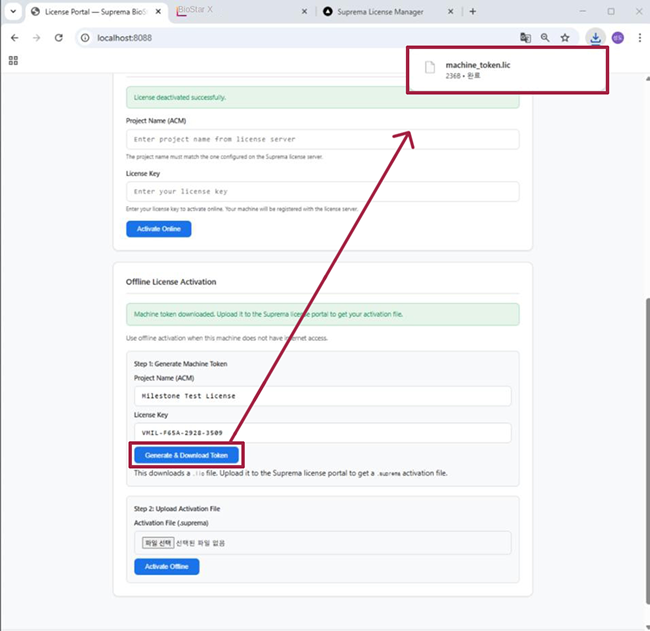
-
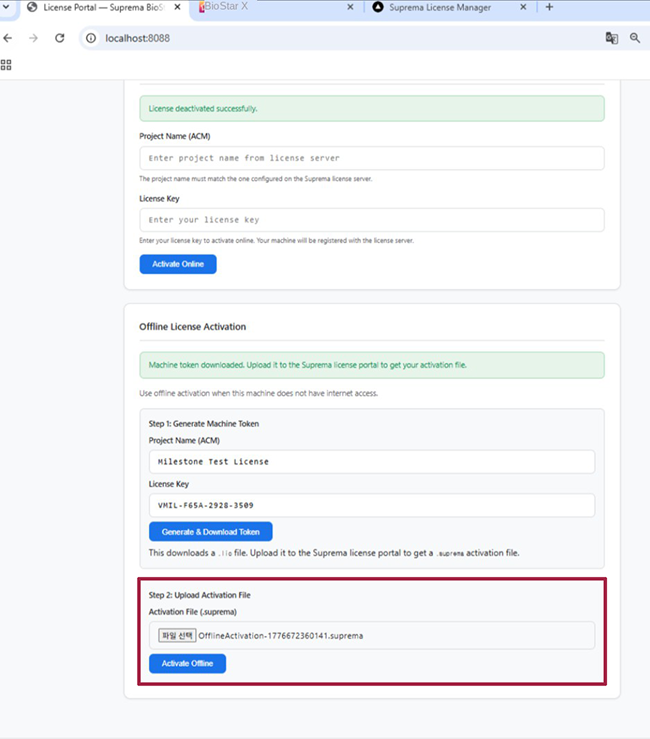
The License Manager will provide the .suprema file, which is the result of synchronizing your system configuration data from your token with the license server. Apply 'activation token' with the .suprema file.
-
Offline license application successfully.
Associating the Camera
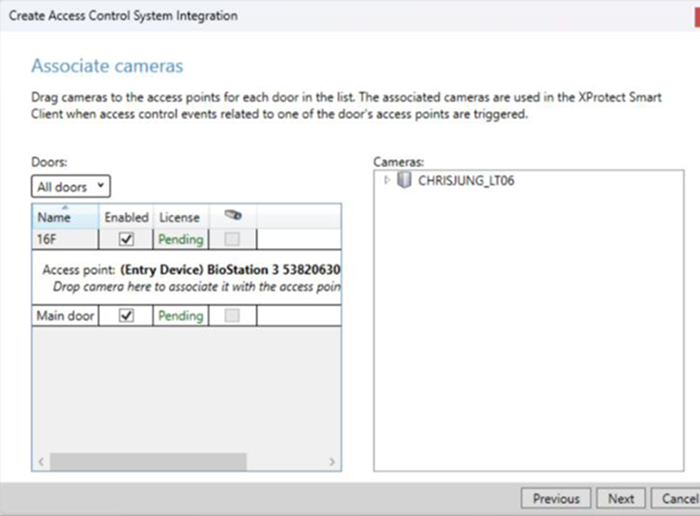
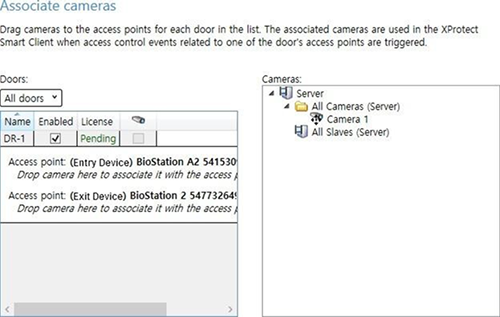
If BioStar X connected correctly, the Associate cameras screen appears. In this step, you can associate the cameras with access points on the Milestone XProtect Management Client.
-
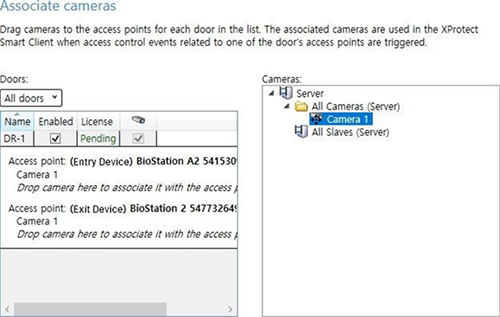
Find the camera in the Cameras pane and drag it to the associated access points.
-
When all access points associated with cameras, click Next to complete the settings.
-
When the success confirmation window appears, click Close.