Installation
Prerequisites
The following prerequisites are required to use Suprema Integration with Milestone XProtect. Check the support conditions before installing Suprema Integration with Milestone XProtect.
-
XProtect 2026 R1
-
Install BioStar X
-
A licensed Milestone XProtect and BioStar X are required.
알아두기XProtect VMS and BioStar X must be installed first.
-
All access control configuration settings of BioStar X must be completed.
-
System requirements
-
CPU: 4 GHz Quad Core
-
RAM: Minimum 10 GB
-
Hard disk space: Minimum 1 TB free hard disk space available
-
Milestone XProtect Requirements
-
Version: XProtect Professional or XProtect Corporate 26.1a or higher.
-
Platform: Windows Server 2016, Windows Server 2019, or Windows Server 2022.
-
.NET Framework: 4.8.1 or higher.
-
-
BioStar X Requirements
-
Version: BioStar X 1.0.2 or higher.
-
Network: TCP/IP connectivity between the Milestone XProtect server and the BioStar X server.
-
Access: Administrator credentials for the BioStar X system.
-
-
Network Requirements
Ports:
-
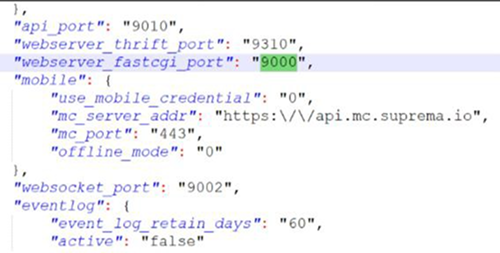
HTTP port: Change Pre-defined port 9000 to available port
Default port (9000) is already used on Milestone so conflict with BioStar X configuration. Please change Port: 9000 to an appropriate or available port.
You can find the port on
C:\Program Files\BioStar X(x64)\setting.conf. Open the setting.conf file "Run as an administrator".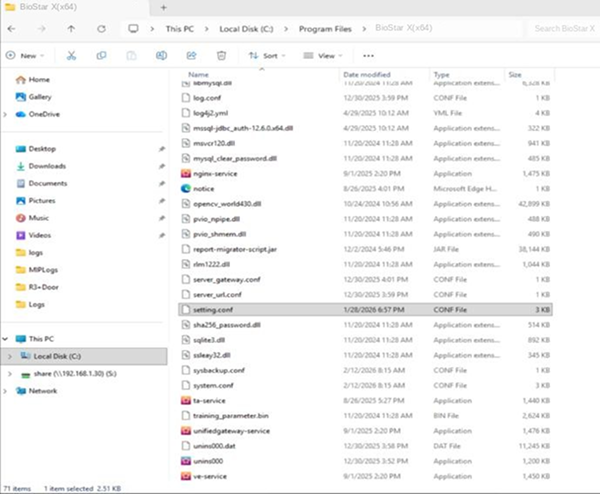
-
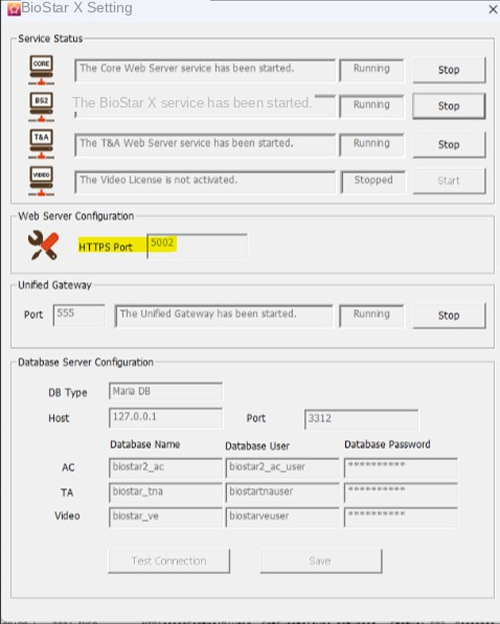
HTTPS port: Change Pre-defined port 443 to available port
Default port (443) is already used on Milestone so conflict with BioStar X configuration. Please change port: 443 to an appropriate or available port.
-
-
Protocols: TCP/IP, HTTP/HTTPS
-
Firewall: Allow bi-directional communication between the Milestone XProtect and BioStar X servers on the configured ports.
-
Operating system:
Microsoft Windows® 10 Pro (64 bit)*
Microsoft Windows® 10 Enterprise (64 bit)*
Microsoft Windows® 11 Pro (64 bit)*
Microsoft Windows® 11 Enterprise (64 bit)*
-
Other: Microsoft .NET 4.5.1 Framework
-
Installing the Milestone x Suprema Plugin
Milestone x Suprema plugin is used to connect the access control system and XProtect VMS. In other words, it works as a middleware to exchange the data between BioStar X and XProtect VMS.
Before the installation the Milestone XProtect Event Server should be stopped manually.
To do this, go to the system tray and right-click on the Milestone XProtect Event Server icon and then click stop Event Server service. And if the installation is completed successfully then start it again.
These plugins were built with MIP SDK 2023 R3 and tested for Milestone XProtect Professional 2023 R3. For other versions of XProtect, please contact Suprema Global Technical Support Team.
-
Download the plugin (v1.3.1)
-
Obtain the MilestonePluginSetup.msi installer from your distribution source.
-
Ensure you have local administrative privileges on the Milestone XProtect server.
-
-
Run the installer
Right-click MilestonePluginSetup.msi → Run as Administrator.
-
Follow the installation wizard
-
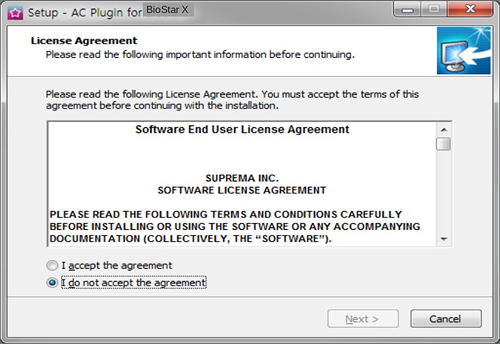
Accept the license agreement.
-
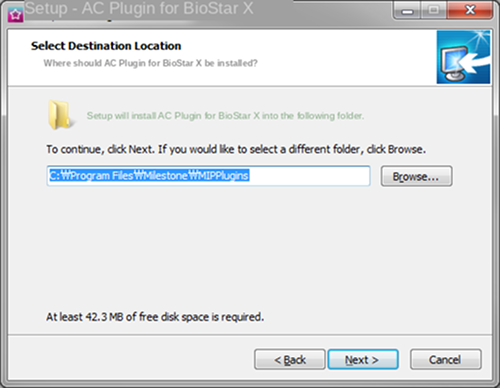
Select the installation directory (the default path is recommended).
-
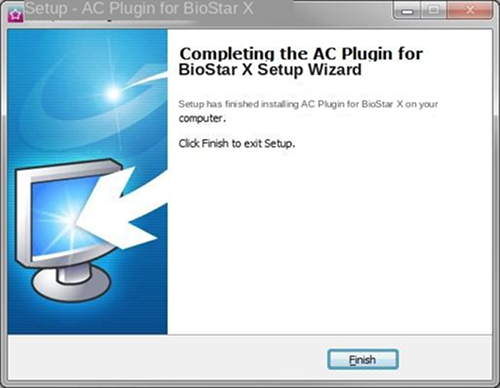
Complete the installation process.
-
-
Verify installation
-
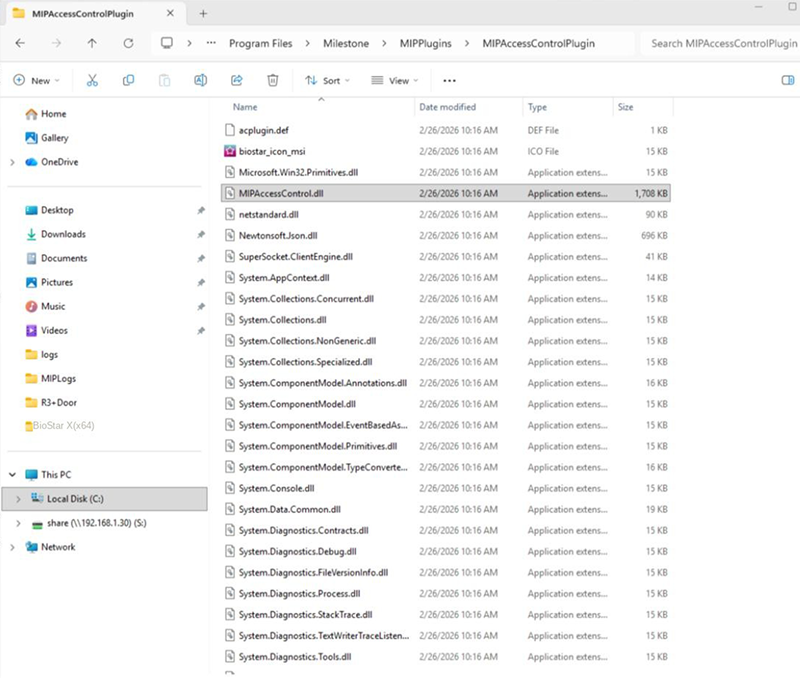
Confirm that
MIPAccessControl.dllis present in the Milestone XProtect access control plugins directory. -
Restart the Milestone Management Client to load the plugin.
-