Troubleshooting
Connection Failed Error
Symptoms:
-
The plugin cannot connect to the BioStar X server.
-
Authentication or connection errors appear in the logs.
Solutions:
-
Verify network connectivity
ping (BioStar X server IP) -t
-
Verify credentials
-
Confirm that the configured username and password are correct.
-
Log in directly to the BioStar X web interface using the same credentials.
-
-
Check firewall and routing
-
Ensure the required ports (for example, HTTP or HTTPS and
C:\Program Files\BioStar X(x64)\setting.conf) are allowed between the Milestone XProtect and BioStar X servers. -
Check the collision of port status.
-
-
Confirm BioStar X server status
-
Verify that the BioStar X service is running.
-
Restart the BioStar X service if necessary, in accordance with your change management process.
-
No Events Received Issue
Symptoms:
-
The plugin connects successfully, but no events are displayed in Milestone XProtect.
-
Event lists remain empty even when access activity occurs.
Solutions:
-
Review event polling configuration
-
Set Event polling interval (ms) to a shorter interval, such as 1000–5000 ms, for near real-time event updates.
-
Increase Event polling max count to 200 or 500 to handle higher event volumes.
-
-
Verify event generation in BioStar X
-
Trigger test events (for example, present a credential at a reader) to confirm events are generated.
-
Check BioStar X event logs to confirm that events are recorded on the BioStar X side.
-
SSL Certificate Errors
Symptoms:
-
SSL/TLS connection failures between Milestone XProtect and BioStar X.
-
Certificate validation or trust errors in the logs.
Solutions:
-
Self-signed certificates
-
For initial testing, you may temporarily set "Use SSL" to false to confirm connectivity over HTTP, if permitted by your security policy.
-
Import the BioStar X server certificate or issuing CA certificate into the Windows certificate store on the Milestone XProtect server to establish trust.
-
-
Public or enterprise certificates
-
Verify that the certificate is valid and not expired.
-
Ensure the full certificate chain (including intermediate CAs) is installed correctly on the BioStar X server.
-
Slow Performance
Symptoms:
-
Delayed event processing in Milestone XProtect.
-
High CPU or network utilization on the Milestone XProtect or BioStar X servers.
Solutions:
-
Adjust polling settings for load balancing
-
Increase the Event polling interval (ms) to reduce the frequency of polling and server load.
-
Decrease Event polling max count if processing large batches of events is causing delays.
-
-
Check network latency and bandwidth
-
Ensure that latency between the Milestone XProtect and BioStar X servers is within acceptable bounds for your deployment.
-
If necessary, work with your network team to optimize routing, bandwidth, or Quality of Service (QoS) for access control traffic.
-
"No access control plug-ins are available..." error pop-up message occurs
Symptom:
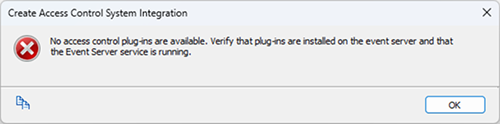
Create Access Control System Integration
- No access control plug-ins are available. Verify that plugins are installed on the event server and that the Event Server service is running.
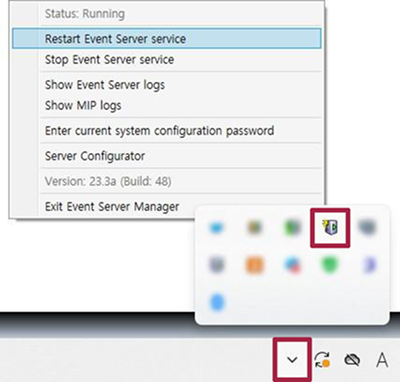
Solution:
-
Right-click on the Milestone Event Server icon in the taskbar.
-
Select Restart Event Server service and then restart the Milestone Event Server, Management Client, and Smart Client to verify that the error is resolved.
Frequently Asked Questions
How many devices can the plugin handle?
The plugin can typically support more than 1000 devices per plugin instance, subject to server hardware, database performance, and network capacity. For very large deployments, consider performance testing and scaling using multiple instances if required.
Can I use multiple BioStar X servers?
Each MIPAccessControl plugin instance connects to a single BioStar X server. To integrate multiple BioStar X servers, configure a separate MIPAccessControl access control system instance in Milestone XProtect for each server.
What is the difference between polling-related options?
The plugin uses HTTP-based polling of the BioStar X API at intervals defined by the Event polling interval (ms) and Event polling max count settings. Shorter intervals and higher max counts provide faster event delivery but increase load on both systems. Longer intervals and lower counts reduce load but may delay event visibility.
How do I update the plugin?
-
Download the latest version of the plugin installer from your distribution source.
-
In Milestone Management Client, stop or disable the relevant MIPAccessControl access control system instance if required by your operational procedures.
-
Run the new installer (MilestonePluginSetup.msi) with administrative privileges.
-
Restart the Milestone Management Client and, if required, restart the Milestone XProtect Access Control services.
Can I customize event types?
Event categorizations and mappings used by the plugin are defined in the EventTypeCategories.json configuration file. You can adjust this file to customize how BioStar X events are grouped and displayed in Milestone XProtect, subject to your change control process and testing.
Is the plugin compatible with BioStar X cloud deployments?
The plugin is designed primarily for on-premises BioStar X installations. Use with cloud-hosted BioStar X depends on secure network connectivity, routing, and API accessibility between the Milestone XProtect server and the BioStar X environment.
How do I back up my configuration?
Plugin configuration, including connection and mapping settings, is stored in the Milestone XProtect configuration database. Ensure that your regular Milestone XProtect backup procedures are in place; these backups will include MIPAccessControl plugin settings.